The asset register helps you keep track of everything your business provides to staff. This includes physical items like laptops, tools, furniture, keys and vehicles, plus non-physical items like software licences or system access. This article shows you how to set up your register, add assets, assign them to staff, and find what you need with filters.
Before you start
- You’ll need Admin access.
- If you’re setting up the register for the first time, create your locations and categories first (steps 2 and 3). You’ll choose from these each time you add an asset.
1. Open the asset register
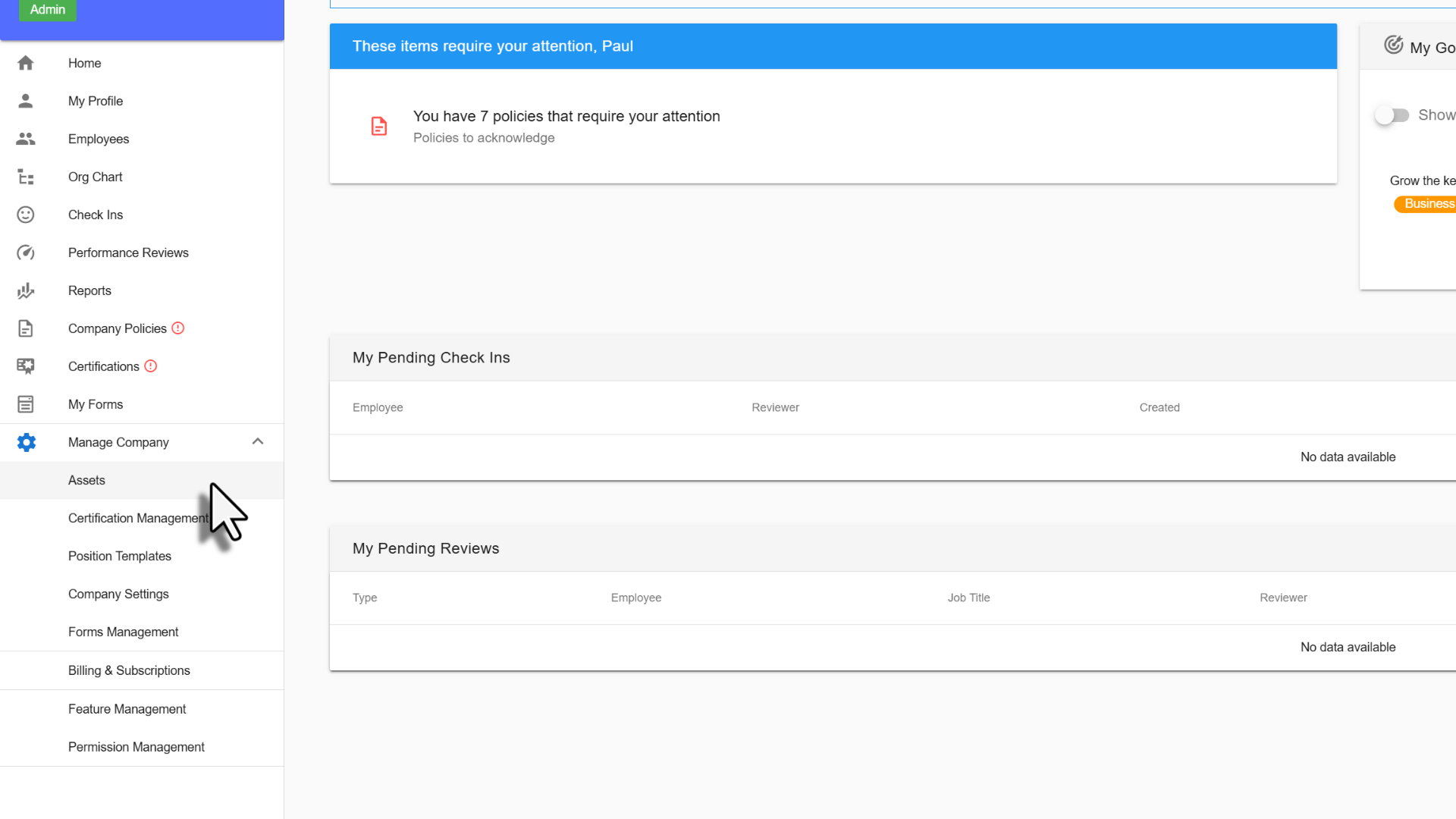
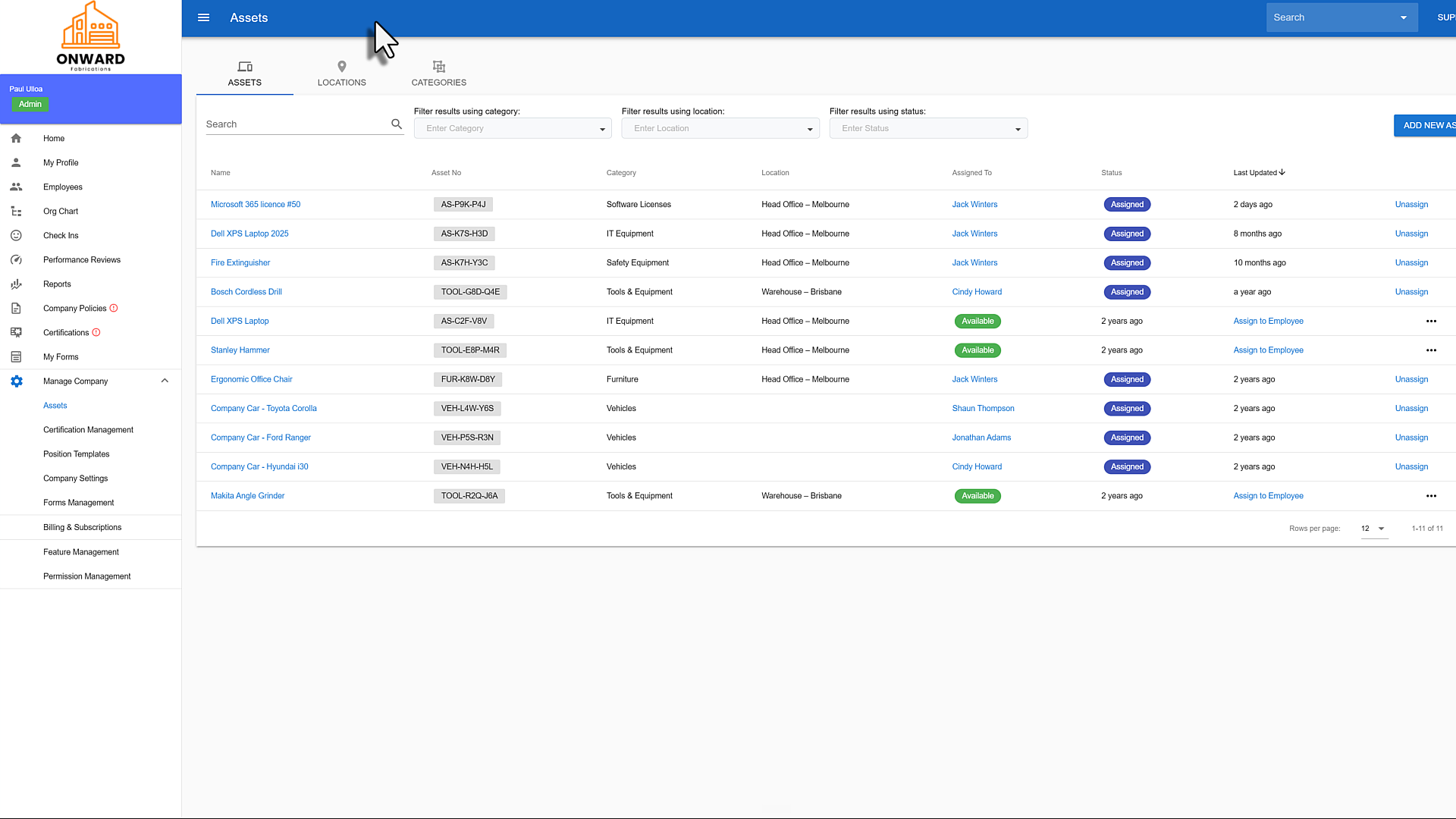
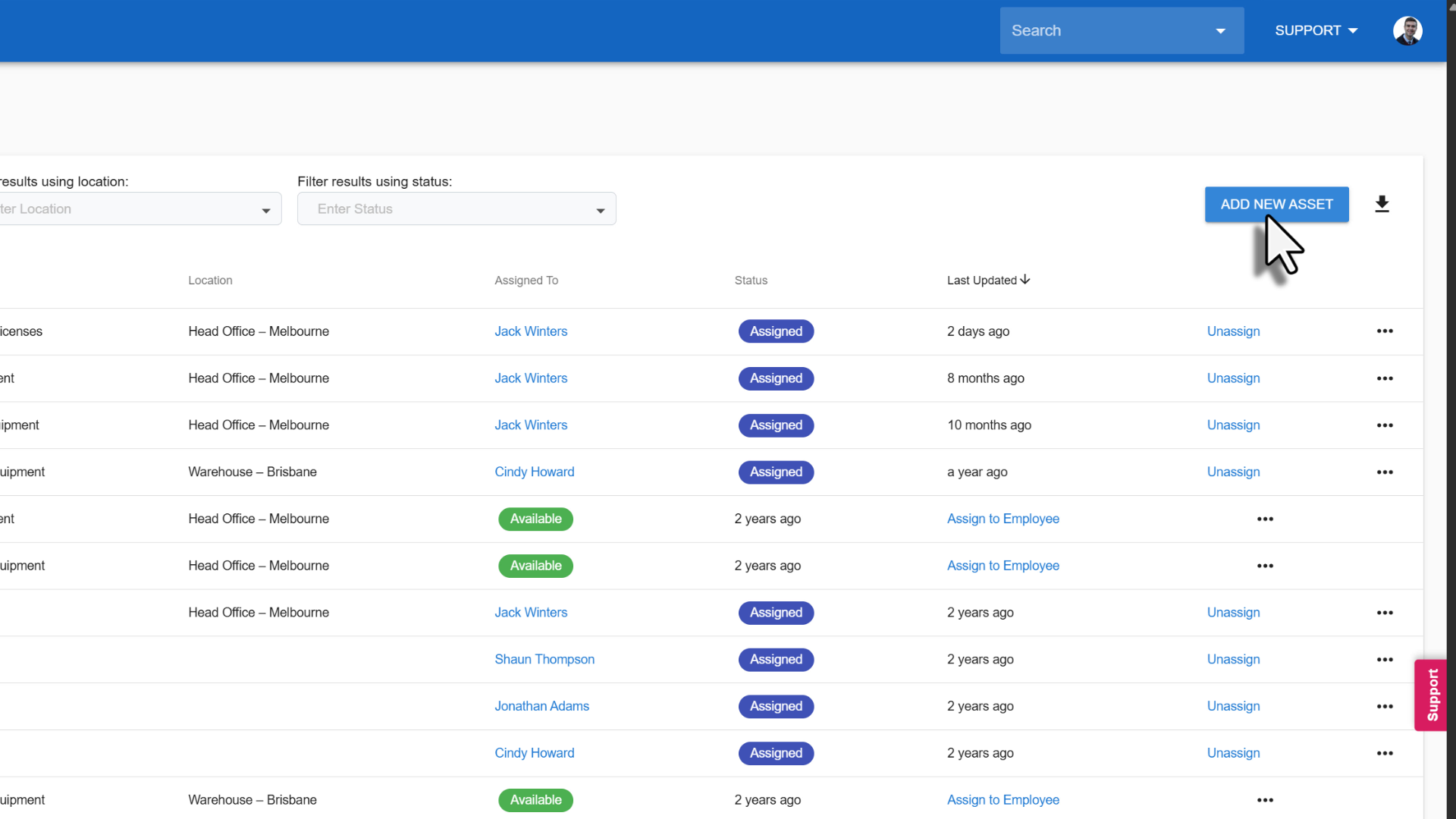
From the left-hand menu, select Manage Company, then select Assets. You’ll see a list of all assets, with each asset’s number, category, location, assigned employee and status.
2. Add locations (optional)
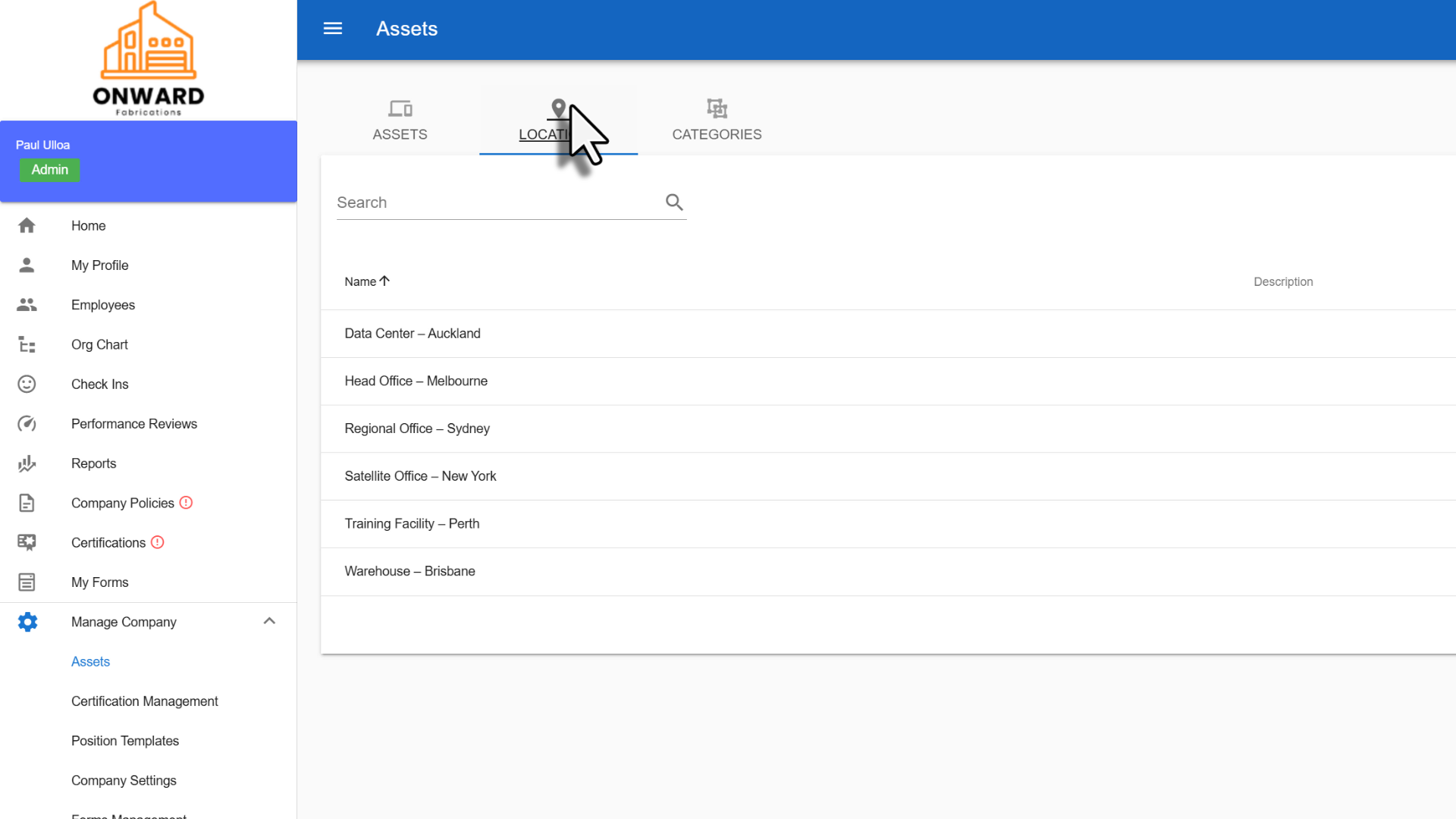
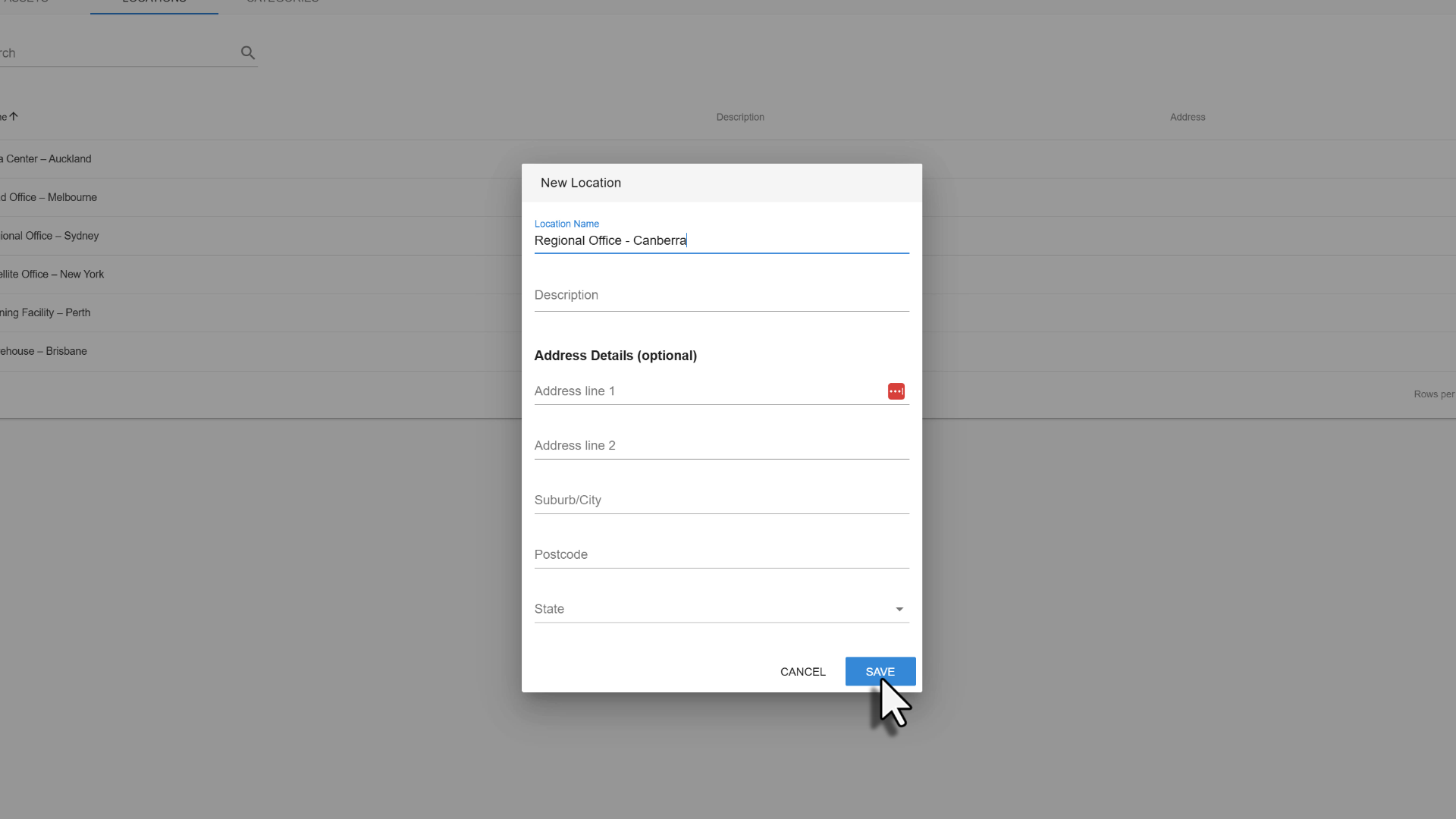
Locations are the places your business works from, such as a head office, regional office or warehouse.
- Select Locations in the top menu.
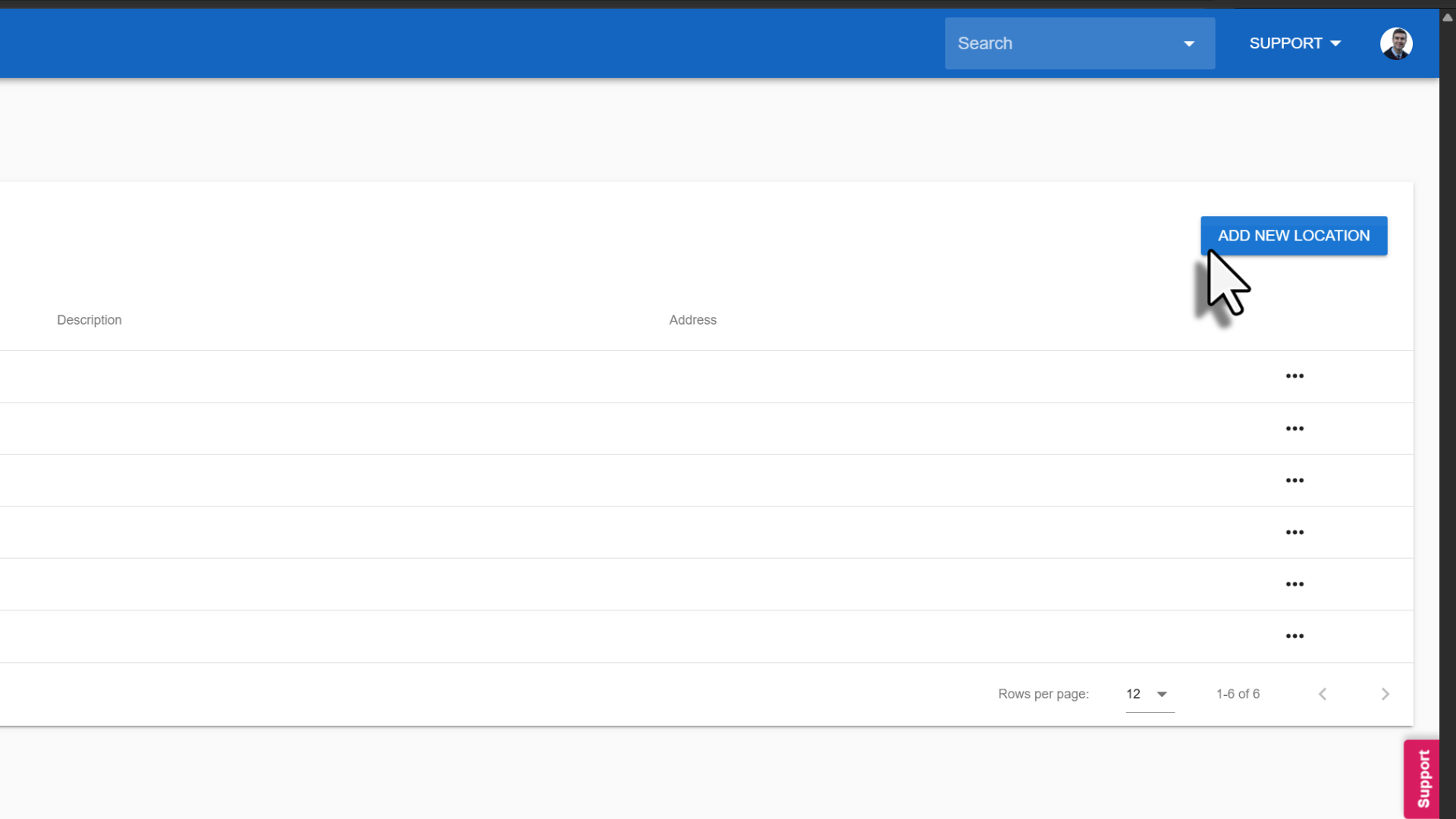
- Select Add New Location.
- Enter a Location Name. You can also add a description and address details.
- Select Save.
3. Add categories (optional)
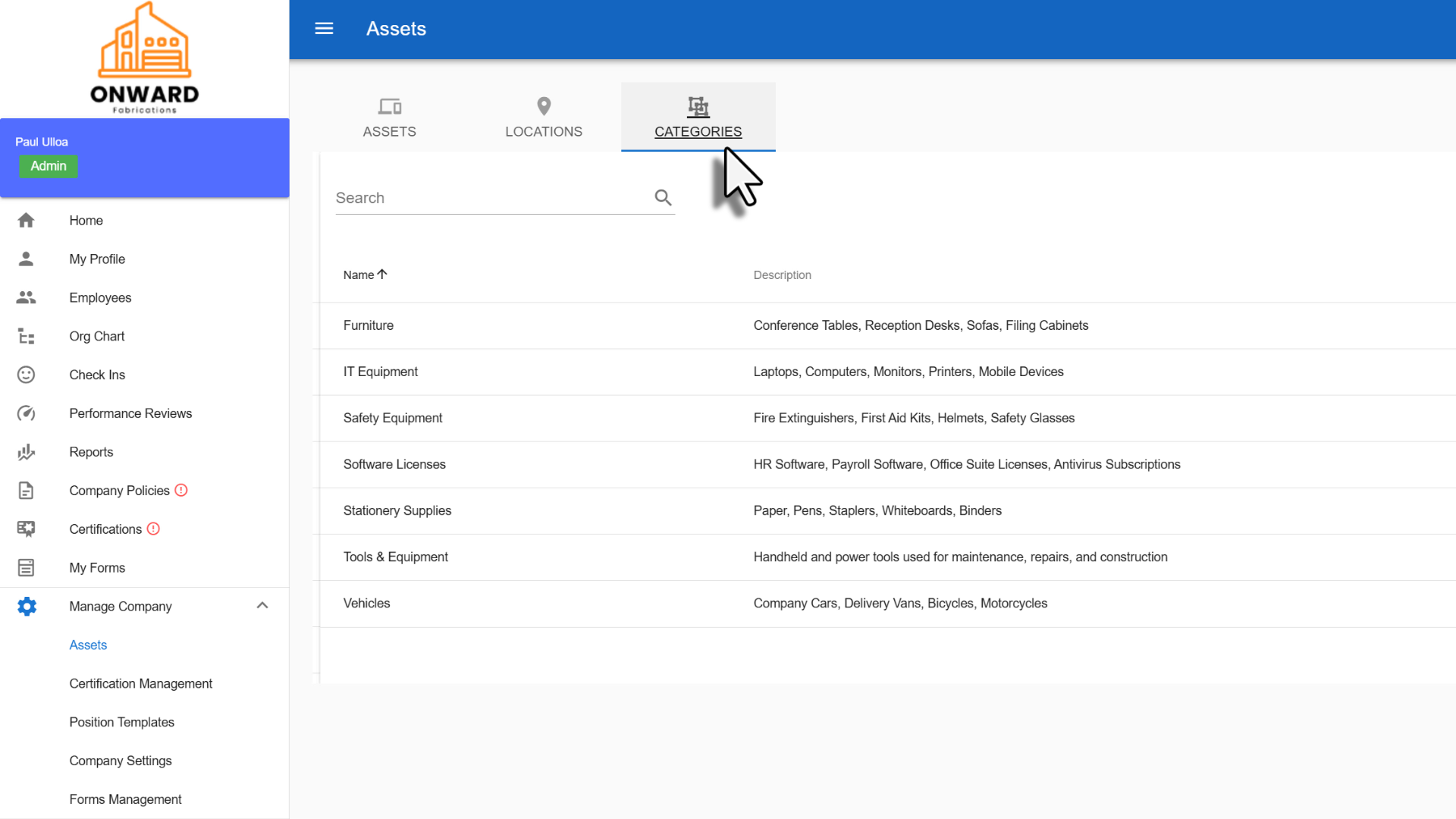
Categories group similar assets together, such as IT Equipment, Furniture or Vehicles.
- Select Categories in the top menu.
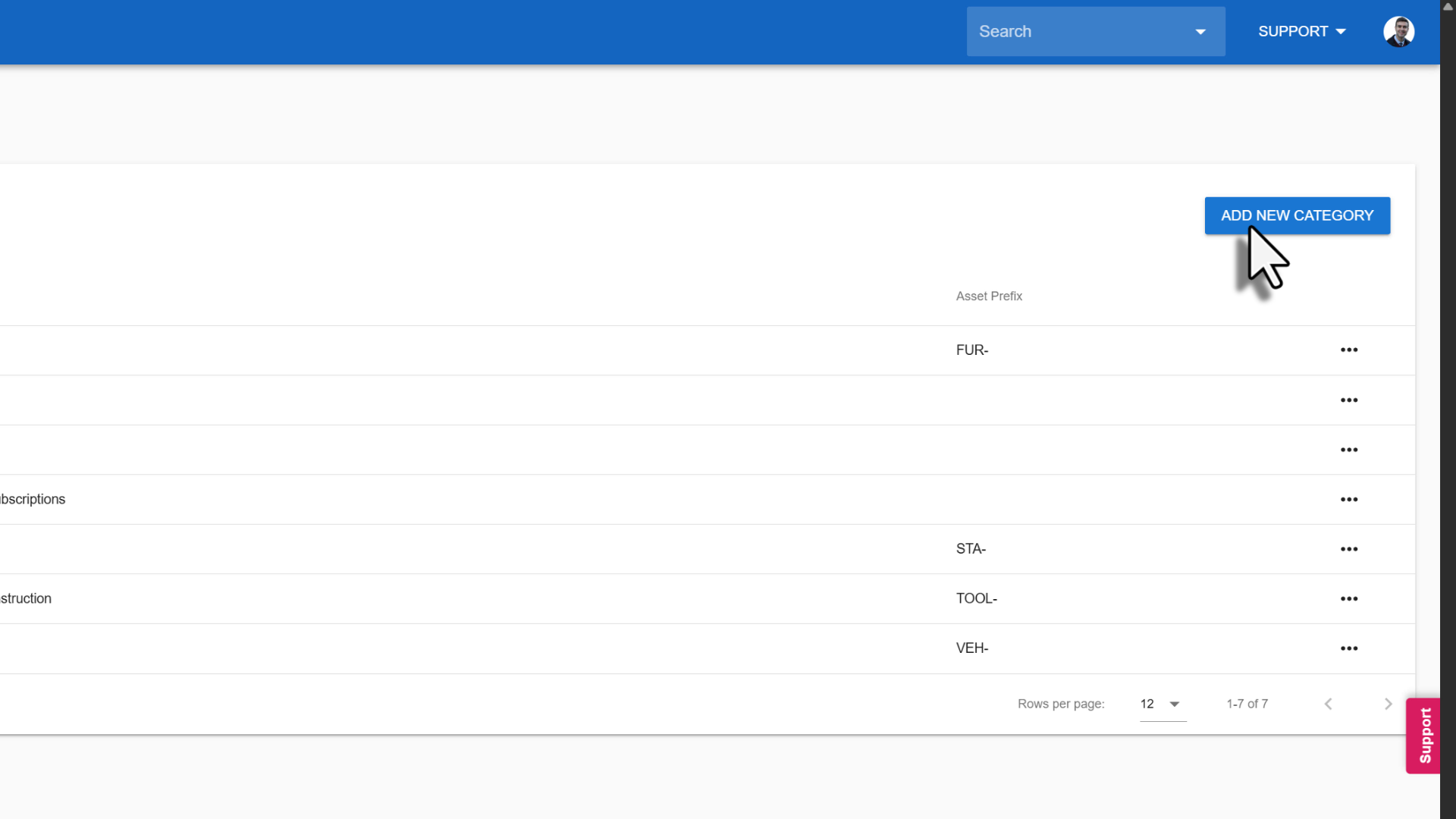
- Select Add New Category.
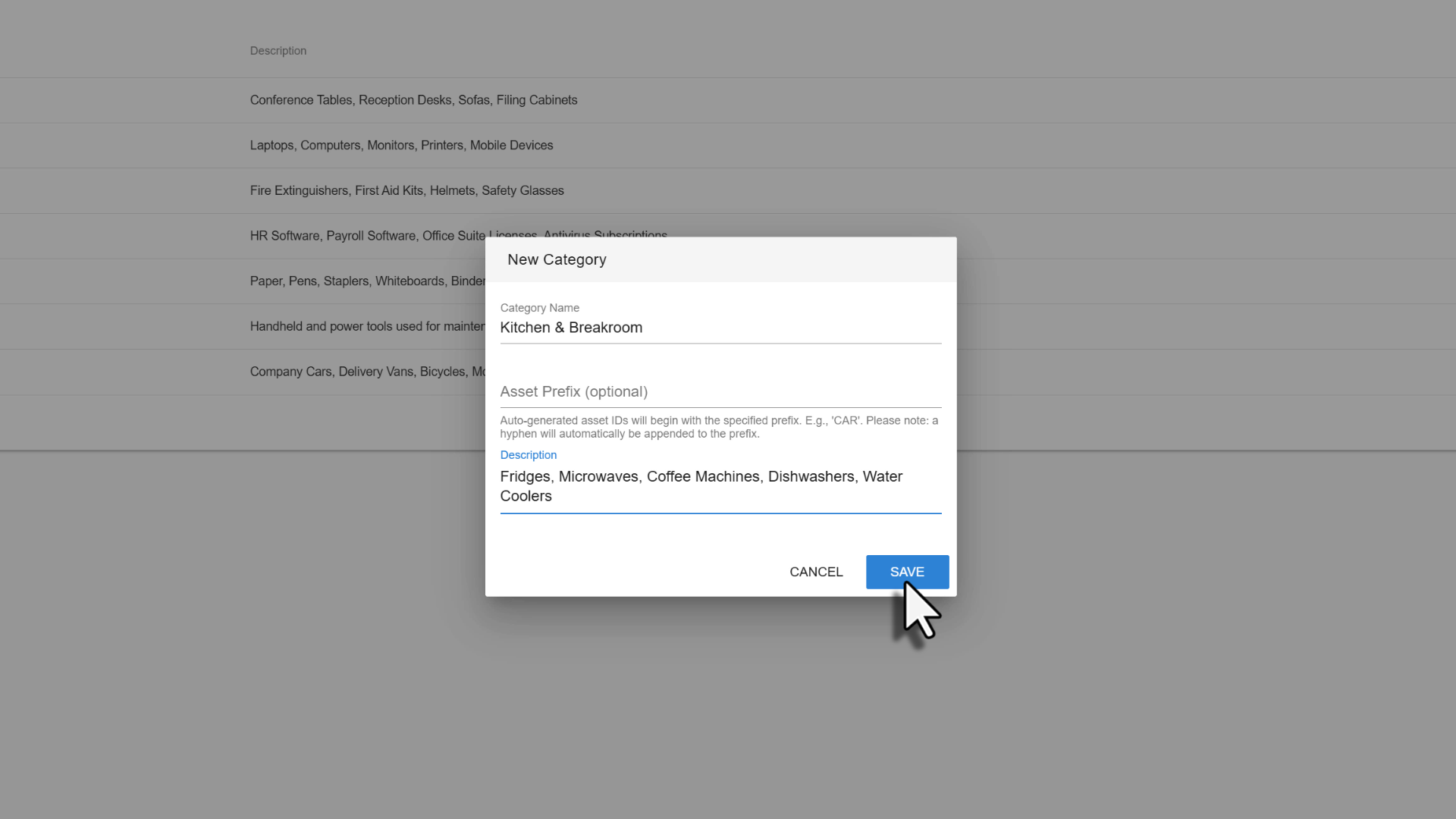
- Enter a Category Name. You can also fill out the optional fields, such as a description.
- Add an Asset Prefix if you like (for example, CAR). New asset numbers in this category will start with that prefix. A hyphen is added for you.
- Select Save.
4. Add an asset
- On the Assets tab, select Add New Asset.
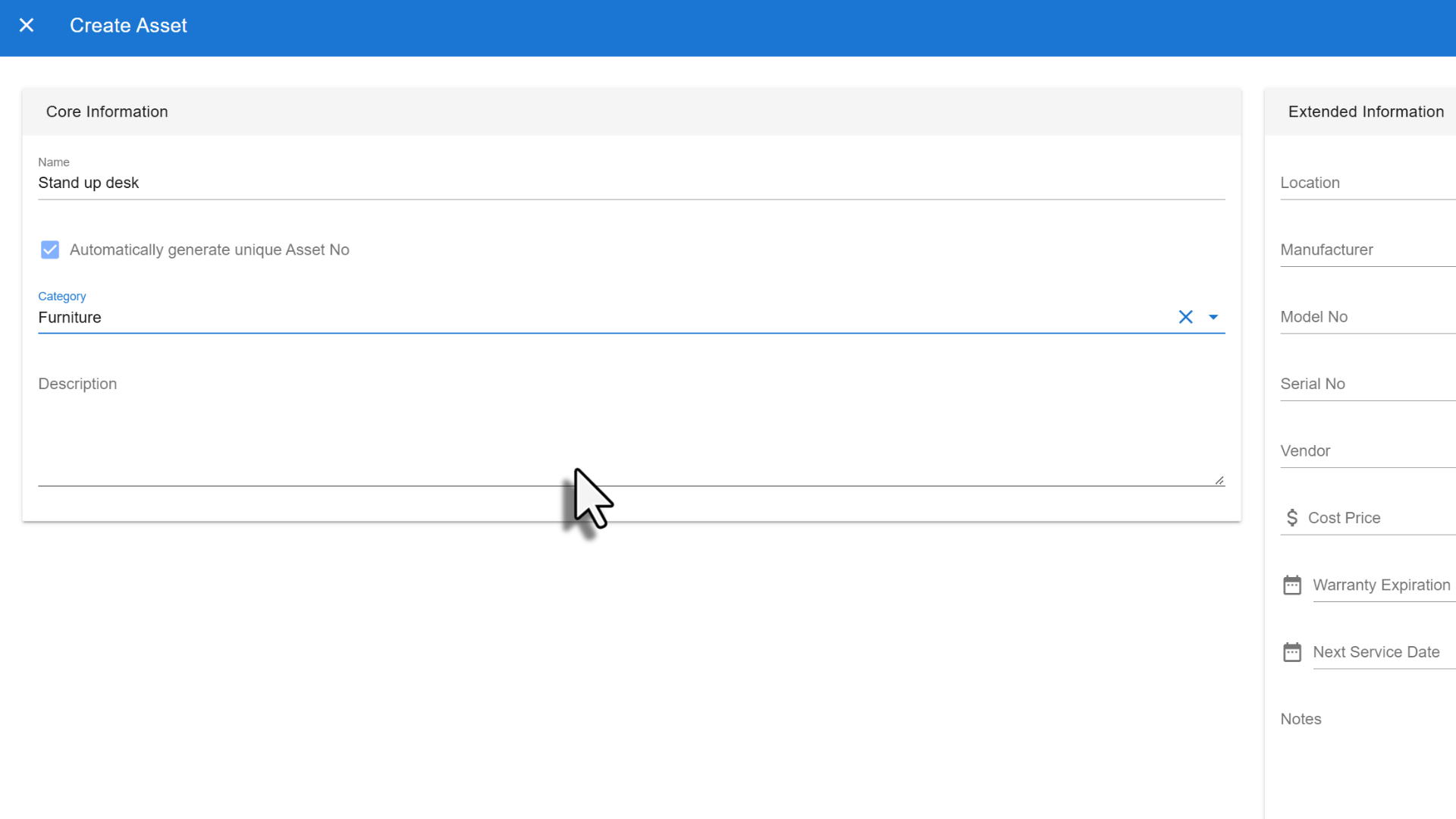
- Enter the asset Name and choose its Category. Leave Automatically generate a new Asset No ticked to have the asset number created for you.
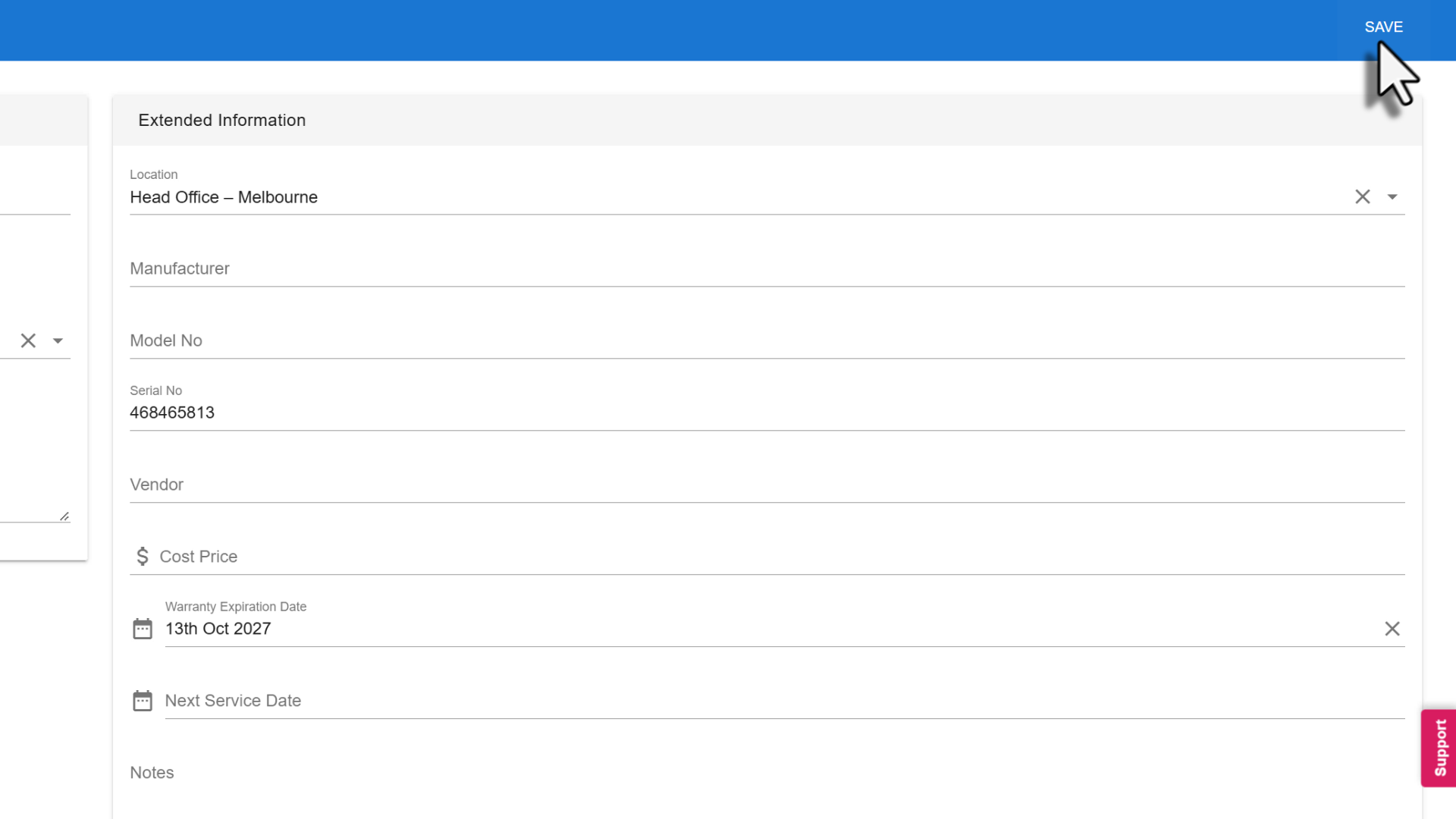
- Choose the Location and add any other details you want to track, such as serial number, model, manufacturer, vendor, cost price, warranty expiry or next service date.
- Select Save.
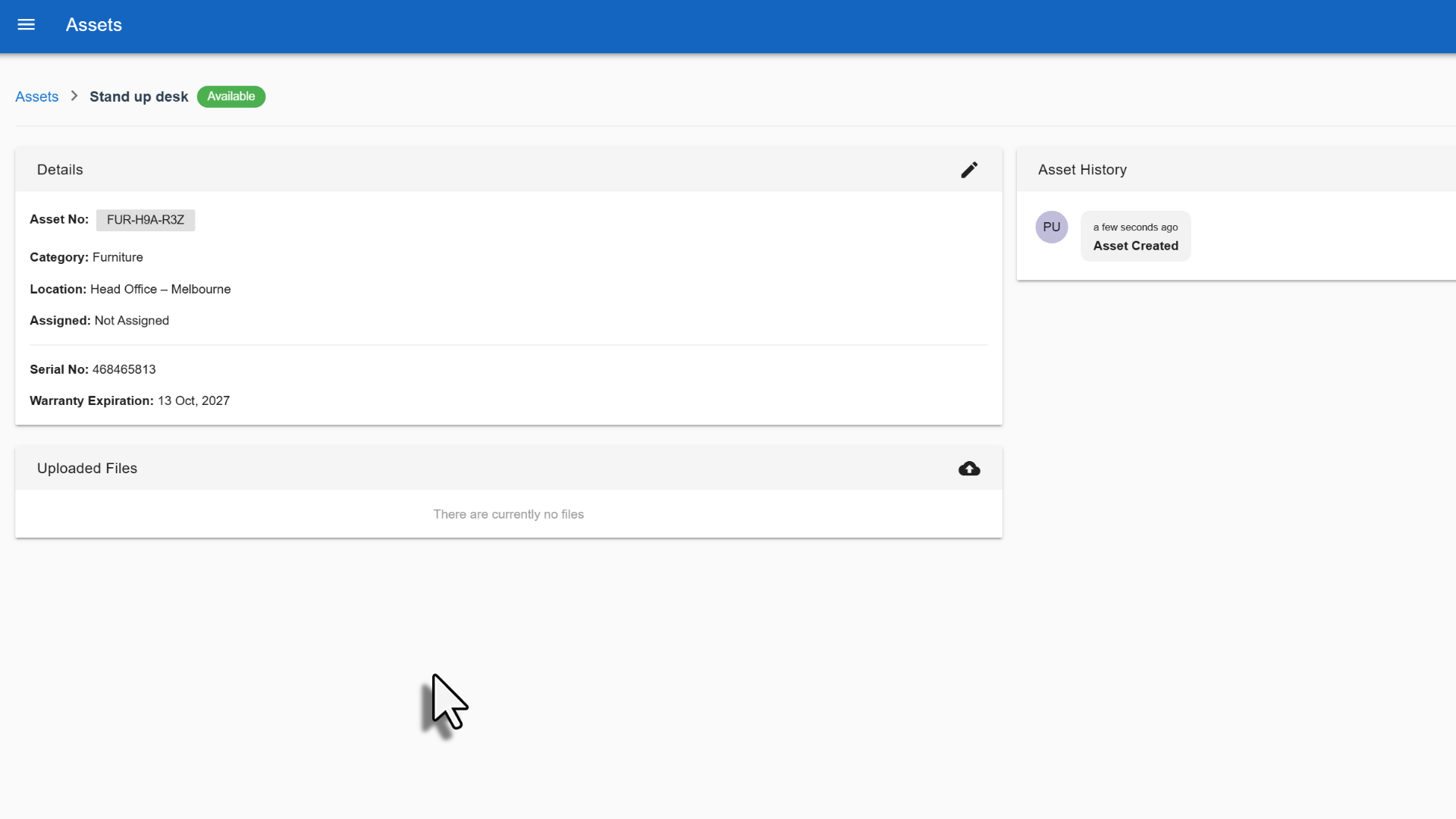
The asset’s page opens, showing its details and an Asset History that records every change.
5. Assign an asset to an employee
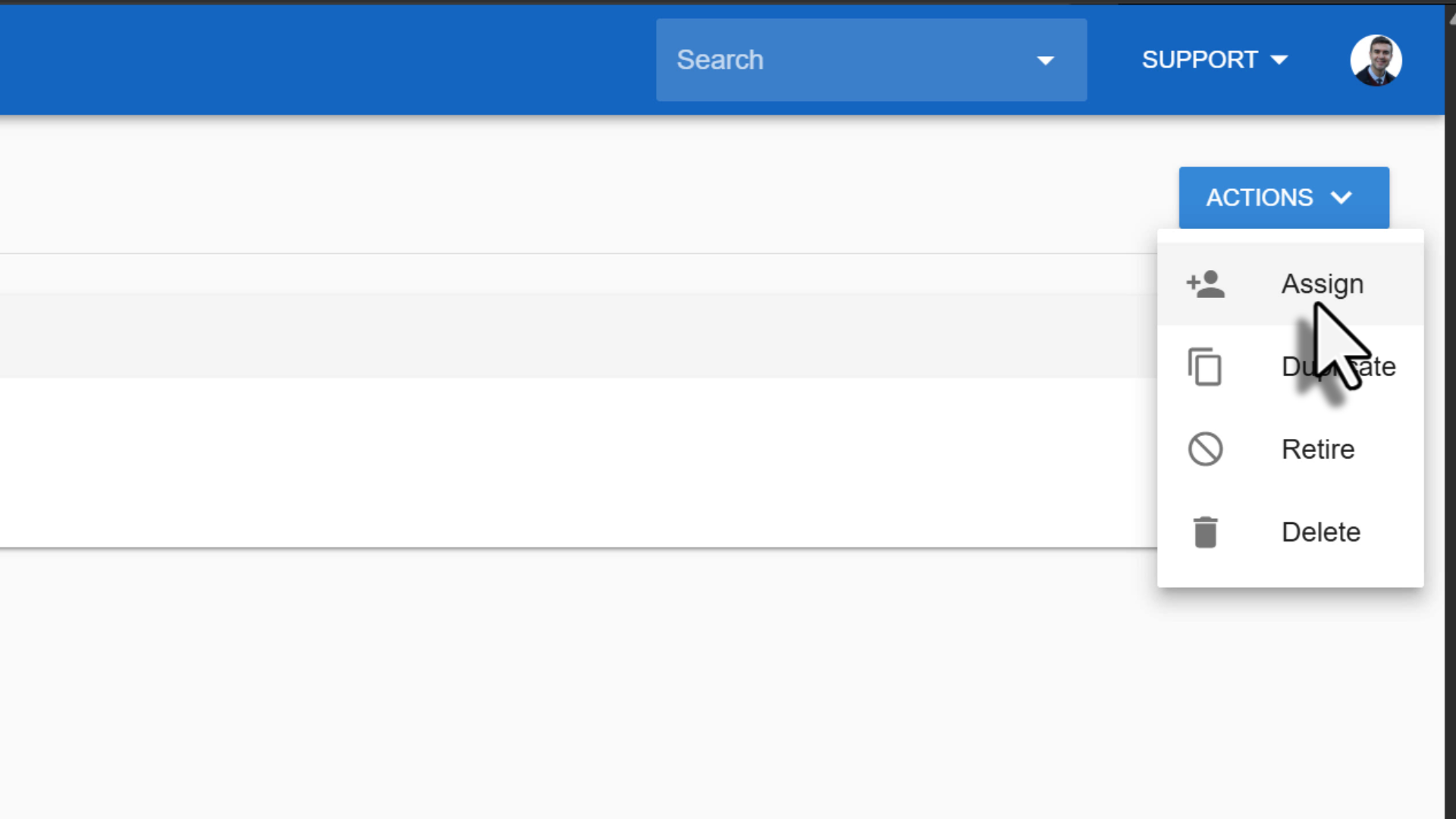
- Open the asset by selecting its name in the asset list. Then select Actions, then Assign. (From the asset list, you can also select Assign to Employee.)
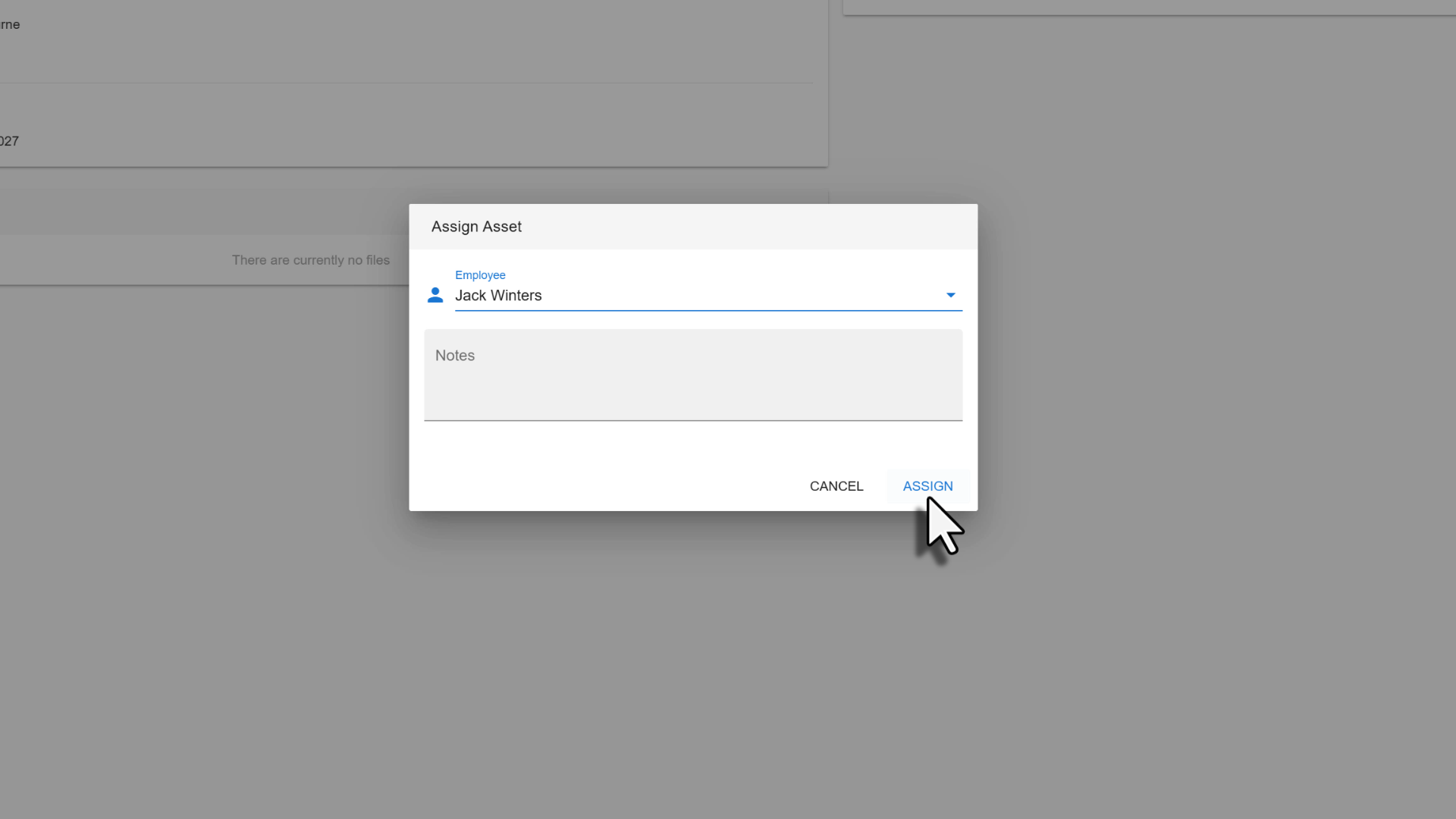
- Choose the Employee and add any notes.
- Select Assign.
The asset’s status changes to Assigned.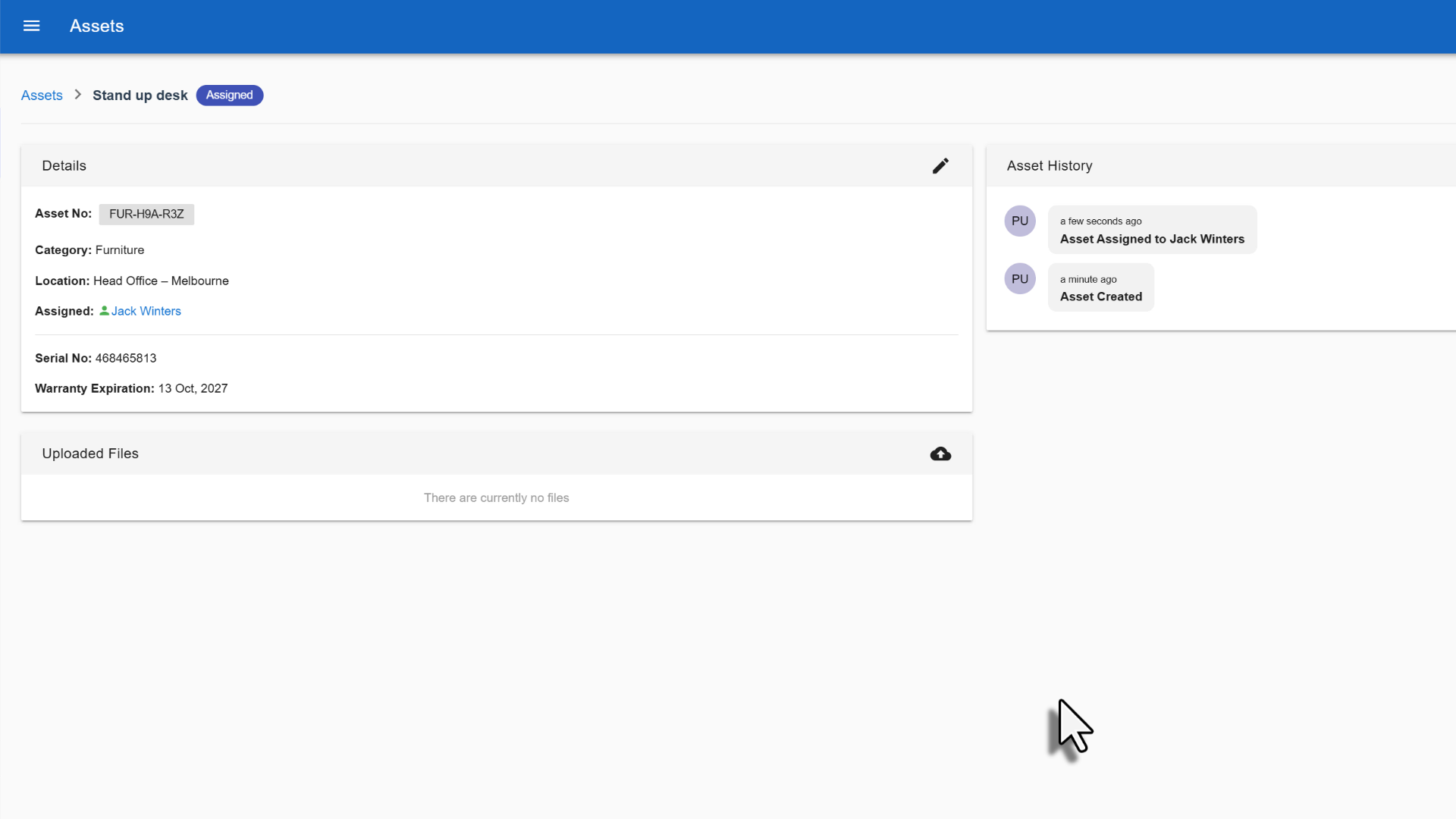
Tip: The Actions menu also lets you Duplicate an asset (handy for several identical items), Retire an asset you no longer use, or Delete it.
6. Unassign or reassign an asset
- When an employee returns an asset:
- In the asset list, find the asset and select Unassign.
- Add a note if needed, then select Confirm.
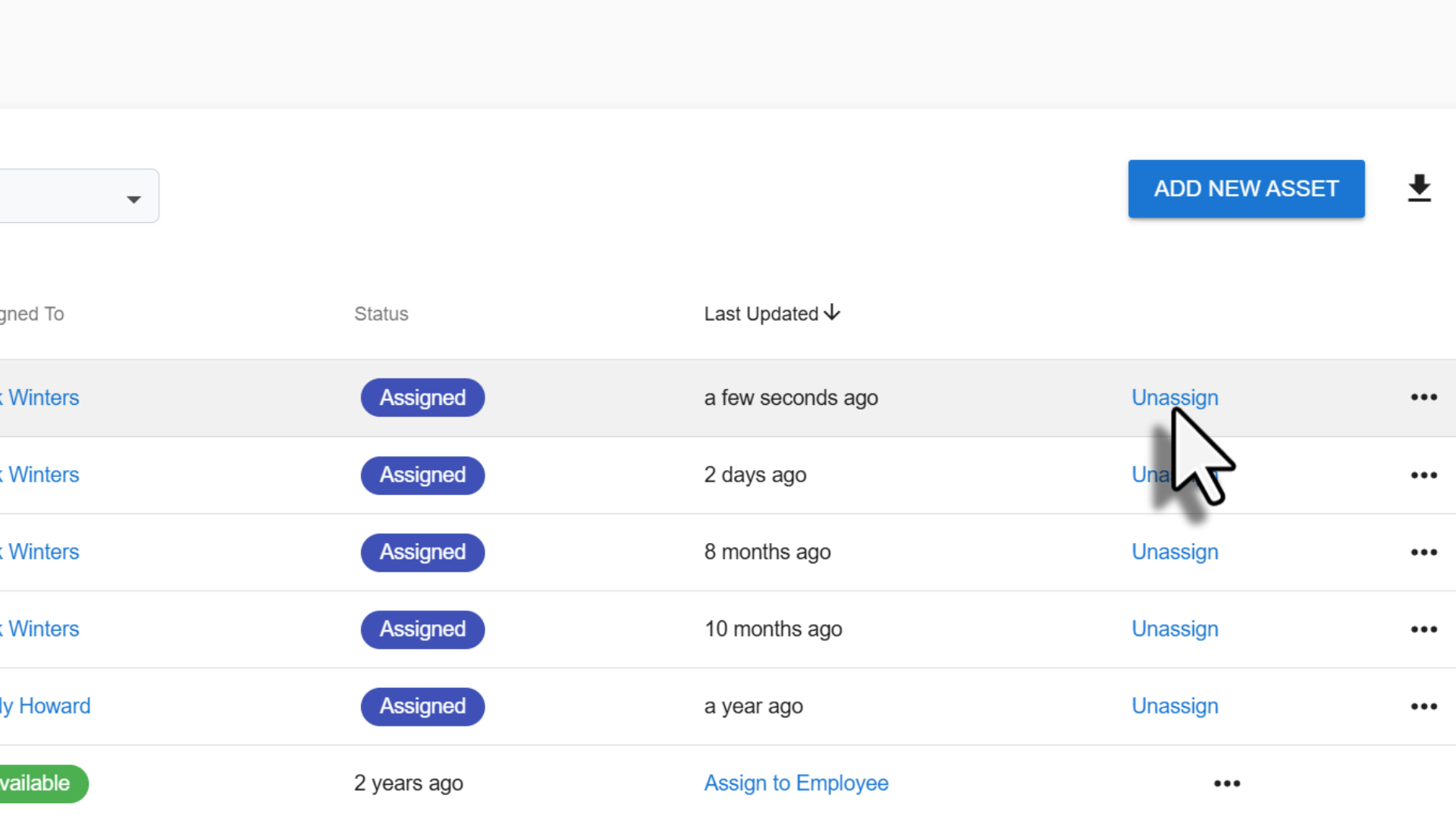
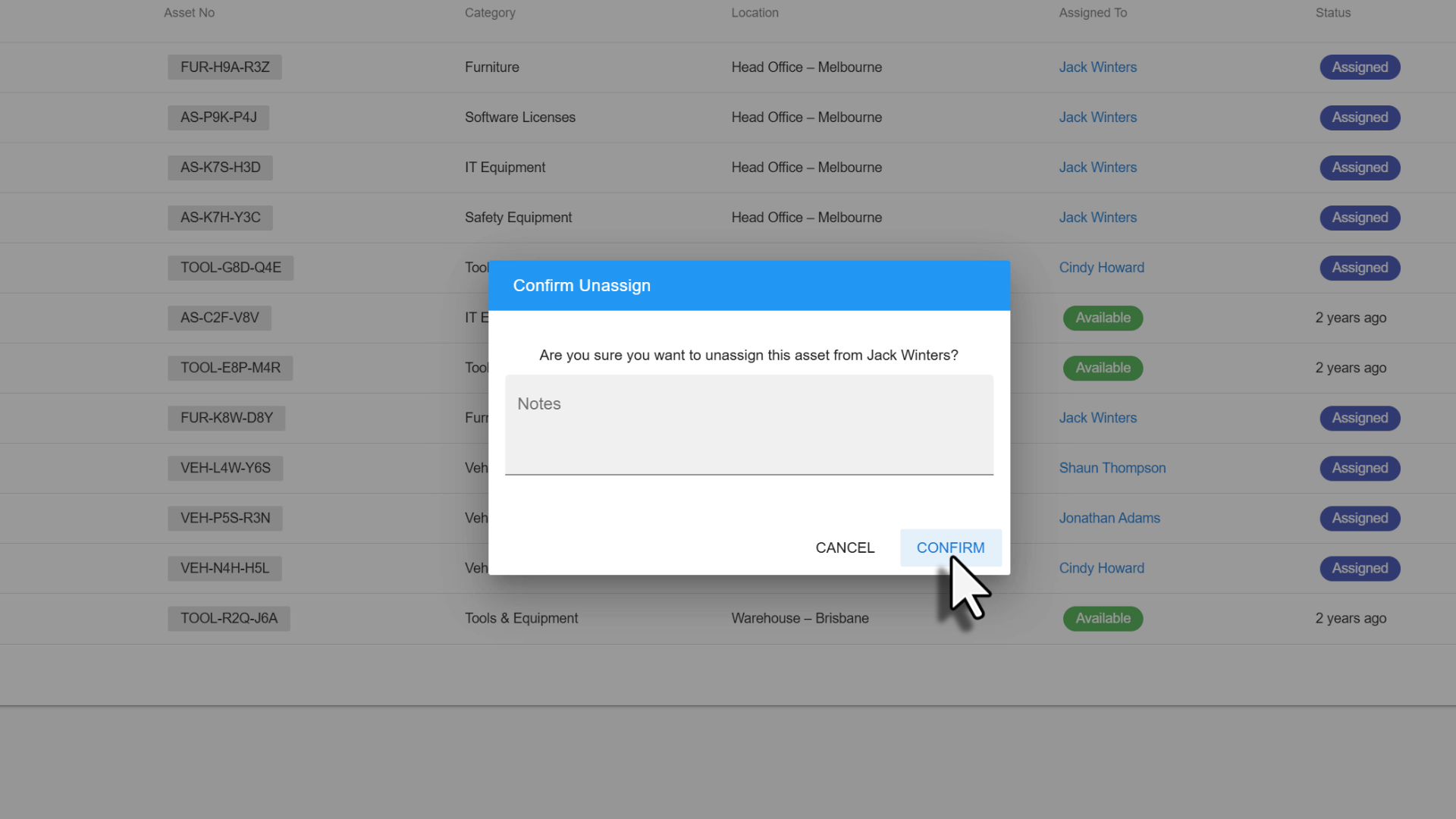
The asset’s status changes to Available. To give it to someone else, select Assign to Employee and follow step 5.
Tip: If the status doesn’t update straight away, refresh the page.
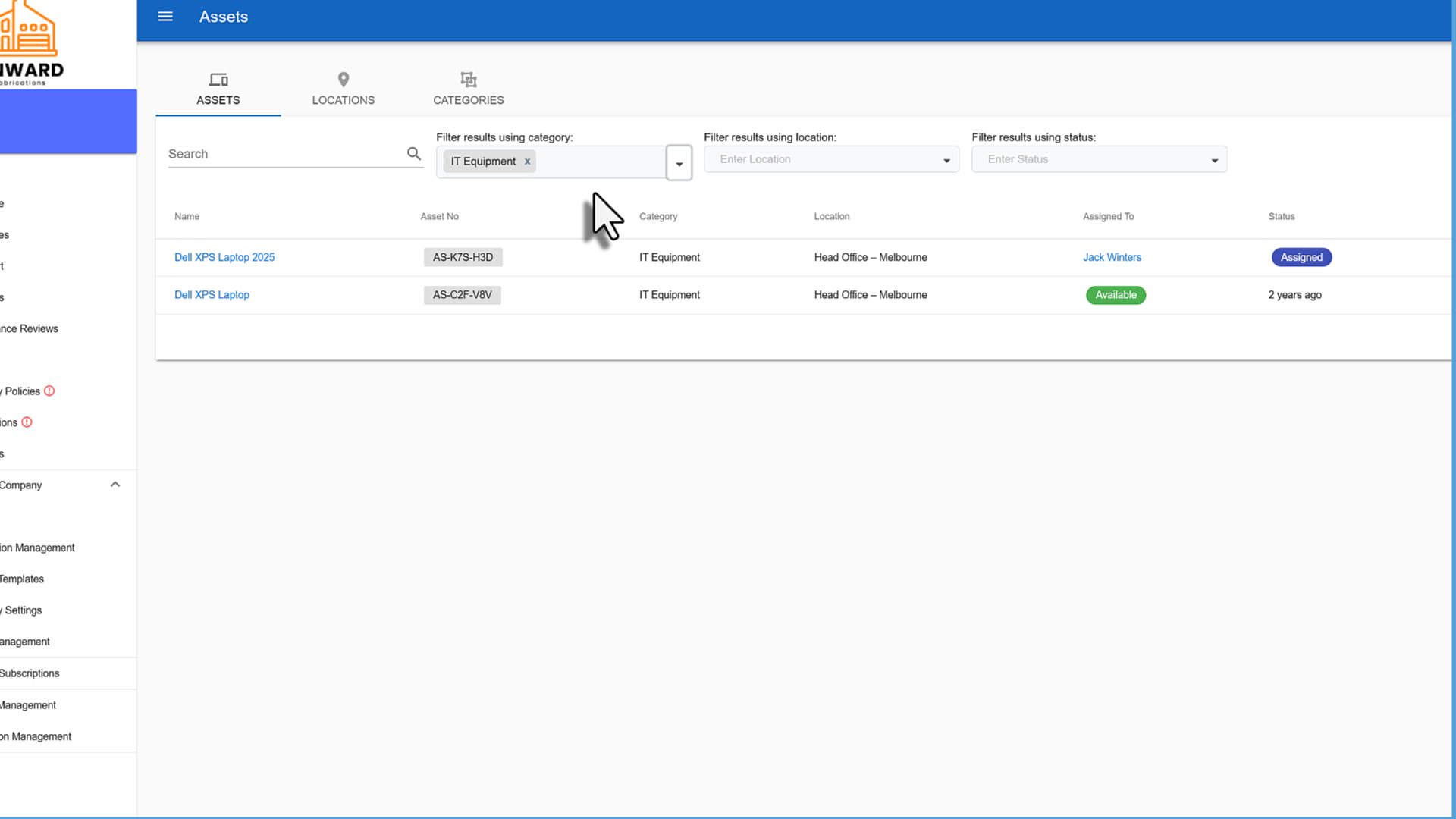
7. Find assets with filters
Use the filters above the asset list to narrow results by category, location or status. You can combine them, for example to see all available IT equipment at one office. You can also search by name.
8. See an employee’s assets
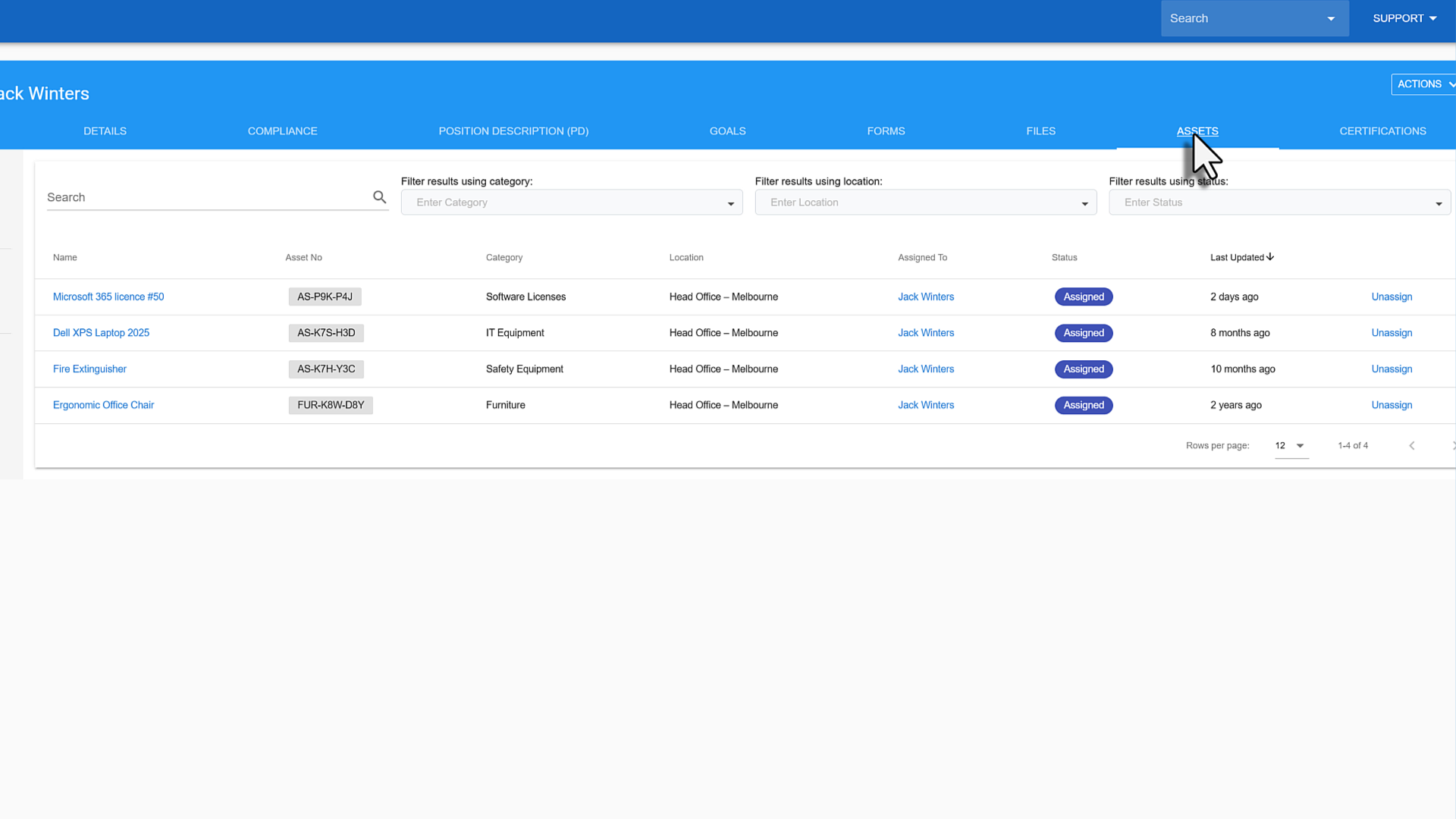
To check what a staff member has, select Employees, open their profile, and select the Assets tab.
Was this article helpful?
That’s Great!
Thank you for your feedback
Sorry! We couldn't be helpful
Thank you for your feedback
Feedback sent
We appreciate your effort and will try to fix the article