Adding a profile photo helps personalise your experience in Your HR System and makes it easier for your team to recognise each other across the platform. Your photo will appear in places like the org chart and employee list. This article shows you how to add a photo to your profile.
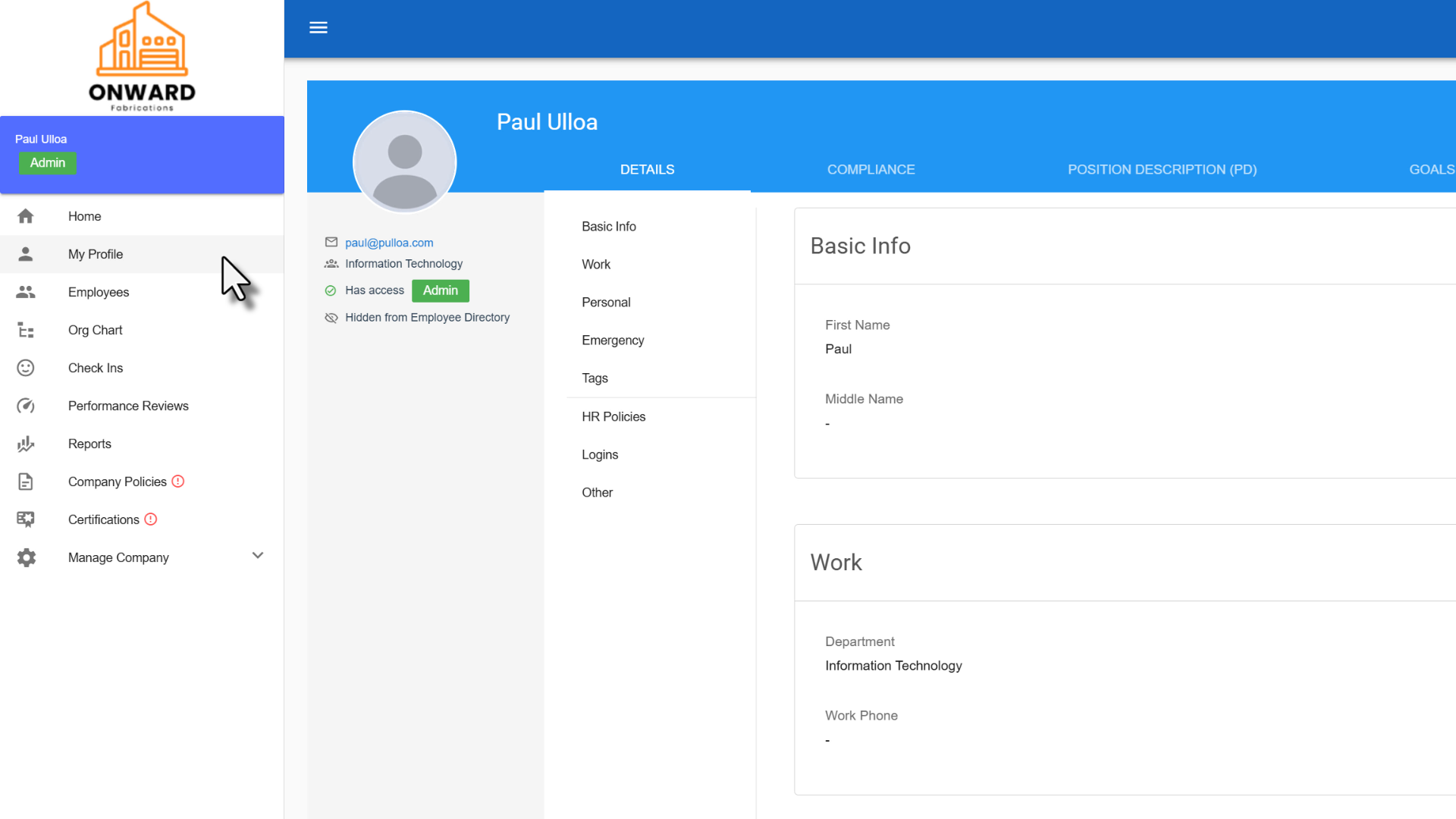
1. Go to your profile
From the homepage, click your profile picture in the top right-hand corner, or select My Profile from the left-hand menu.
2. Open the photo upload
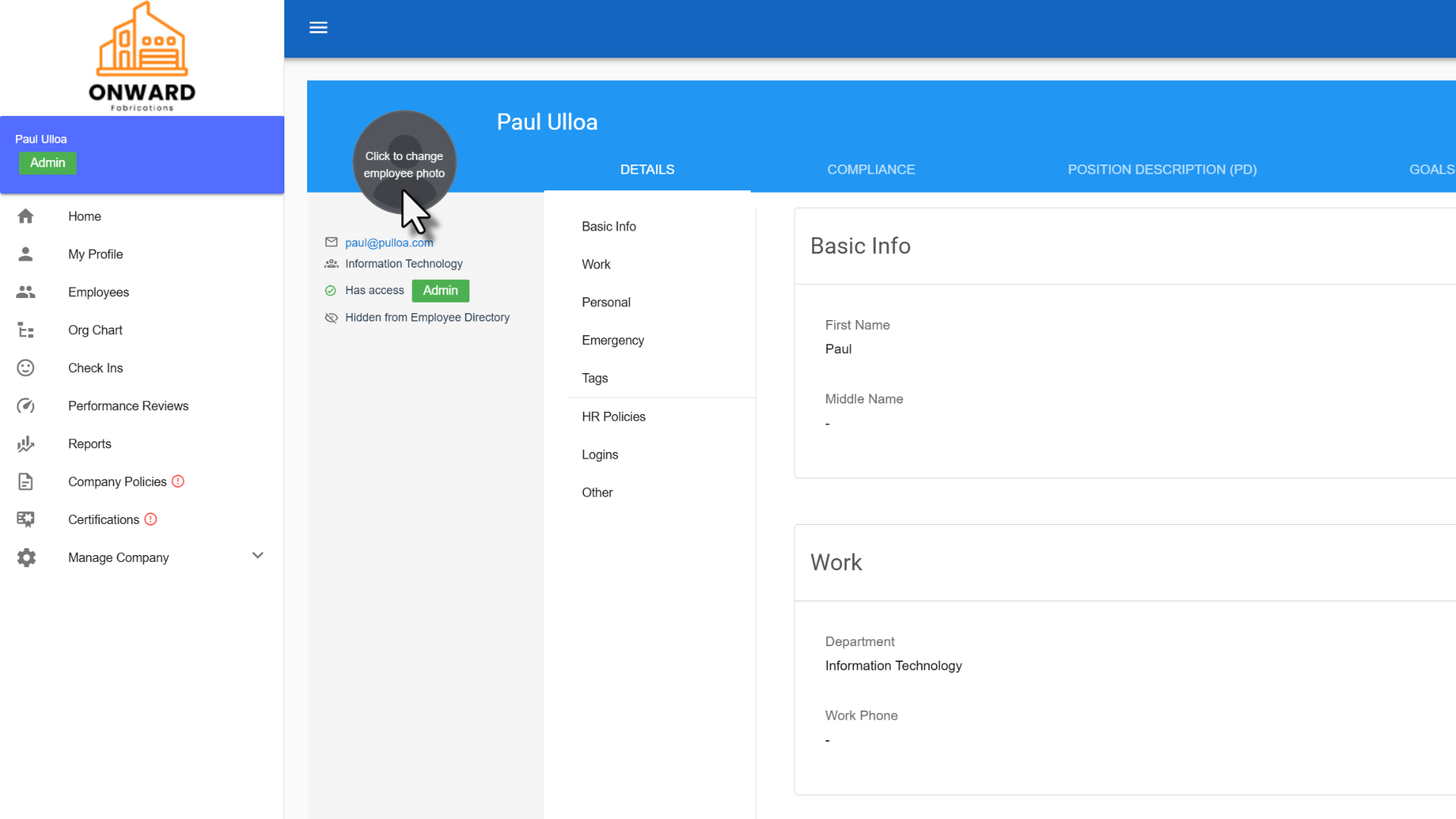
On your profile page, click the blank avatar image.
3. Select your photo
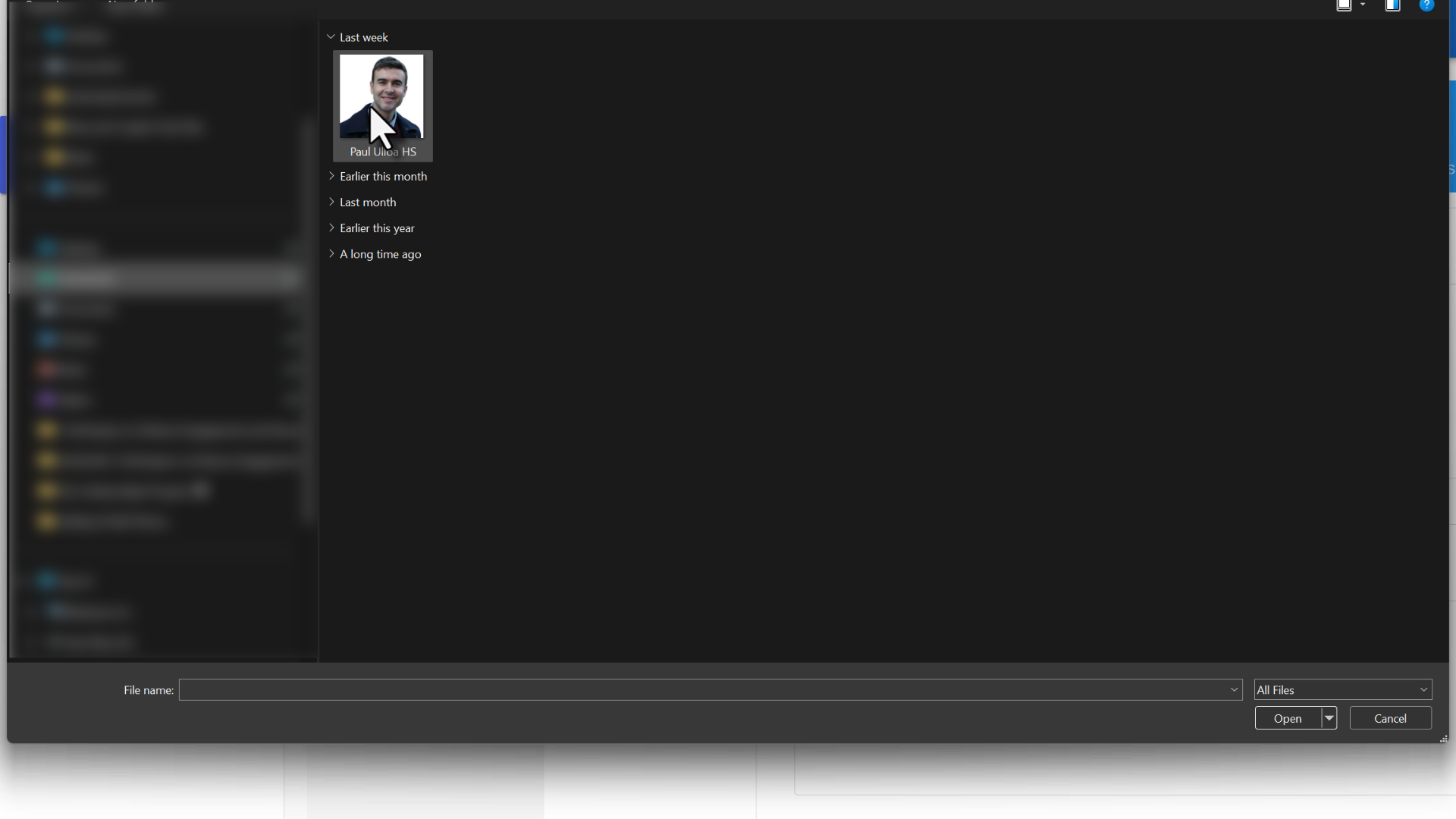
Choose the photo you'd like to use from your device.
4. Your photo is now saved
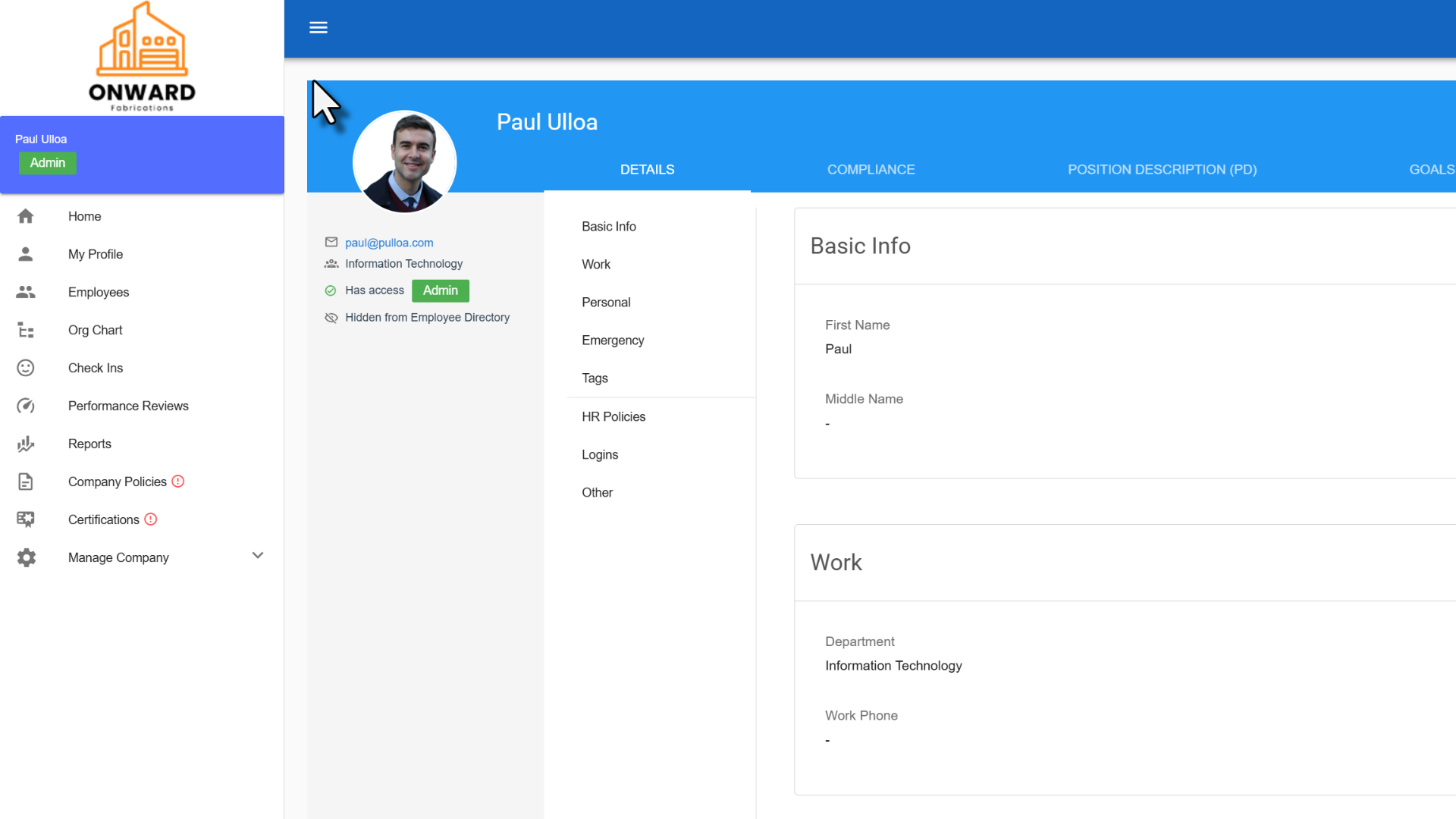
Your profile photo will now appear across Your HR System, including the org chart and employee list.
Was this article helpful?
That’s Great!
Thank you for your feedback
Sorry! We couldn't be helpful
Thank you for your feedback
Feedback sent
We appreciate your effort and will try to fix the article