Custom Permission Groups allow you to control who can access specific areas of Your HR System. This helps support company compliance, maintain up-to-date documentation, and reduce the risk of employee or company confidentiality breaches.
Rather than giving broad access, permission groups let you assign only what’s necessary based on a team member’s role or responsibilities. This article shows you how to create, manage, and remove Custom Permission Groups.
1. Open Permission Management
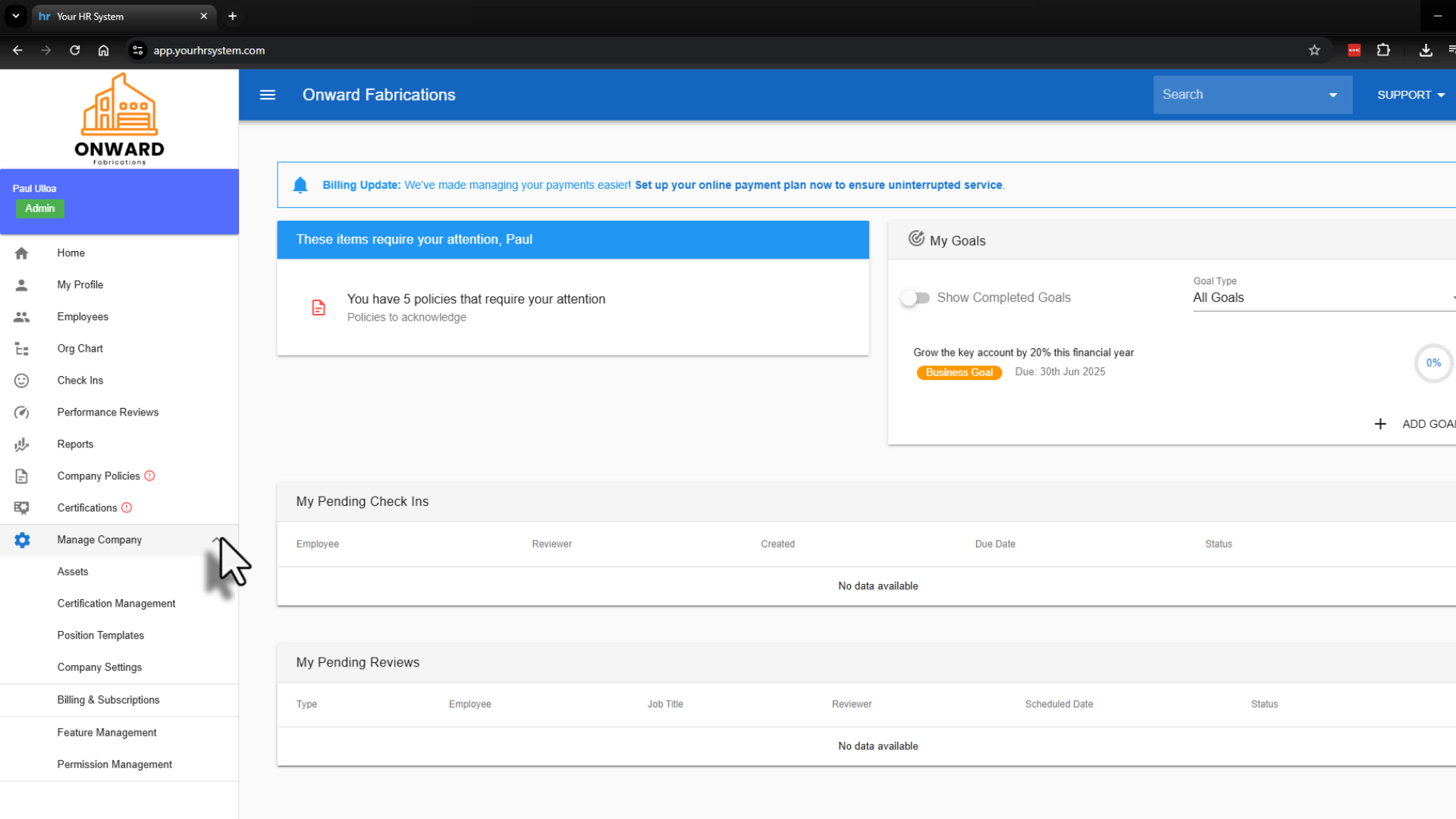
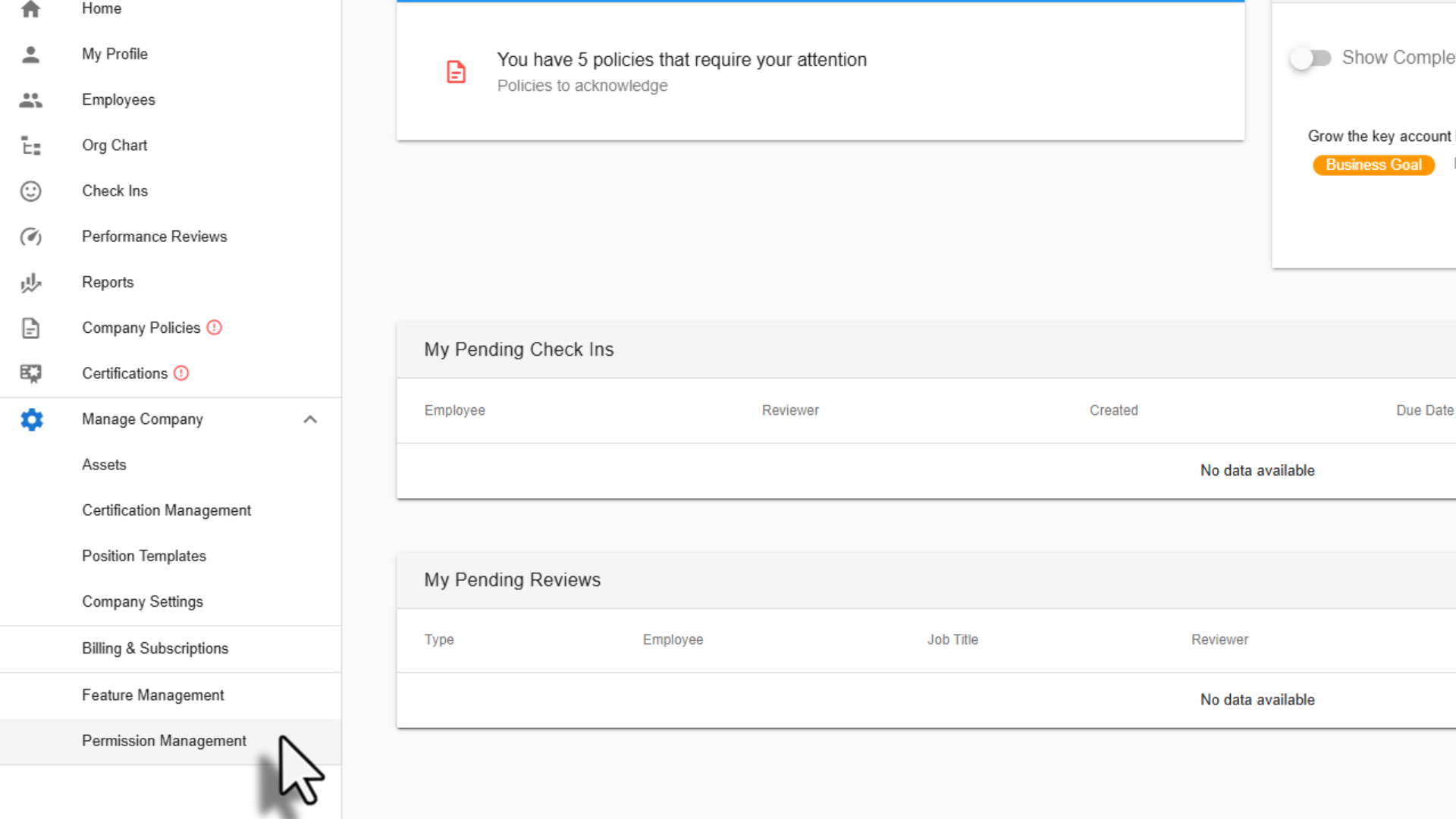
From the main menu, select Manage Company, then choose Permission Management. This is where all Custom Permission Groups are created and managed.
2. Add a new Permission Group
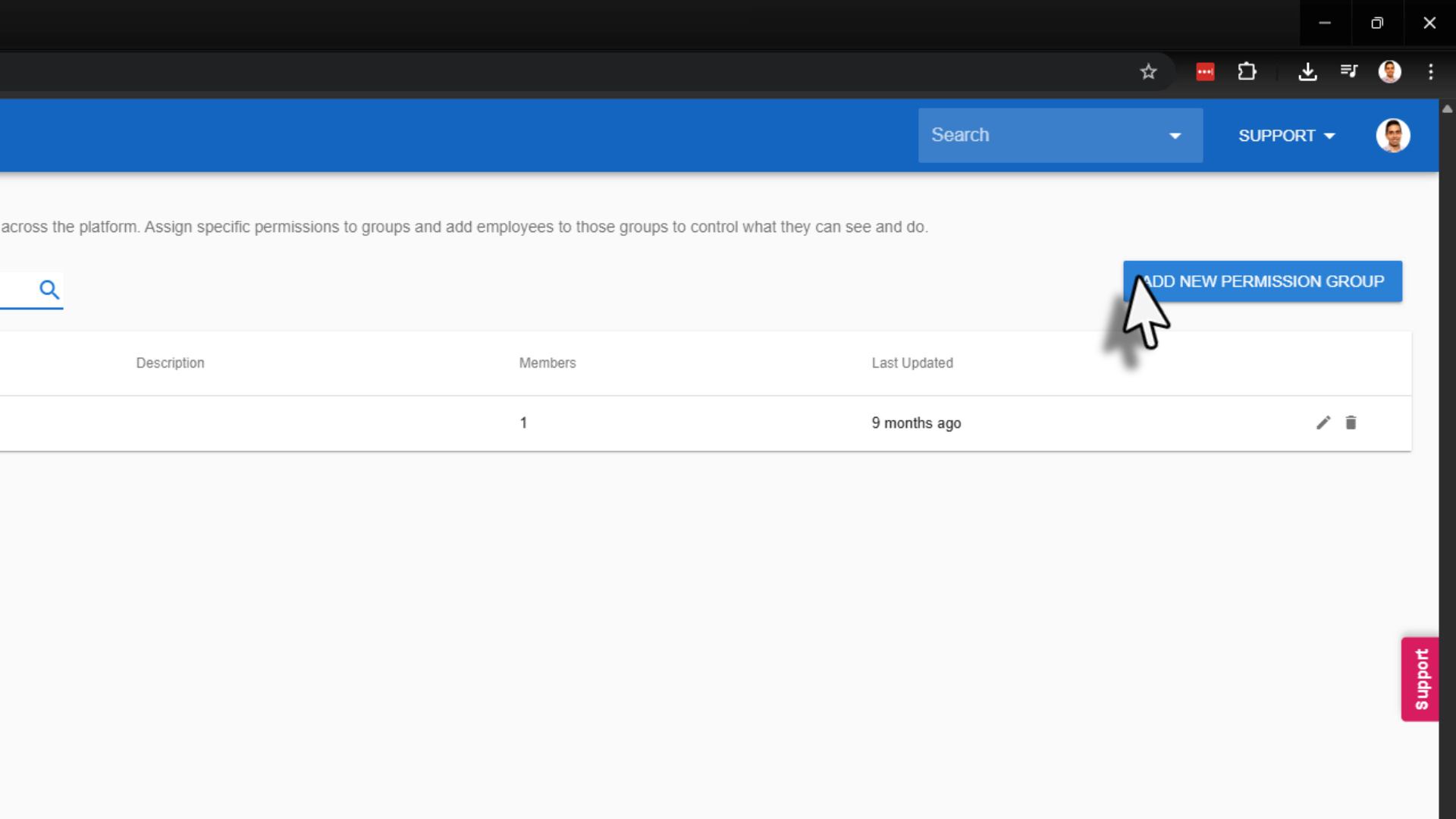
Select Add New Permission Group. You’ll now be prompted to customise the group’s details.
3. Name and describe the Permission Group
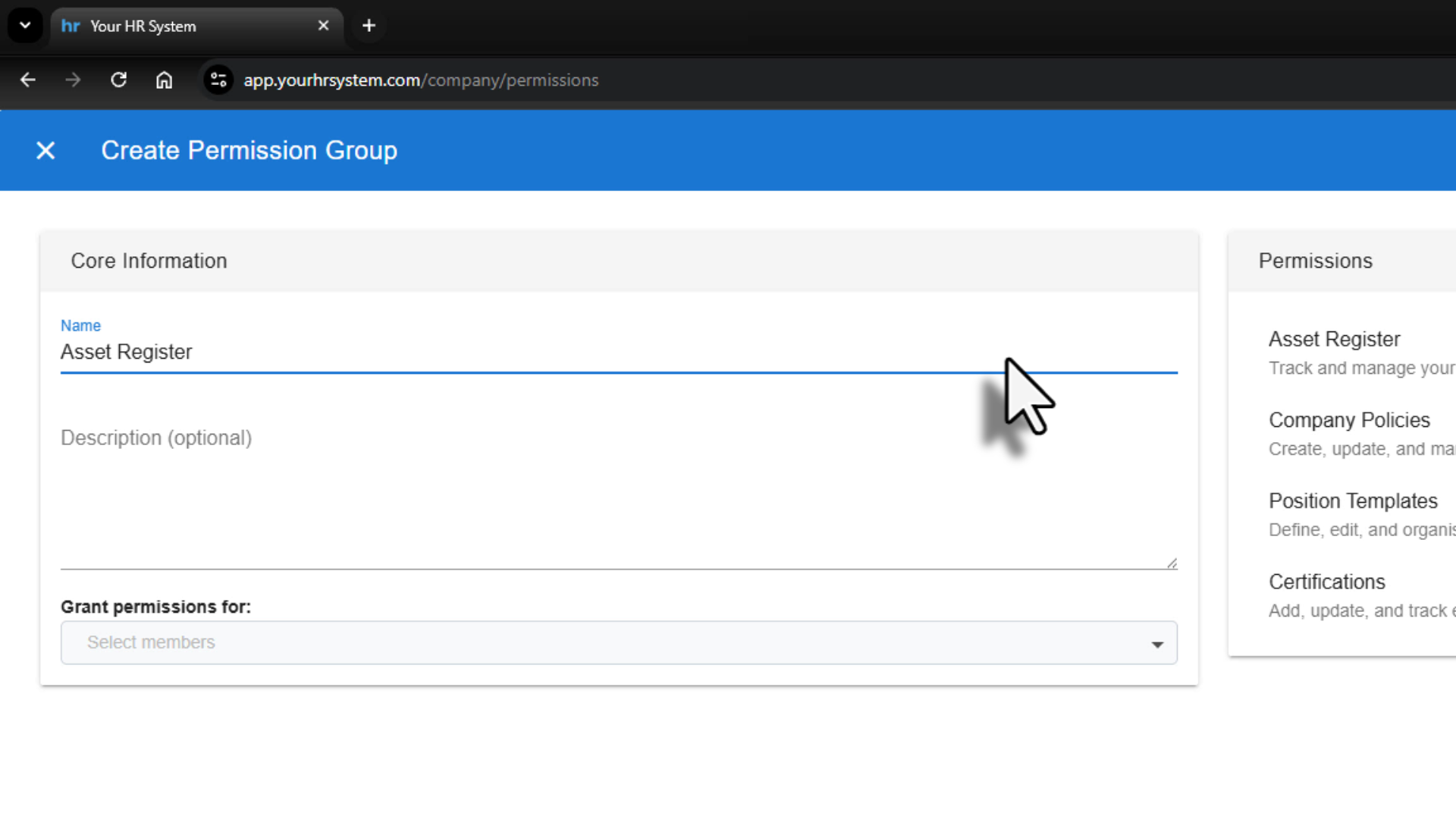
Give the permission group a clear, descriptive name that reflects the access it provides. For example, Asset Register or HR Policies.
You can also add an optional description to explain what the group is used for, which is helpful when managing multiple permission groups over time.
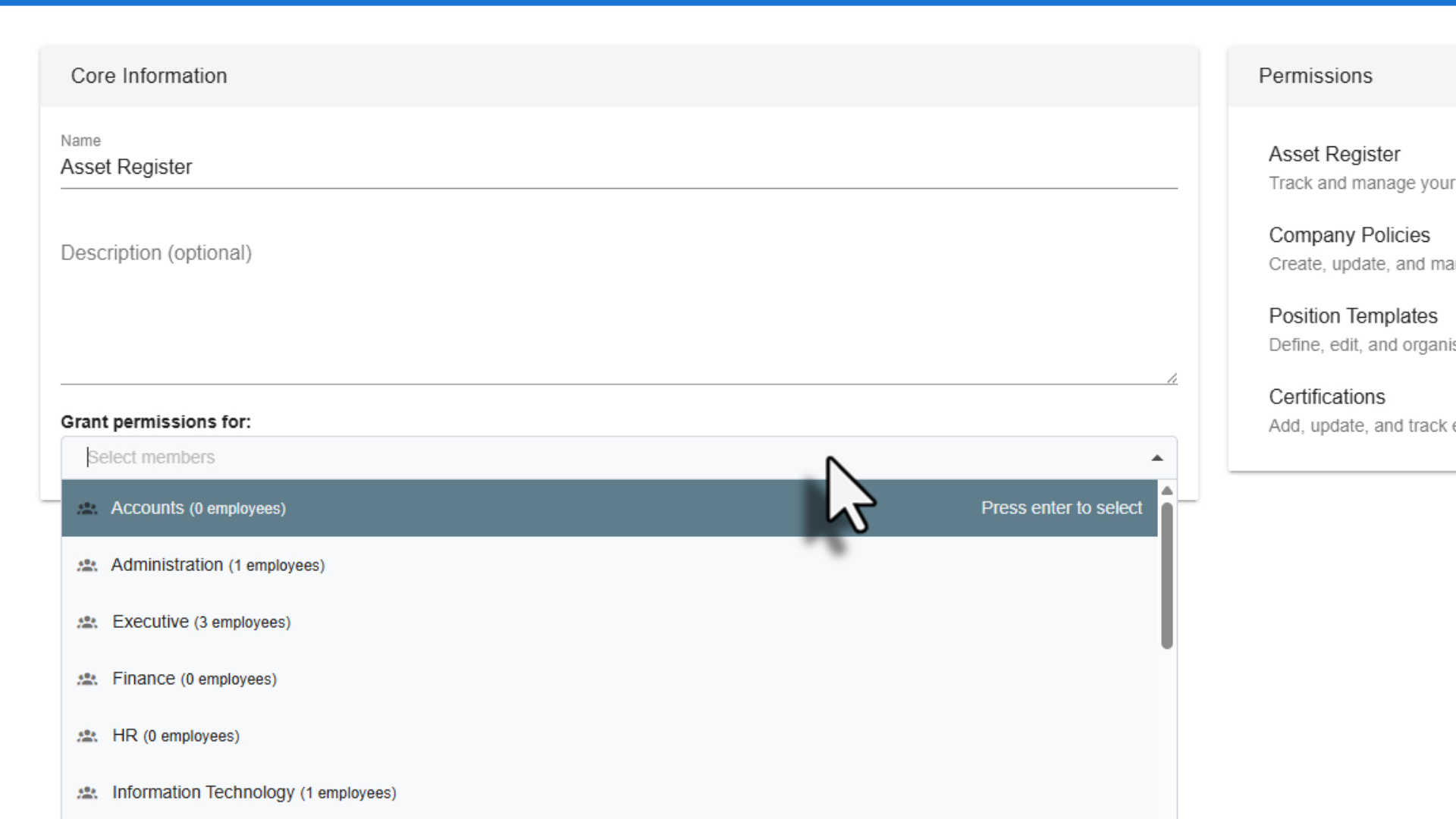
4. Choose who the permissions apply to
Under Grant permissions for, select who this group applies to. You can assign permissions to individual team members or entire departments. Choose the option that best fits how your organisation manages access.
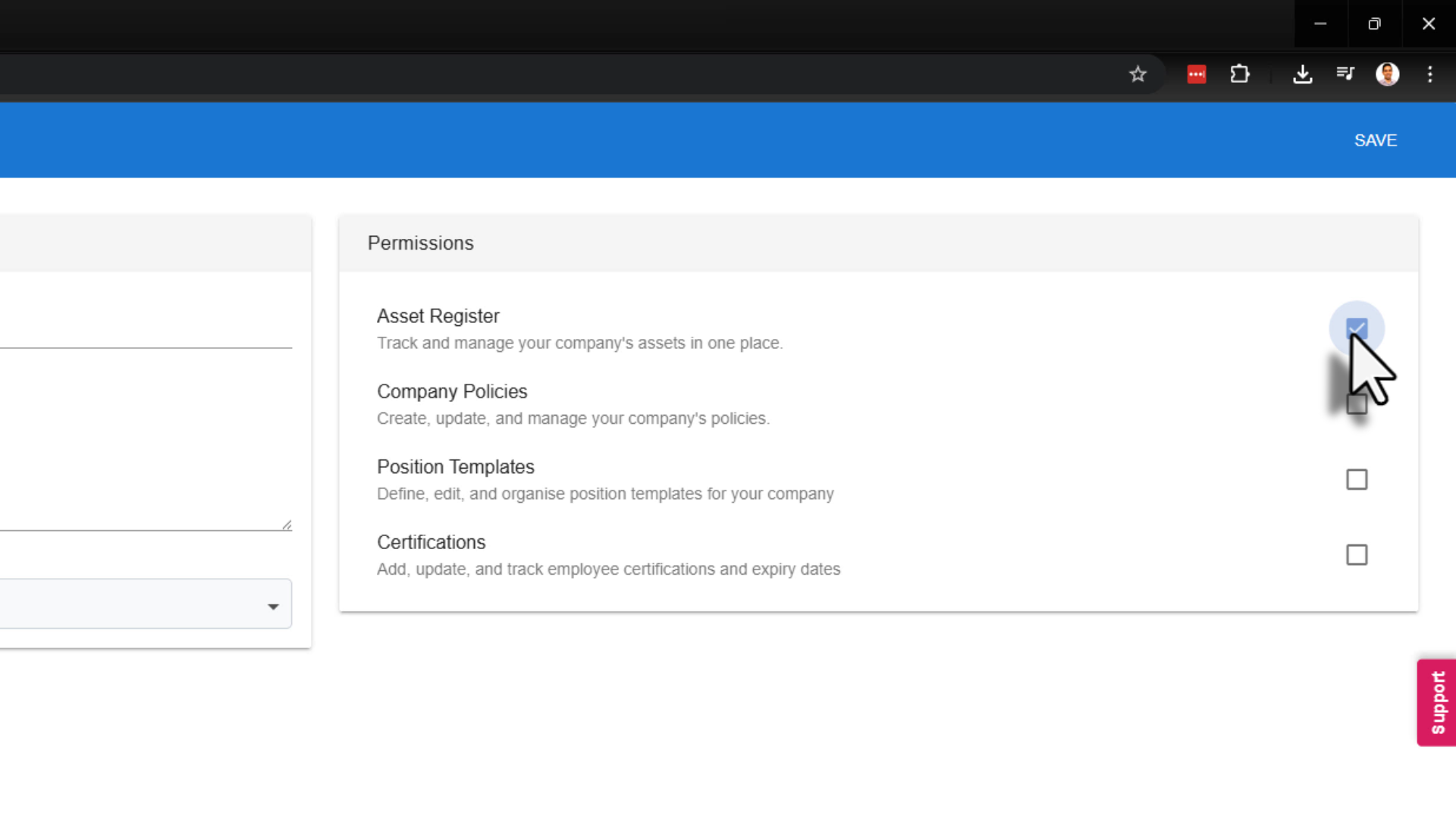
5. Select system permissions
In the Permissions section, choose the areas of the system this group can access.
To keep your data secure, only select permissions that are absolutely necessary. Avoid granting broader access than required for the role. This helps protect sensitive employee and company information.
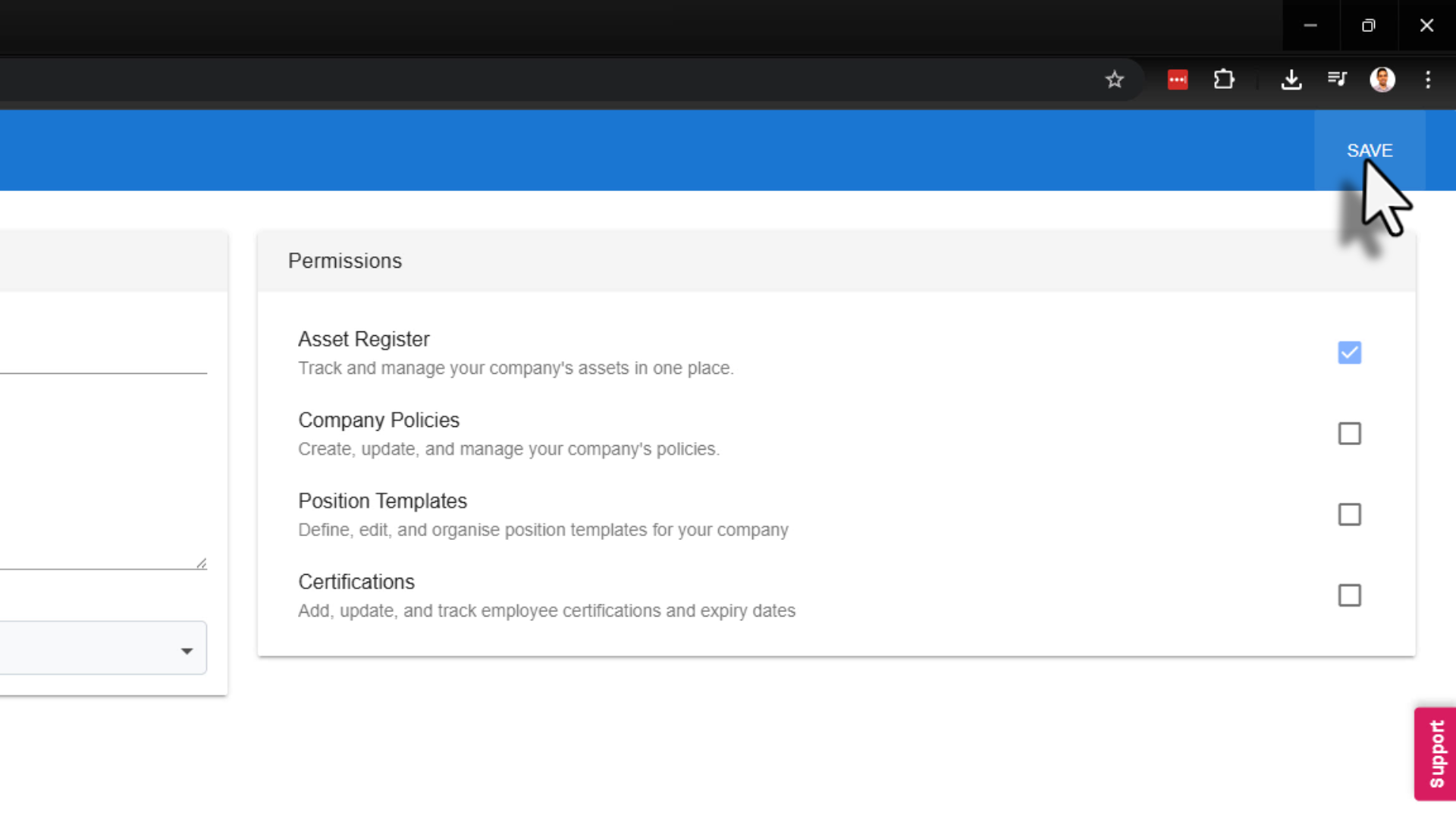
6. Save the Permission Group
Once you’re happy with your selections, select Save.
Your Custom Permission Group is now active and applied to the selected users or departments.
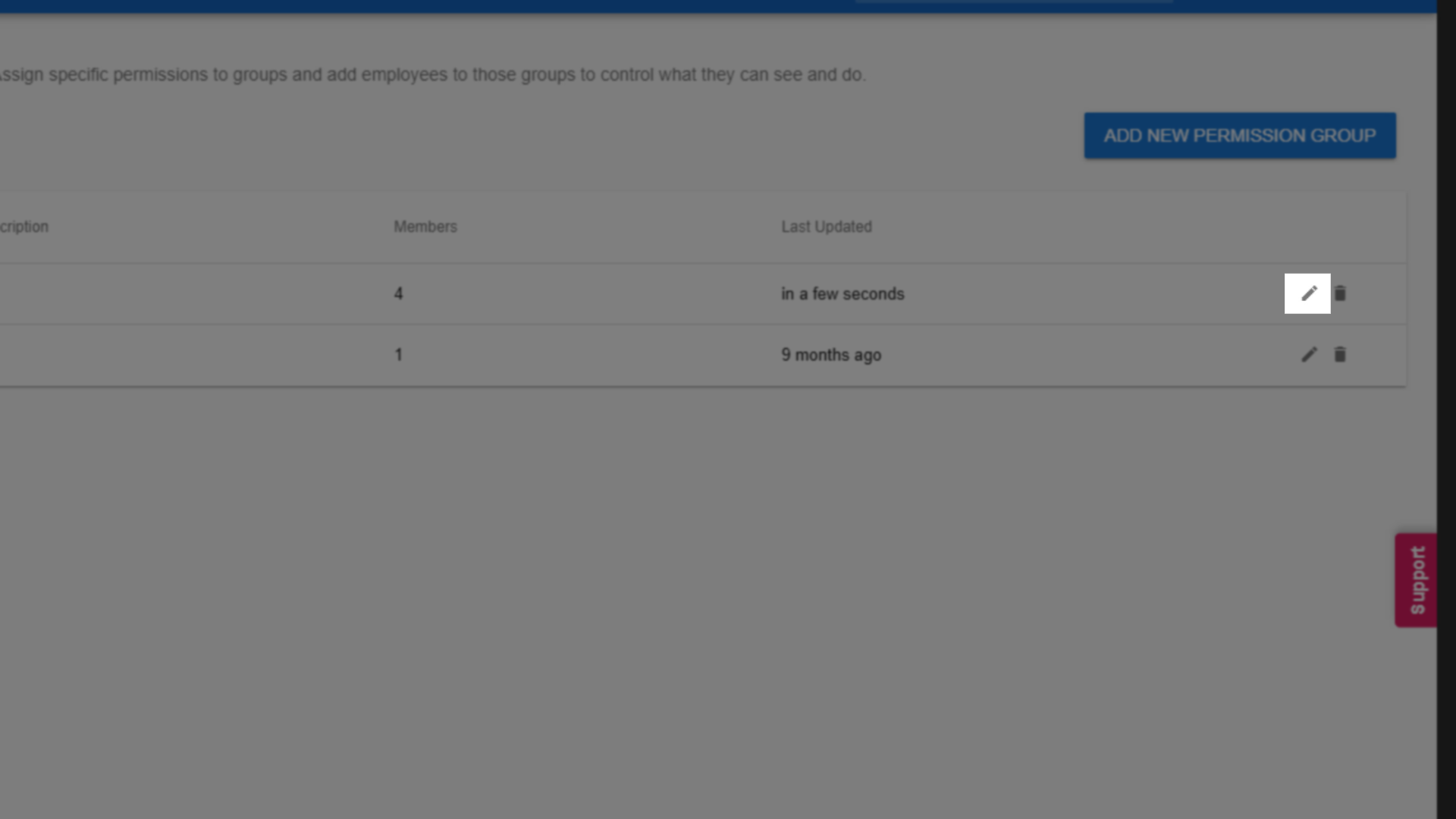
Editing a Permission Group
If you need to make changes later:
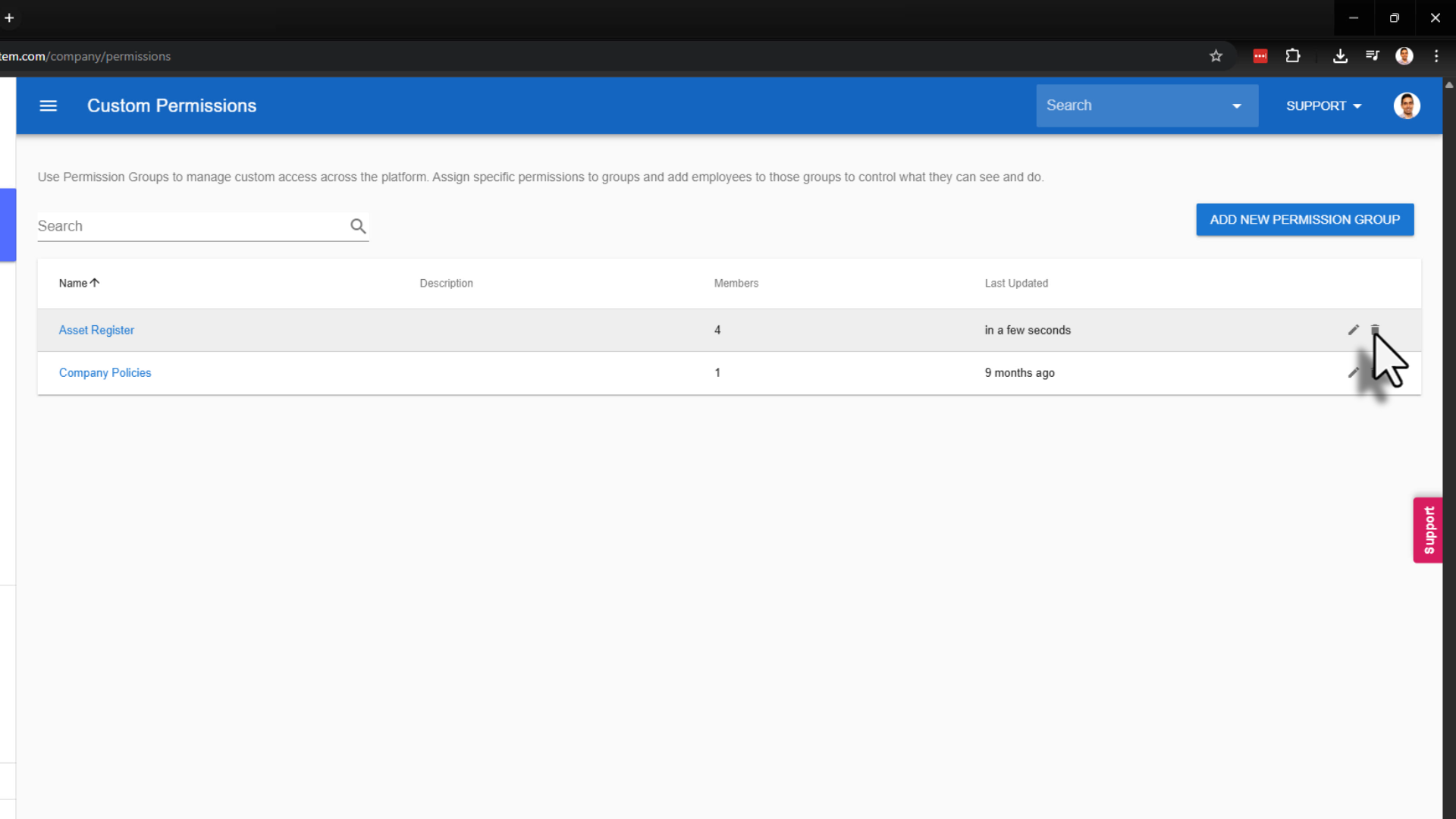
Select the pencil icon next to the permission group
Update the group details or permissions as required
Save your changes
Deleting a Permission Group
To remove a permission group completely:
Select the rubbish bin icon
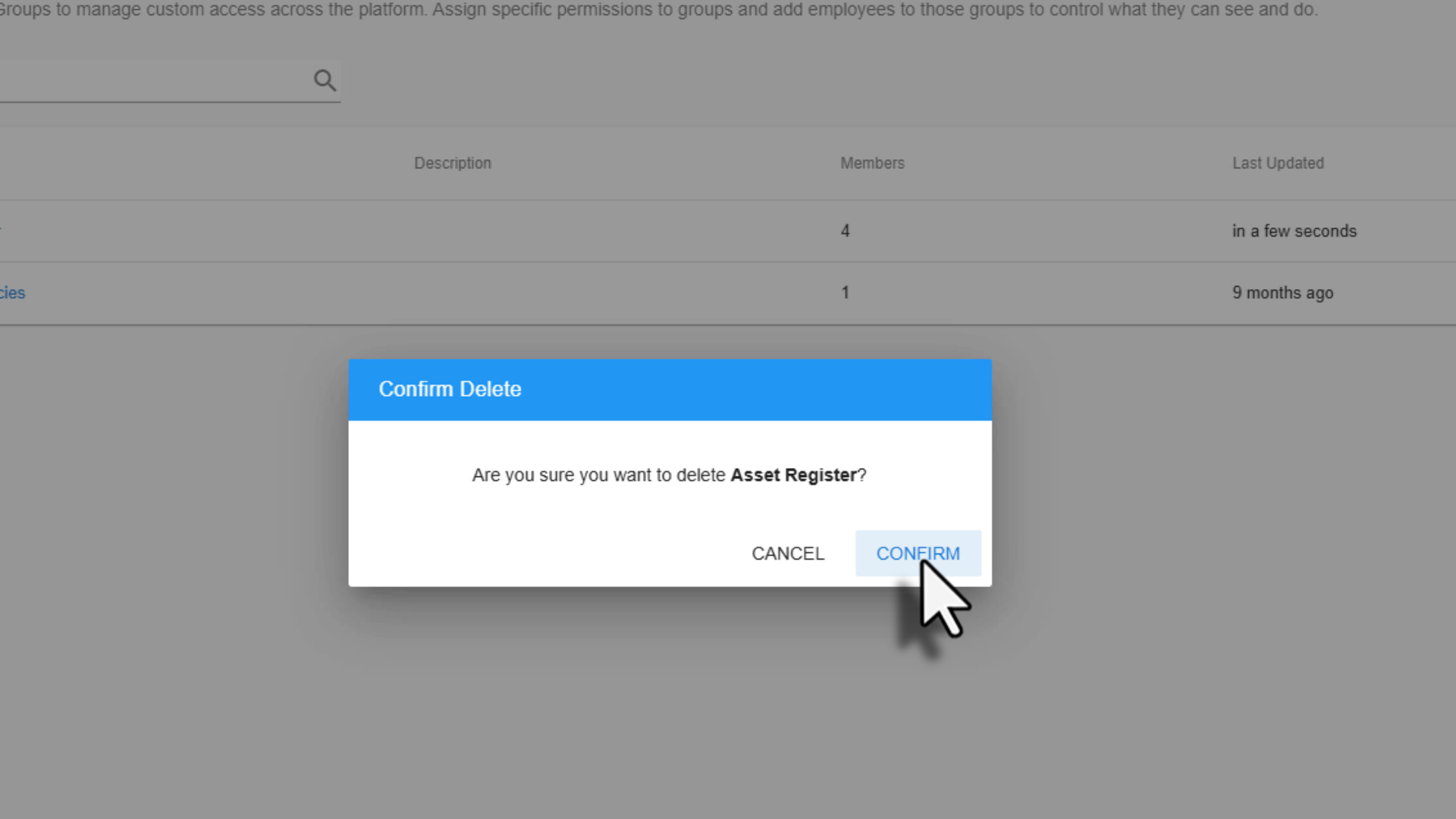
Select Confirm to complete the action
⚠️ Deleting a permission group will remove access for all users assigned to it.
Was this article helpful?
That’s Great!
Thank you for your feedback
Sorry! We couldn't be helpful
Thank you for your feedback
Feedback sent
We appreciate your effort and will try to fix the article