Two-factor authentication (2FA) adds an extra layer of security to user logins by requiring a verification code in addition to a password. Enabling 2FA helps protect employee accounts and reduces the risk of unauthorised access. This article shows you how to enable (and disable, if required) two-factor authentication for a staff member in Your HR System.
Before you start
- You’ll need Admin access
- The employee will need a valid phone number to complete setup
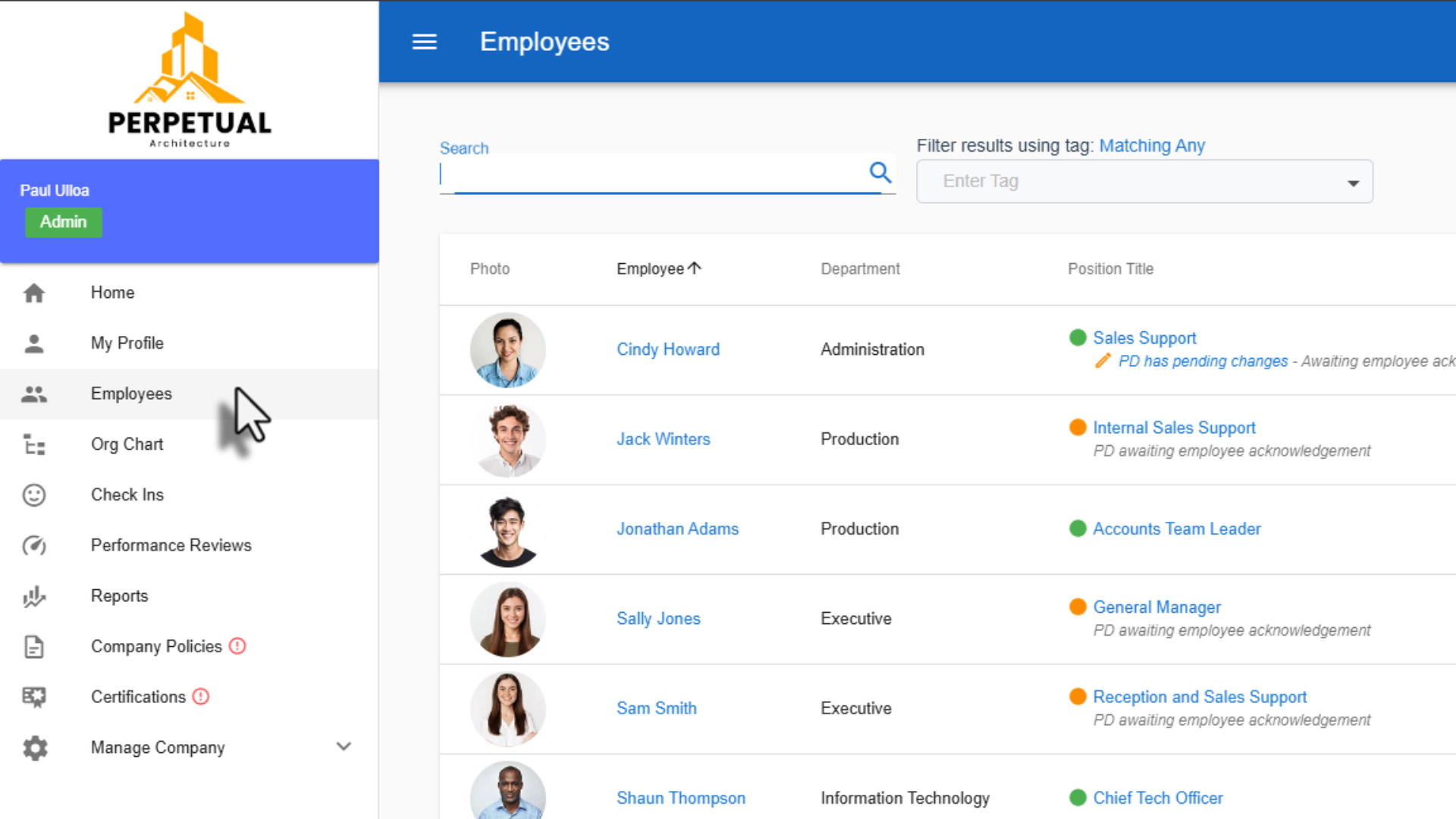
1. Open the Employees list
From the Home menu, select Employees and then click on the employee you want to update to open their profile.
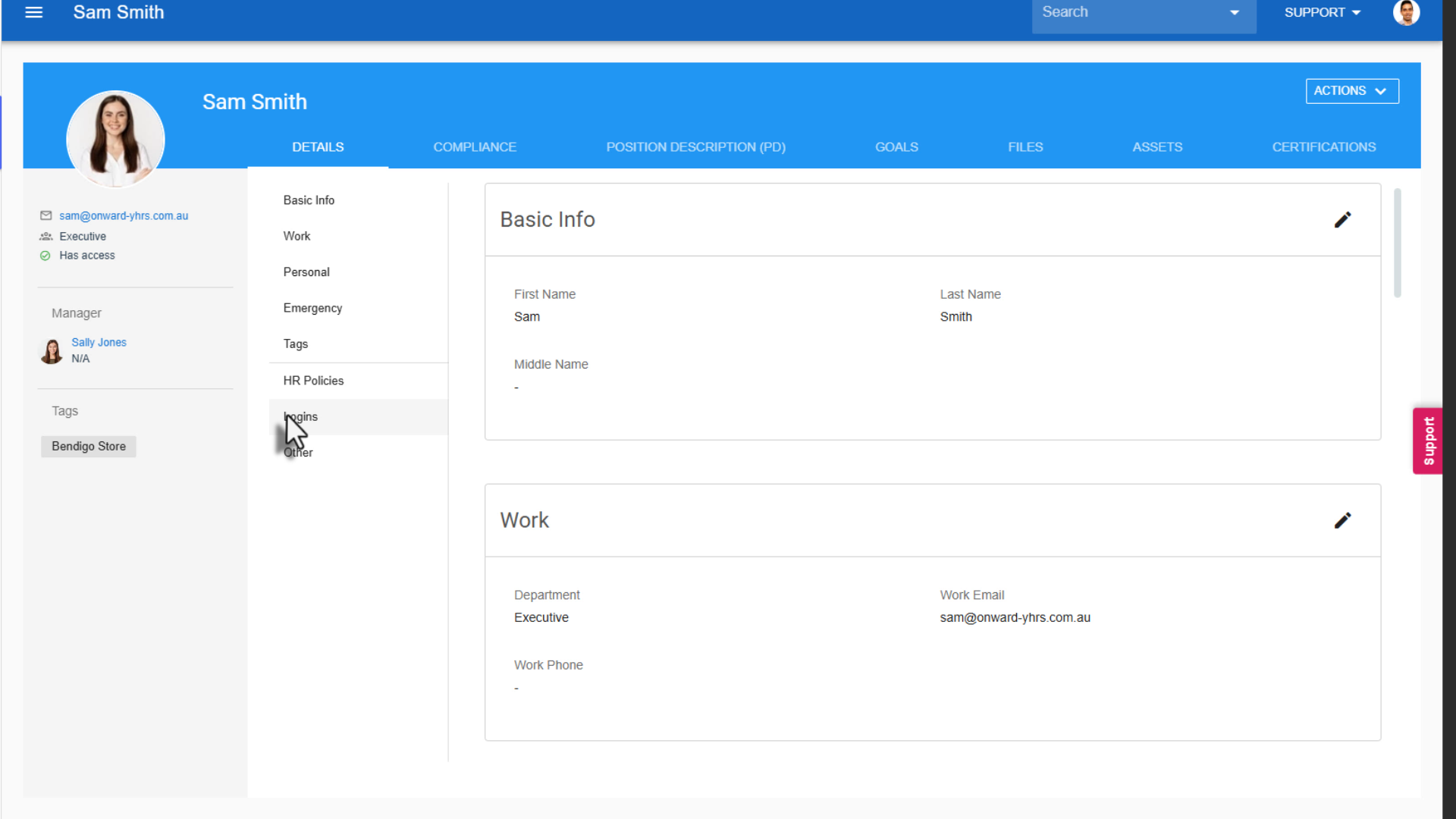
2. Go to Logins
In the left-hand menu of the employee profile, select Logins.
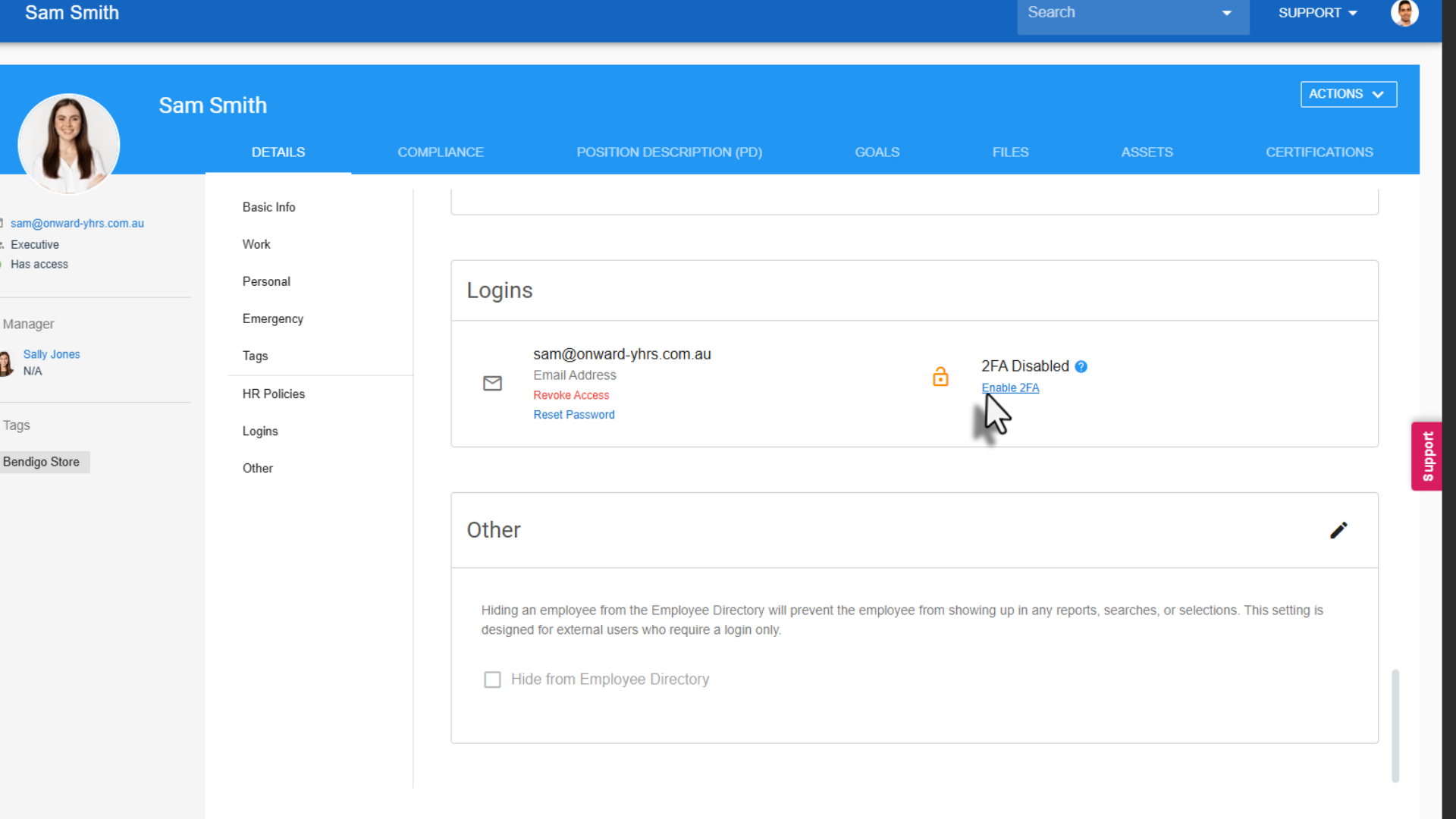
3. Enable two-factor authentication
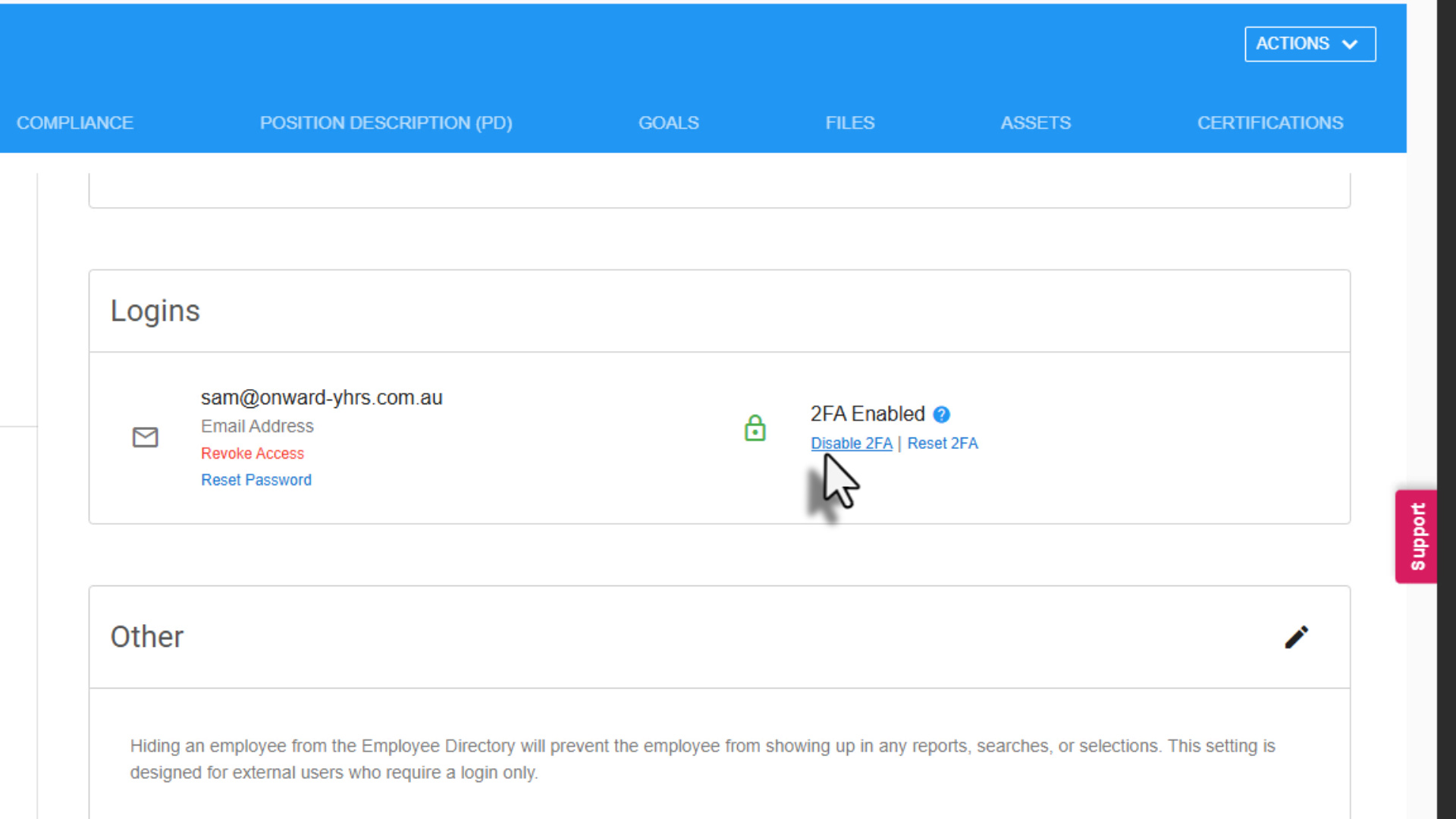
In the Logins section, you’ll see the employee’s current 2FA status (Enabled or Disabled). Select Enable 2FA.
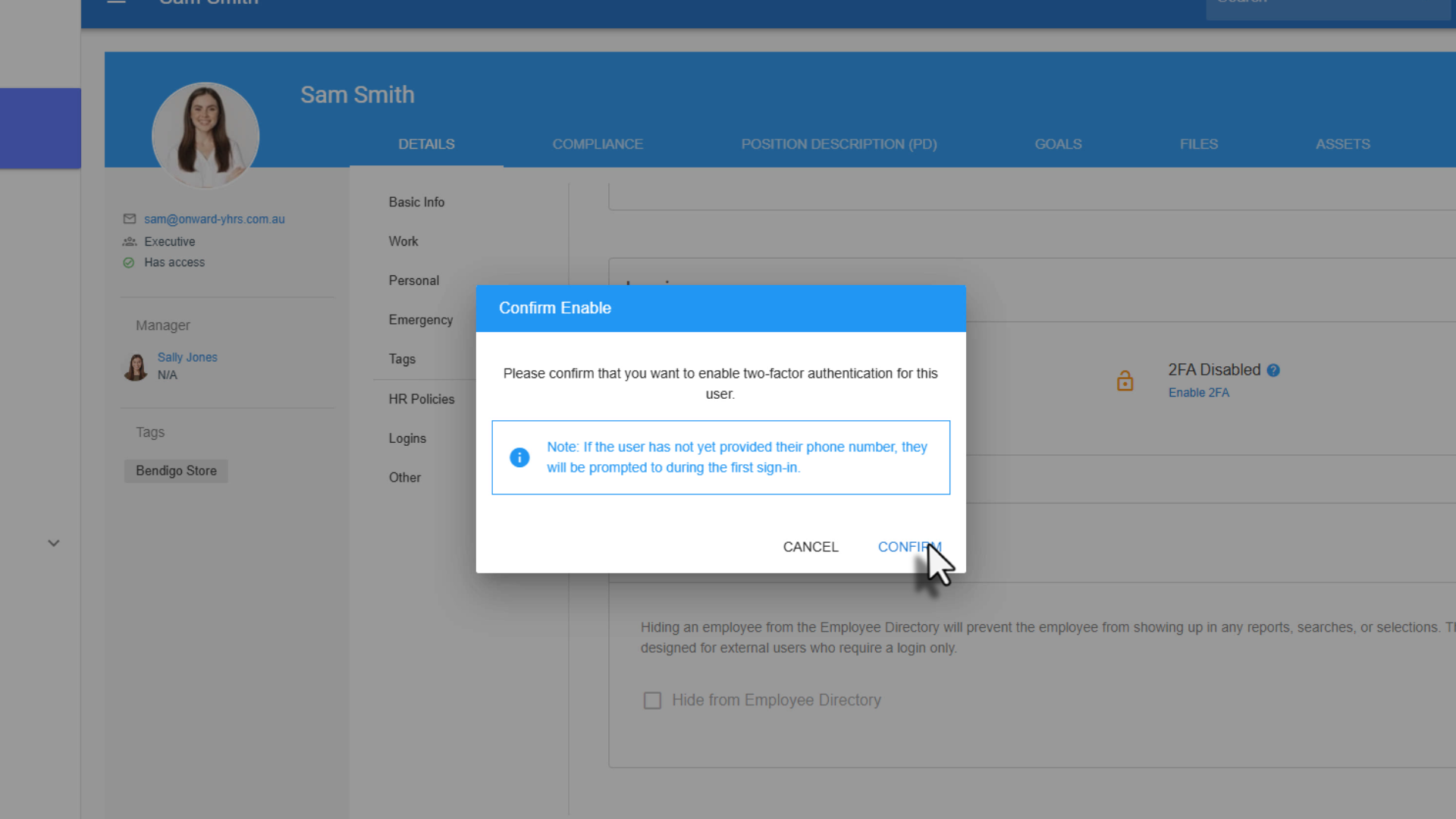
4. Confirm and complete setup
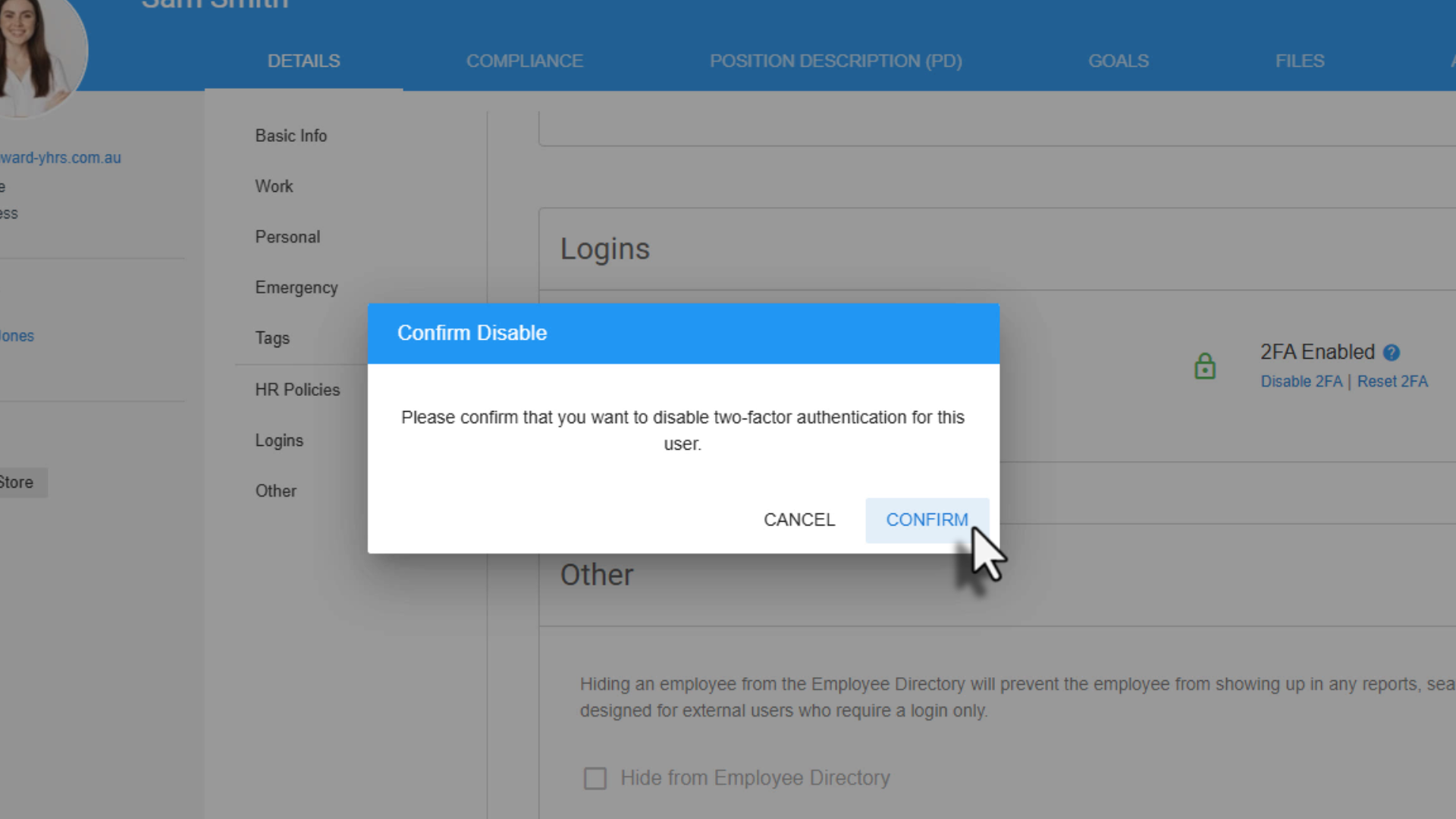
A confirmation window will appear. Select Confirm to proceed. Once confirmed, two-factor authentication will be enabled for that employee. If the employee has not yet provided a phone number, they will be prompted to enter one during their next sign-in.
Disabling two-factor authentication (if required)
If you ever need to turn off 2FA for an employee, return to the employee’s Logins section, select Disable 2FA and select Confirm to complete the action.
⚠️ Important: Disabling two-factor authentication reduces account security and increases the risk of unauthorised access. Only disable 2FA if absolutely necessary.
Was this article helpful?
That’s Great!
Thank you for your feedback
Sorry! We couldn't be helpful
Thank you for your feedback
Feedback sent
We appreciate your effort and will try to fix the article