Check-ins let you and your reviewer track how things are going, share updates, and flag anything you need support with. This article shows you how to complete and submit a check-in as a team member in Your HR System.
Before you start
Your reviewer will need to have created and assigned the check-in to you first.
1. Open your pending check-ins
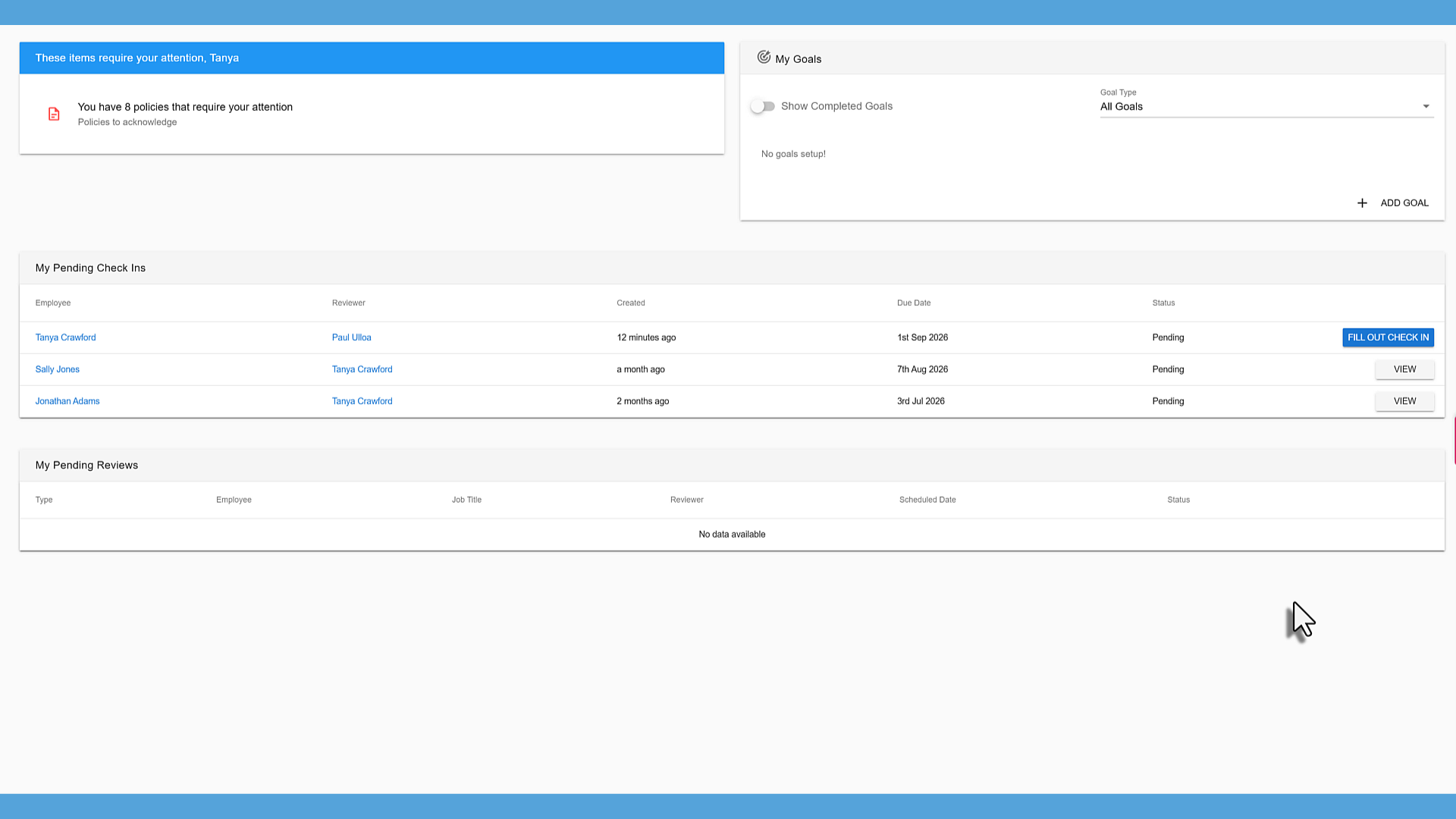
From the Home dashboard, you'll see a list of your pending check-ins, along with the reviewer, when each one was created, when it's due, and its current status.
2. Start the check-in
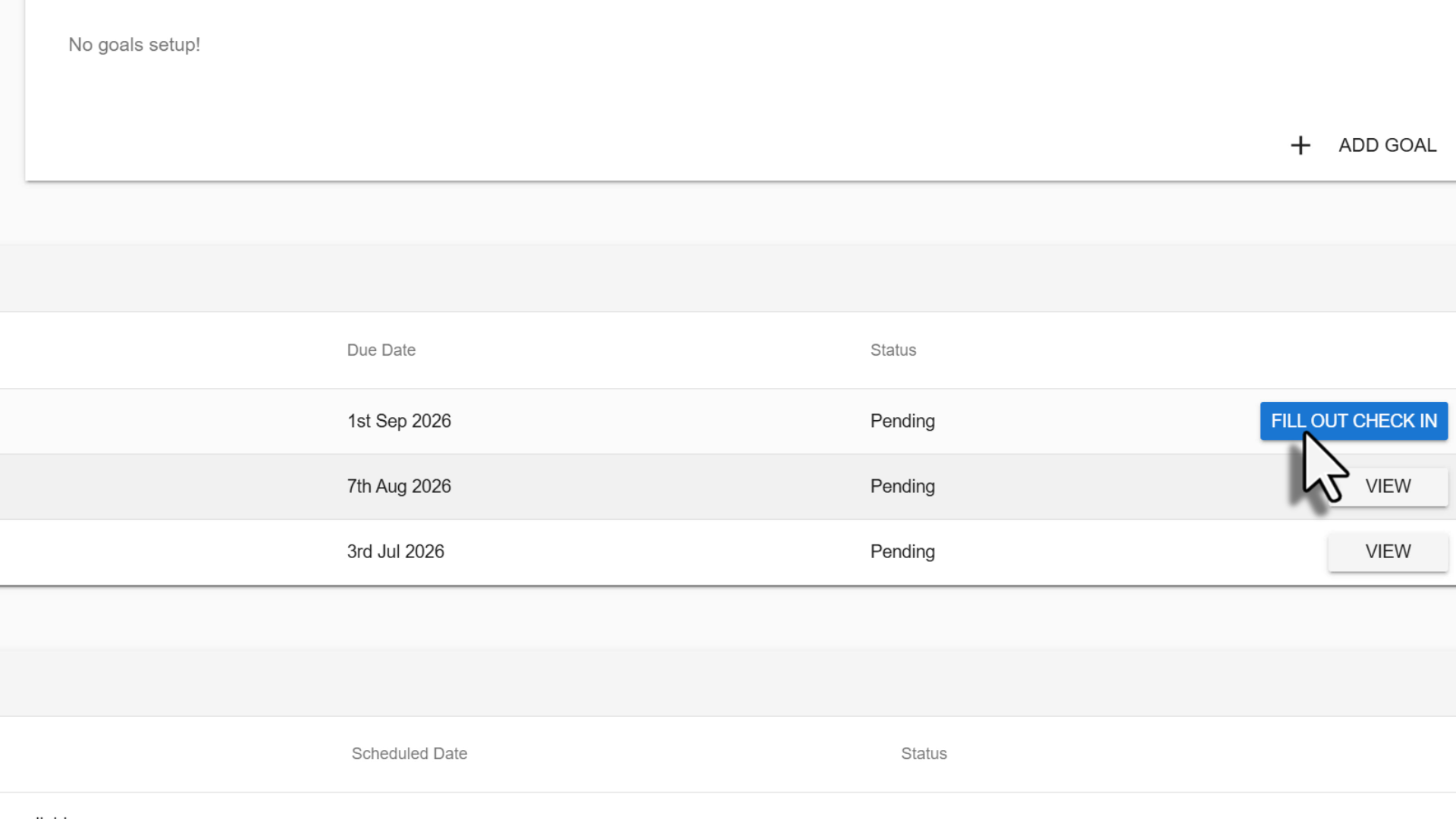
Find the check-in you want to complete and click Fill Out Check In.
3. Answer the scale question
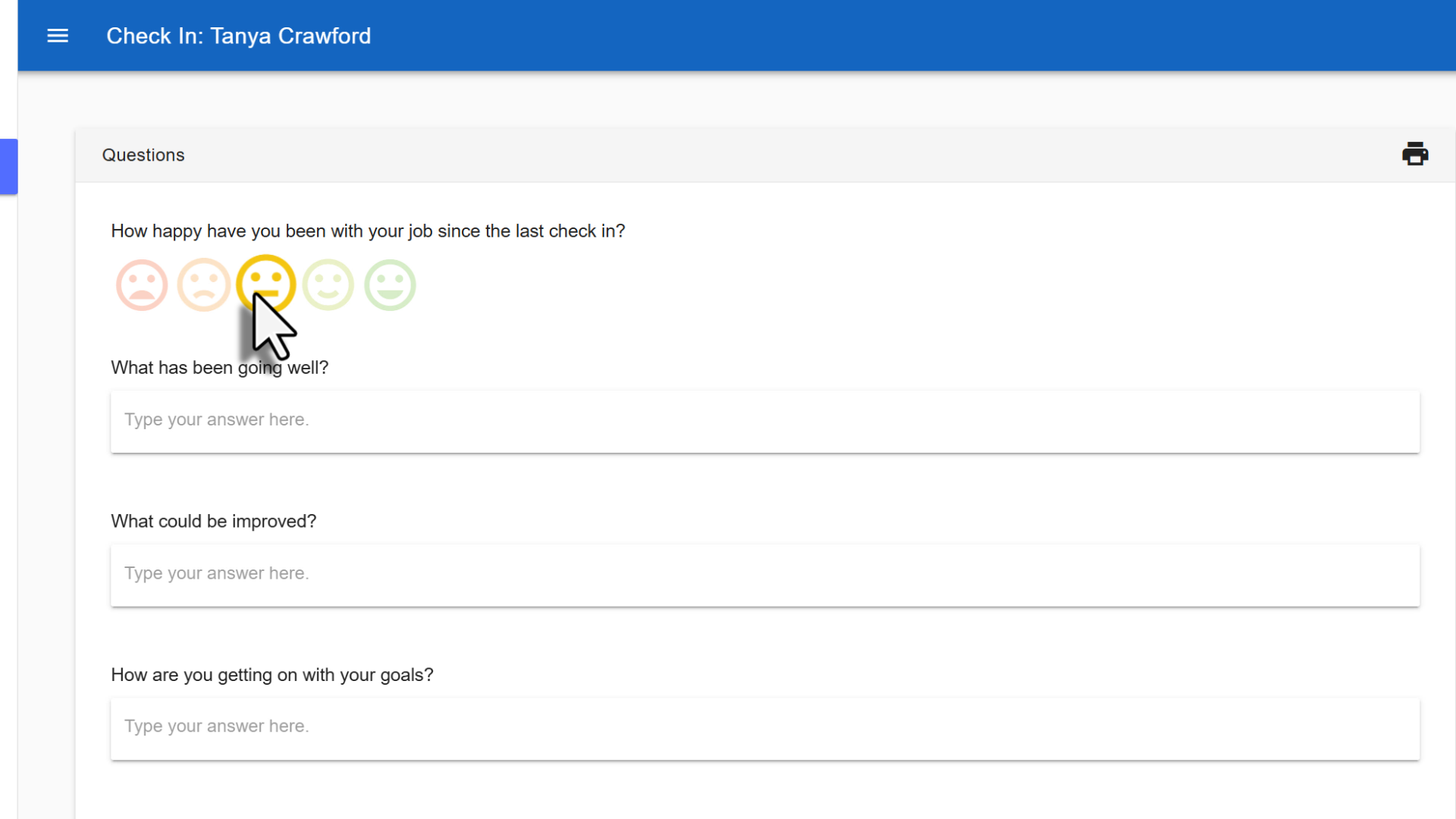
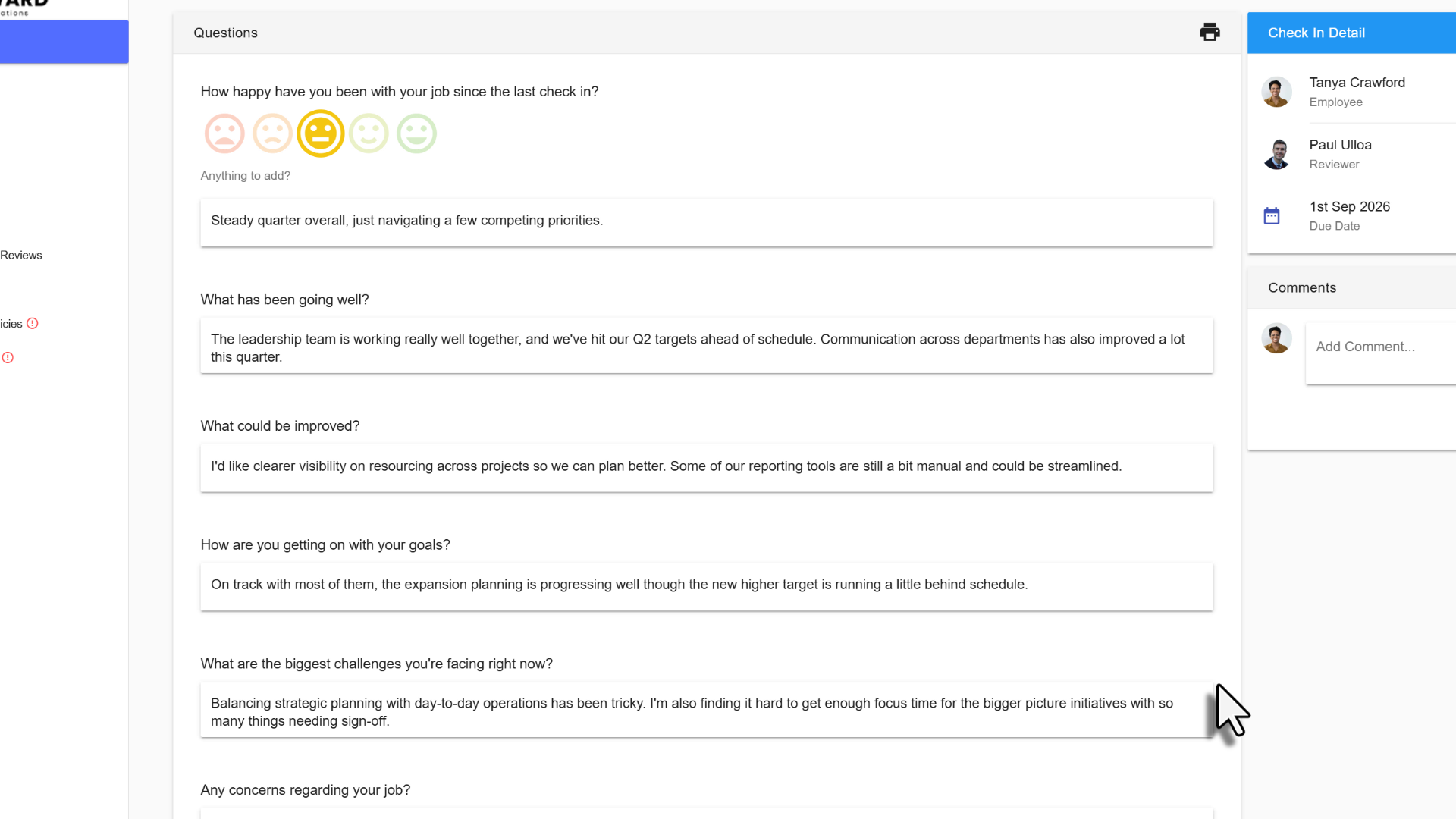
Click the face that best reflects how you've been feeling since your last check-in. NOTE: This question may also appear as a Traffic Light or open ended text format depending on how the reviewer set this up.
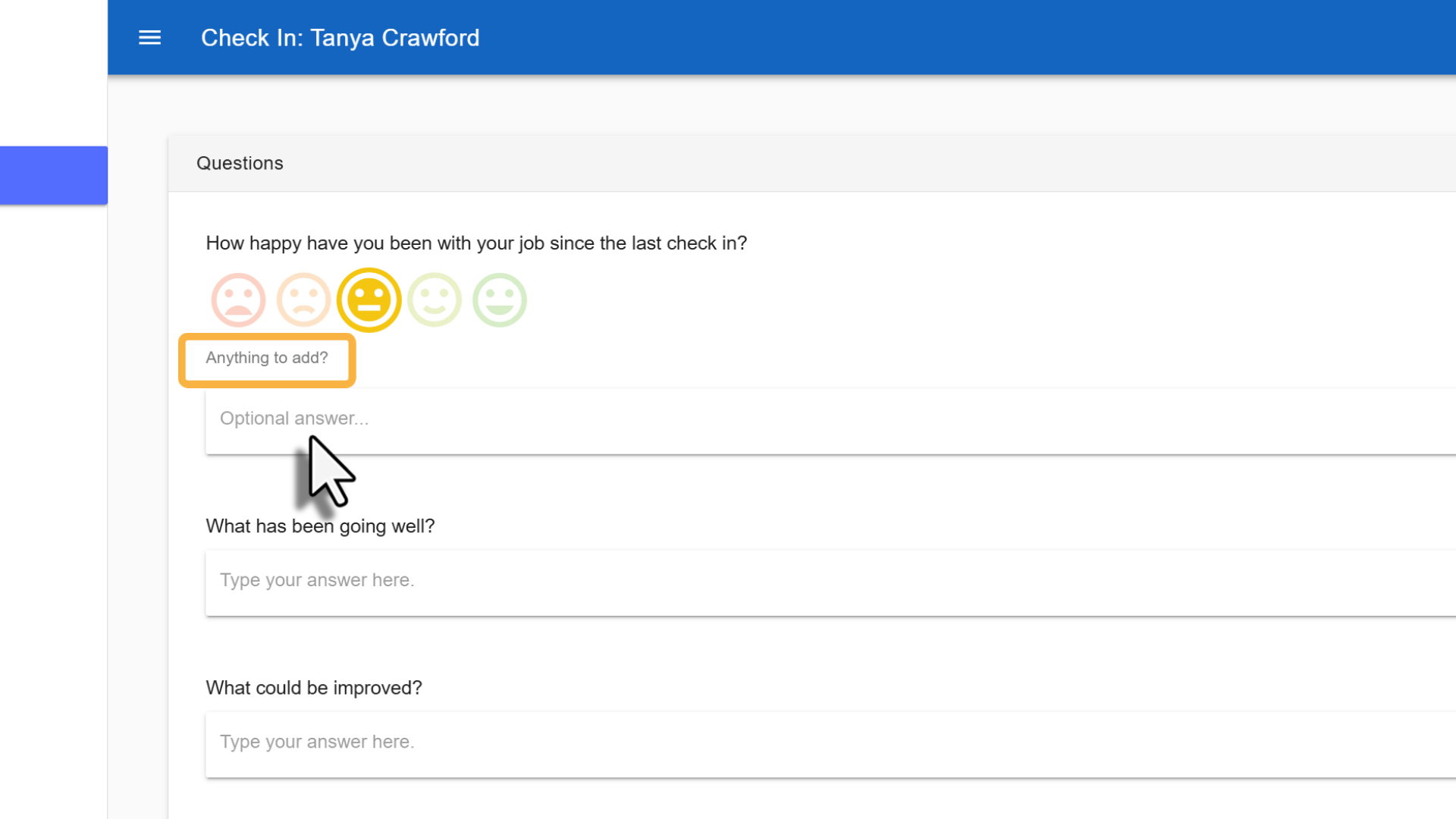
Optional: Click Anything to add? to include more detail about your answer.
4. Answer the open-ended questions
Type your responses directly into each open-ended question field.
5. Save or submit your check-in
Click Save if you'd like to finish it later, or click Save & Submit once you're ready to send your responses to your reviewer.
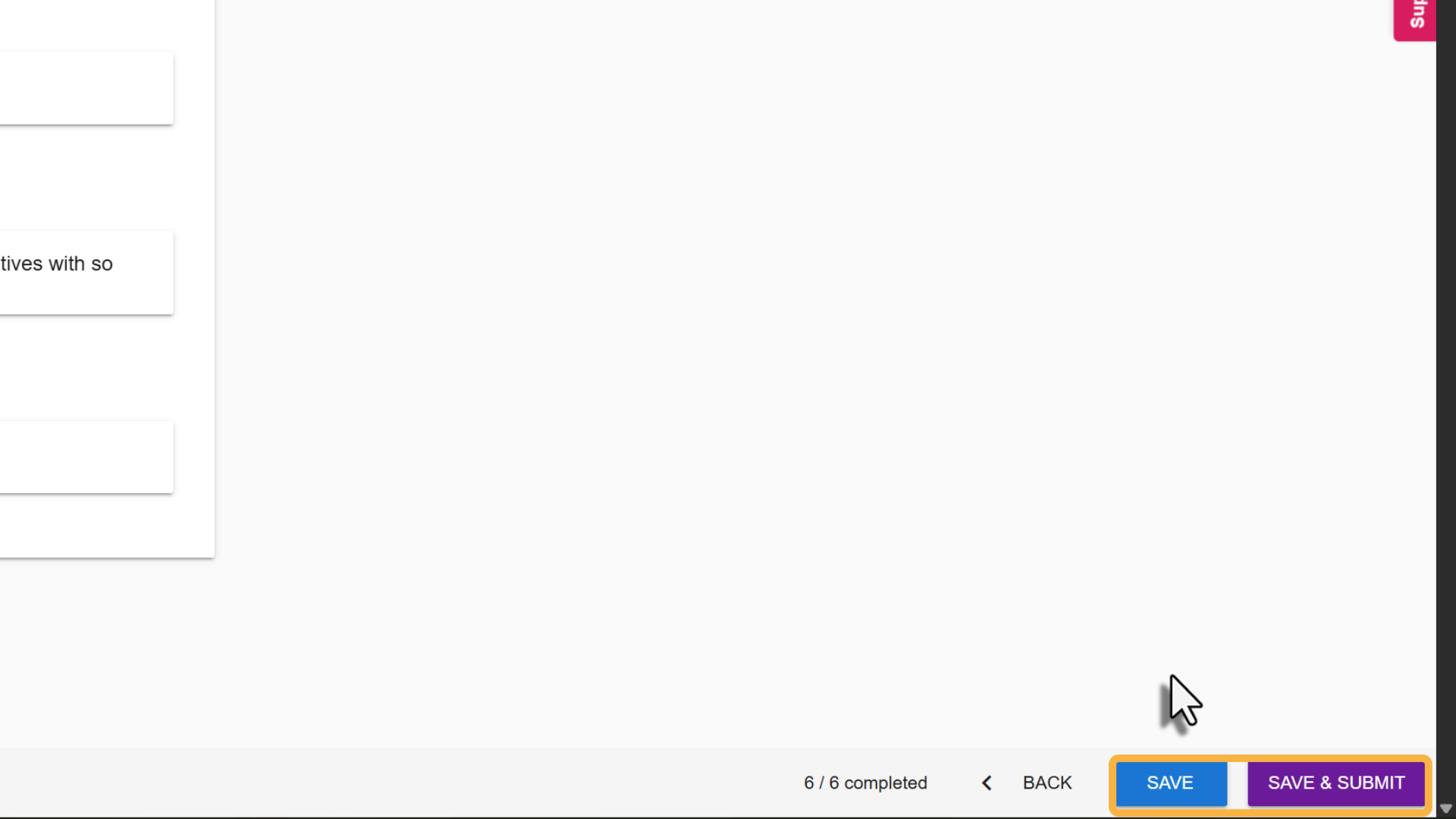
⚠️ Important: Once you click Save & Submit, your reviewer will be notified by email and can start reviewing your responses.
Leaving comments
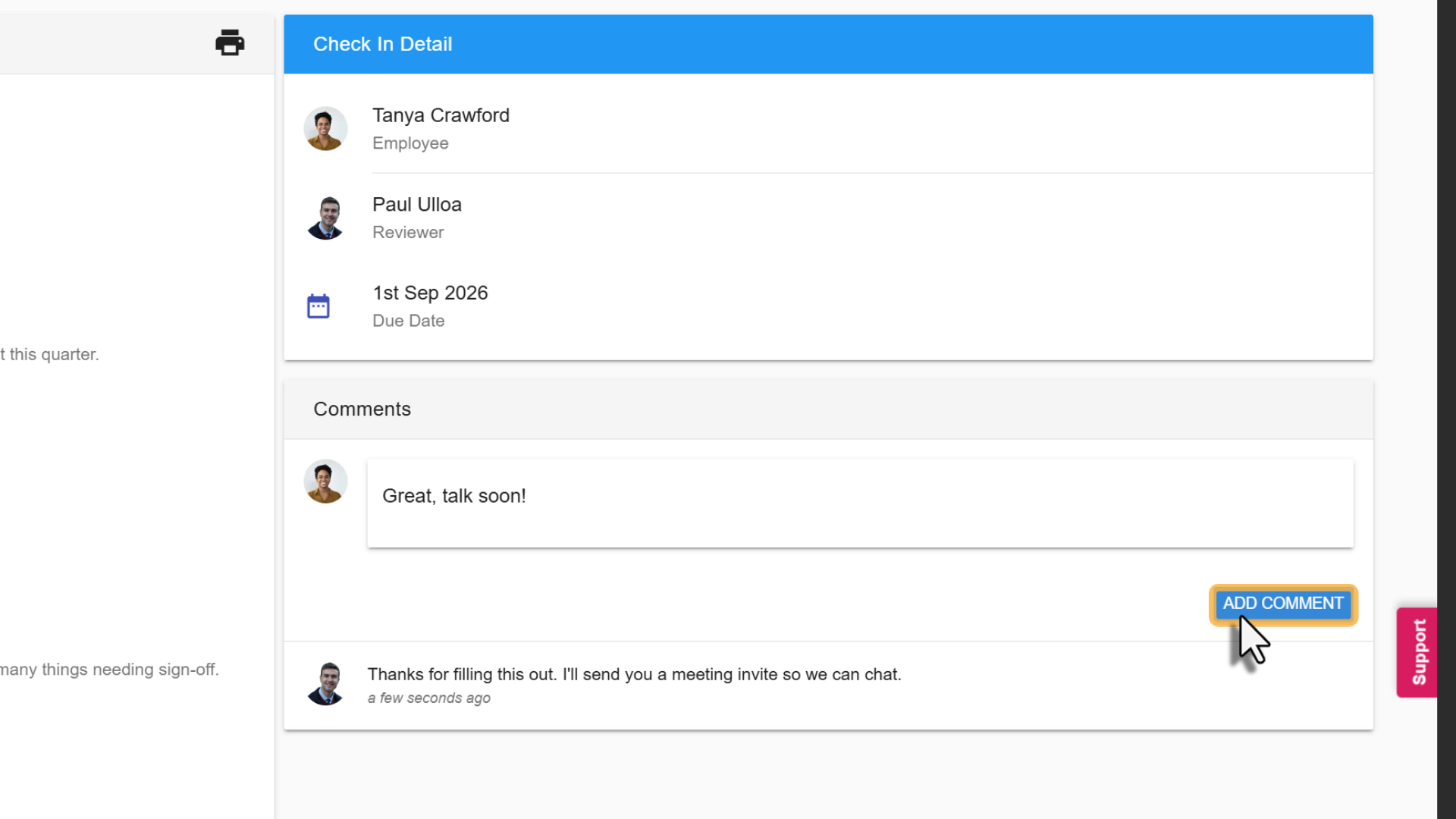
After a check-in has been submitted, both you and your reviewer can leave comments on it. Type your comment in the field provided and click Add Comment to post it.
Was this article helpful?
That’s Great!
Thank you for your feedback
Sorry! We couldn't be helpful
Thank you for your feedback
Feedback sent
We appreciate your effort and will try to fix the article