The Files feature allows you to upload documents directly to an employee’s profile in Your HR System. This is useful for sharing documents that an employee should be able to view as part of their employment record. Because files uploaded here are visible to the employee, it’s important to understand what this feature should — and should not — be used for. This article explains how to upload employee documents and outlines key visibility and security considerations.
What types of documents should be uploaded?
The Files tab is designed for shared documents, such as:
Letters or documents intended to be shared with the employee
Role-related documentation the employee needs access to
Training and development records
Documents that are confidential or employer-only (such as internal notes or sensitive management records) should be stored in your own secure internal HR filing system and not uploaded to the employee profile.
1: Open the employee profile
From the homepage, select Employees, then click on the employee you want to upload a document for.
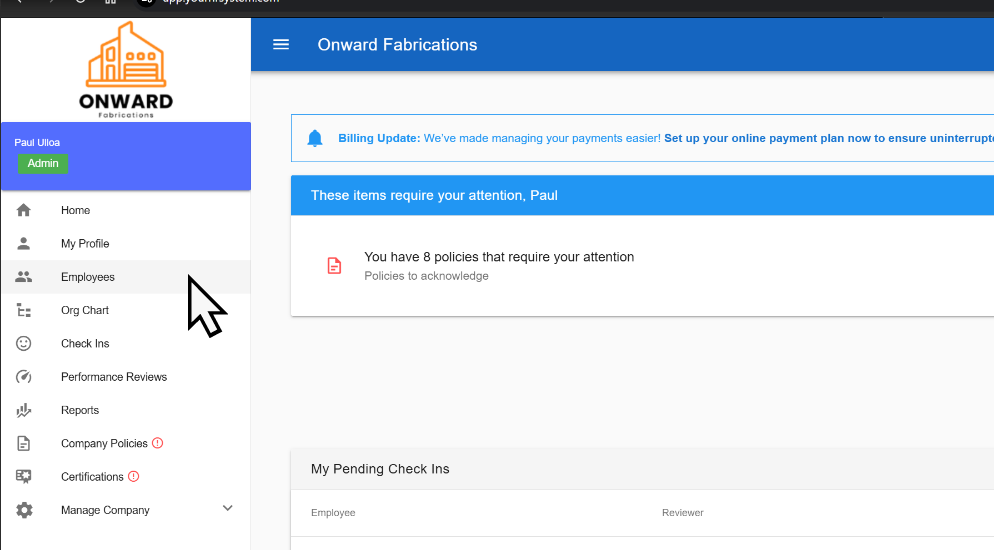
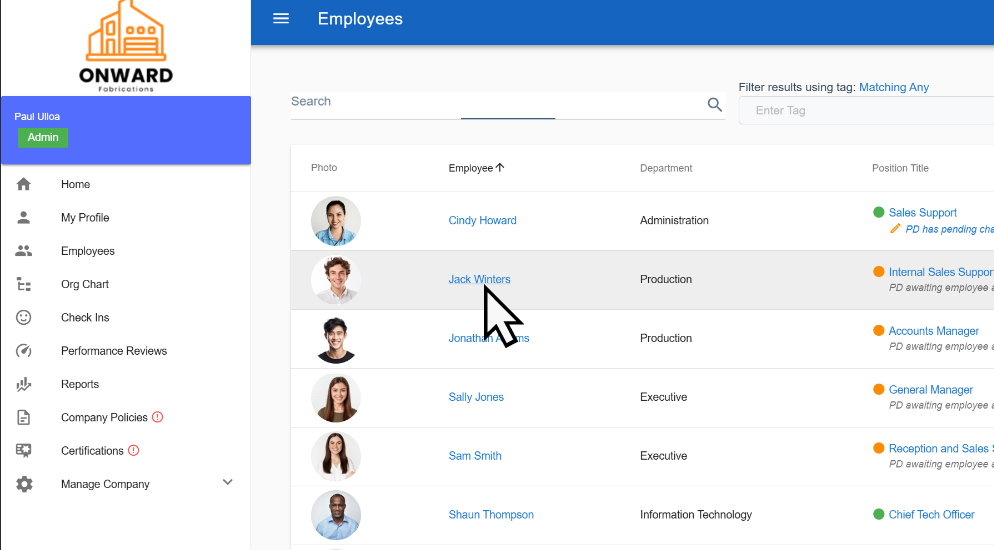
2: Go to the Files tab
Within the employee profile, select the Files tab. This is where all shared employee documents are stored.
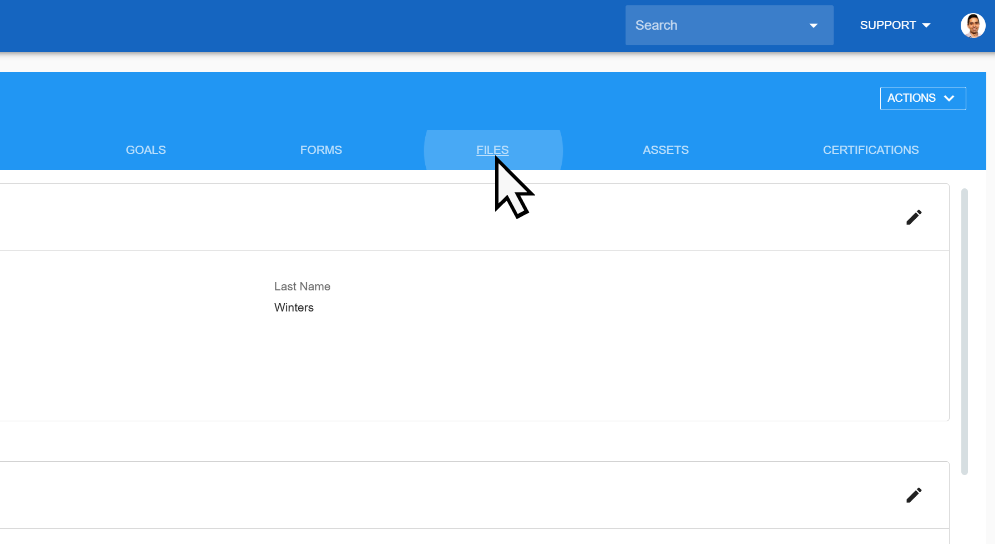
3: Upload the document
Select Add a file.
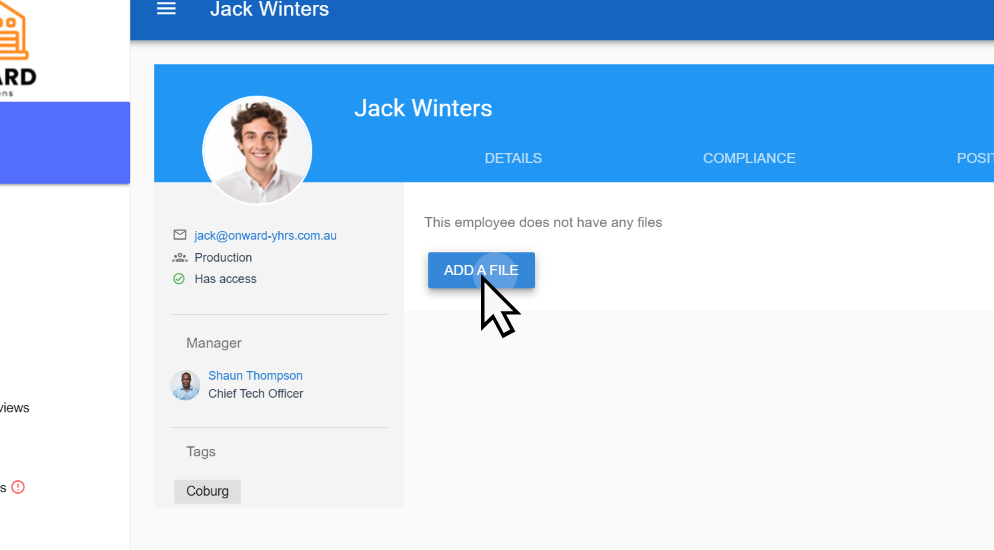
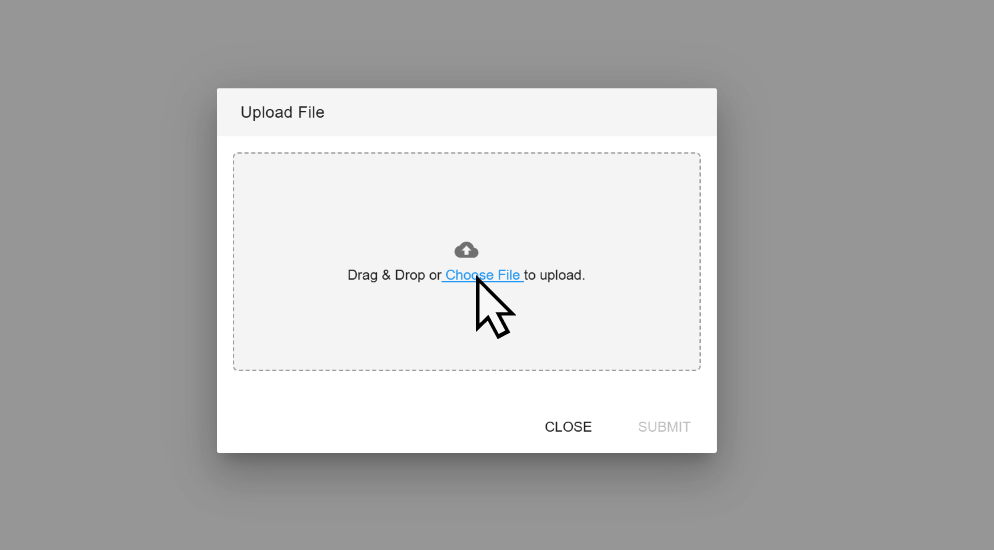
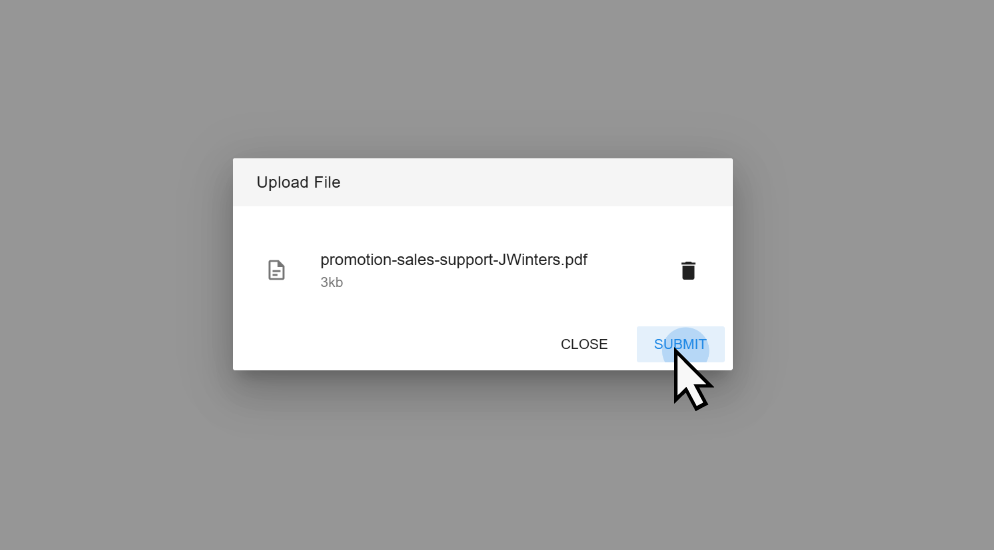
From the upload window, follow the prompts to choose a file from your computer and then select Submit to upload the document. The document will now be saved to the employee’s profile.
Deleting an employee document
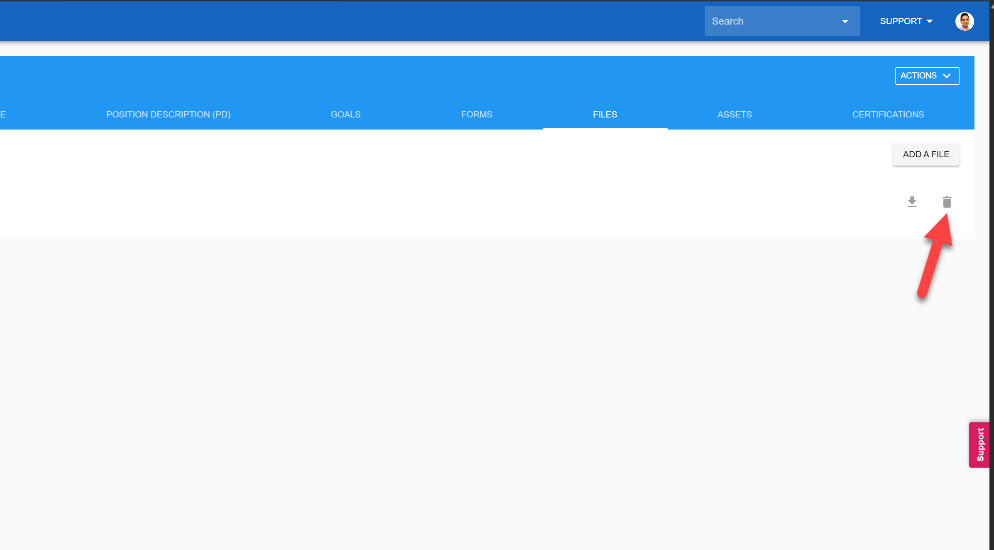
If a document needs to be removed, select the rubbish bin icon next to the document.
Important visibility and security considerations
Any document uploaded to an employee’s profile is visible to that employee
Only upload documents you are comfortable sharing
Avoid uploading sensitive or confidential information
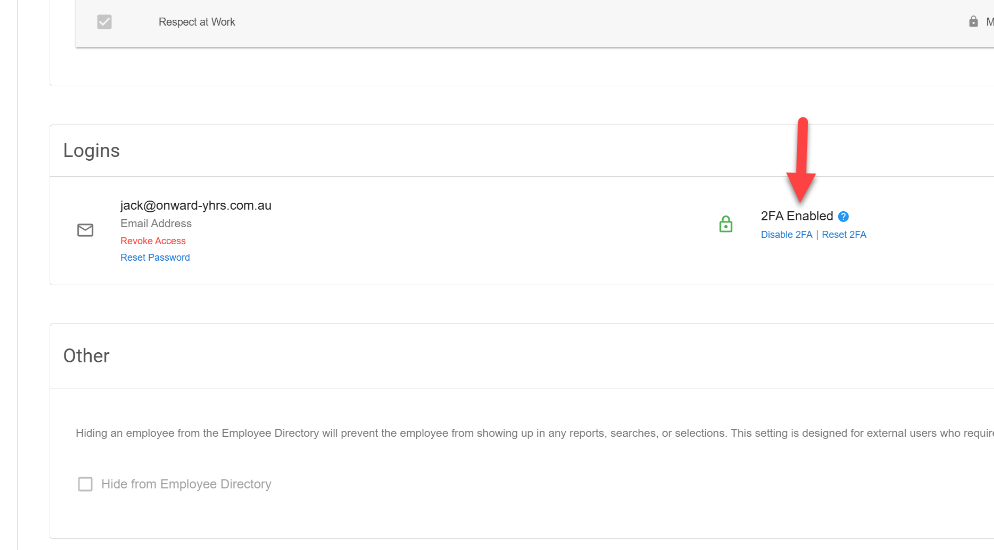
For added protection, we strongly recommend enabling two-factor authentication (2FA) for employee logins. This helps reduce the risk of unauthorised access to employee documents.
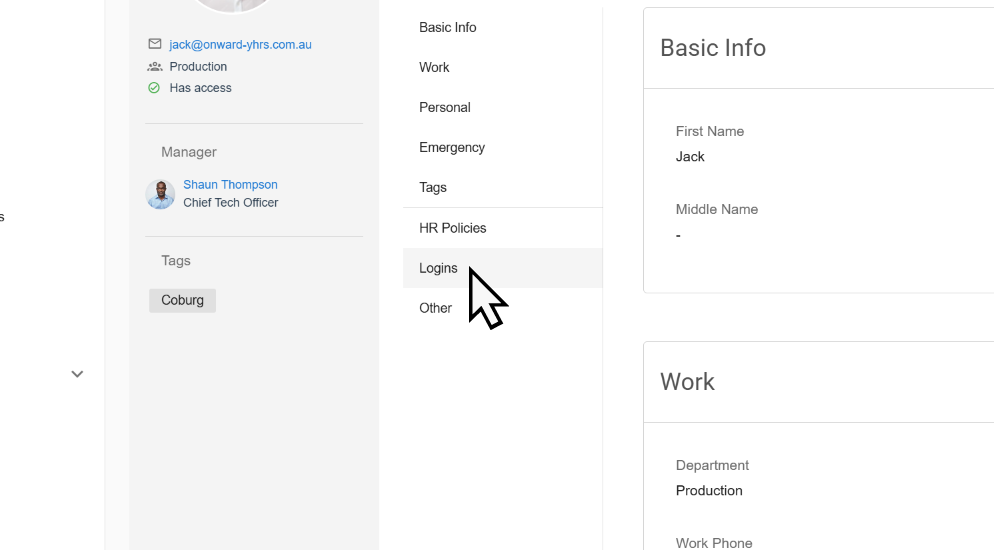
To review or enable 2FA:
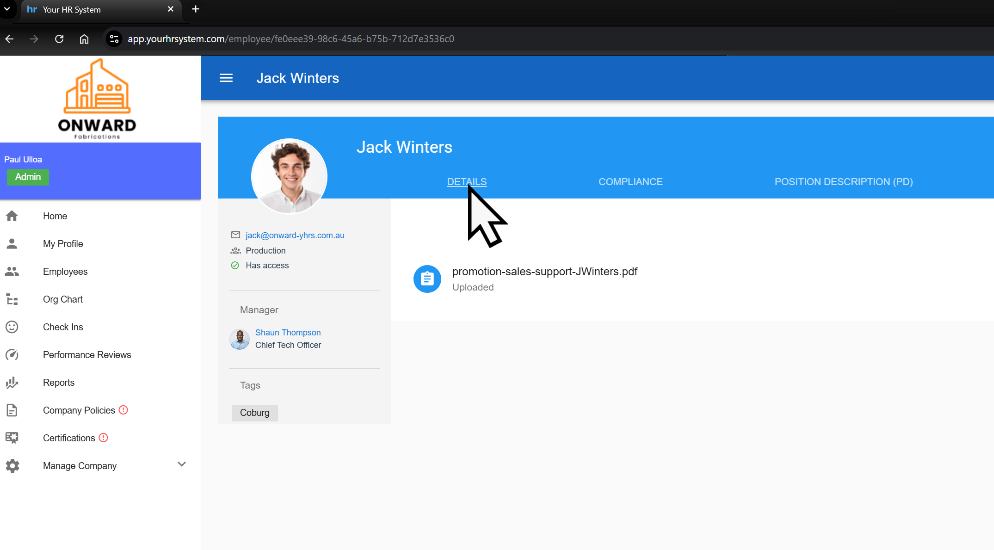
1. Select Details
2. Click Logins
3. Confirm that two-factor authentication is enabled
Was this article helpful?
That’s Great!
Thank you for your feedback
Sorry! We couldn't be helpful
Thank you for your feedback
Feedback sent
We appreciate your effort and will try to fix the article