The org chart gives you a clear picture of your company structure and who reports to whom. It's built from each employee's position description, so it stays up to date as your team changes. This article shows you how to view, export and update the org chart in Your HR System.
Viewing the org chart
1. Open the org chart
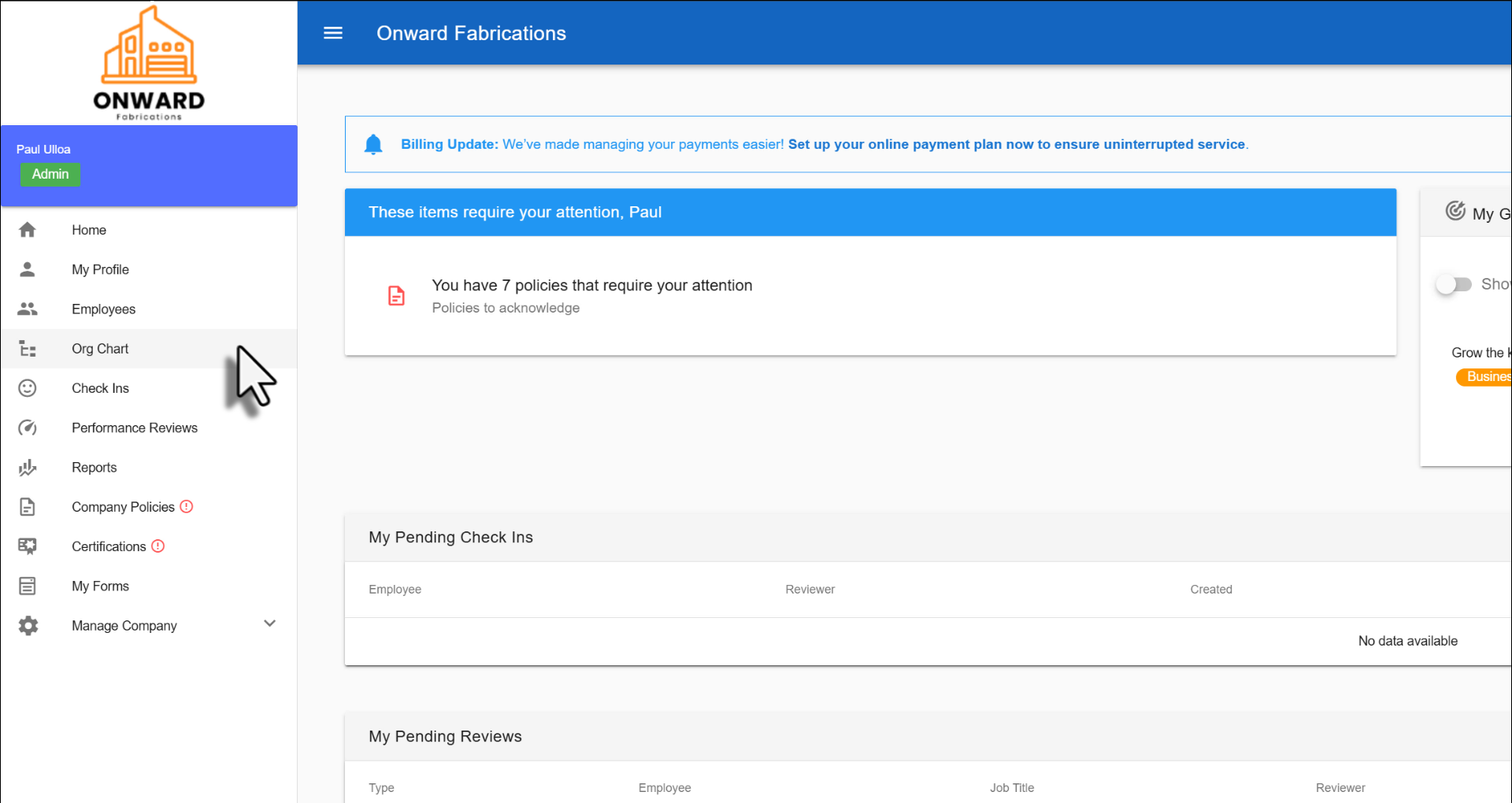
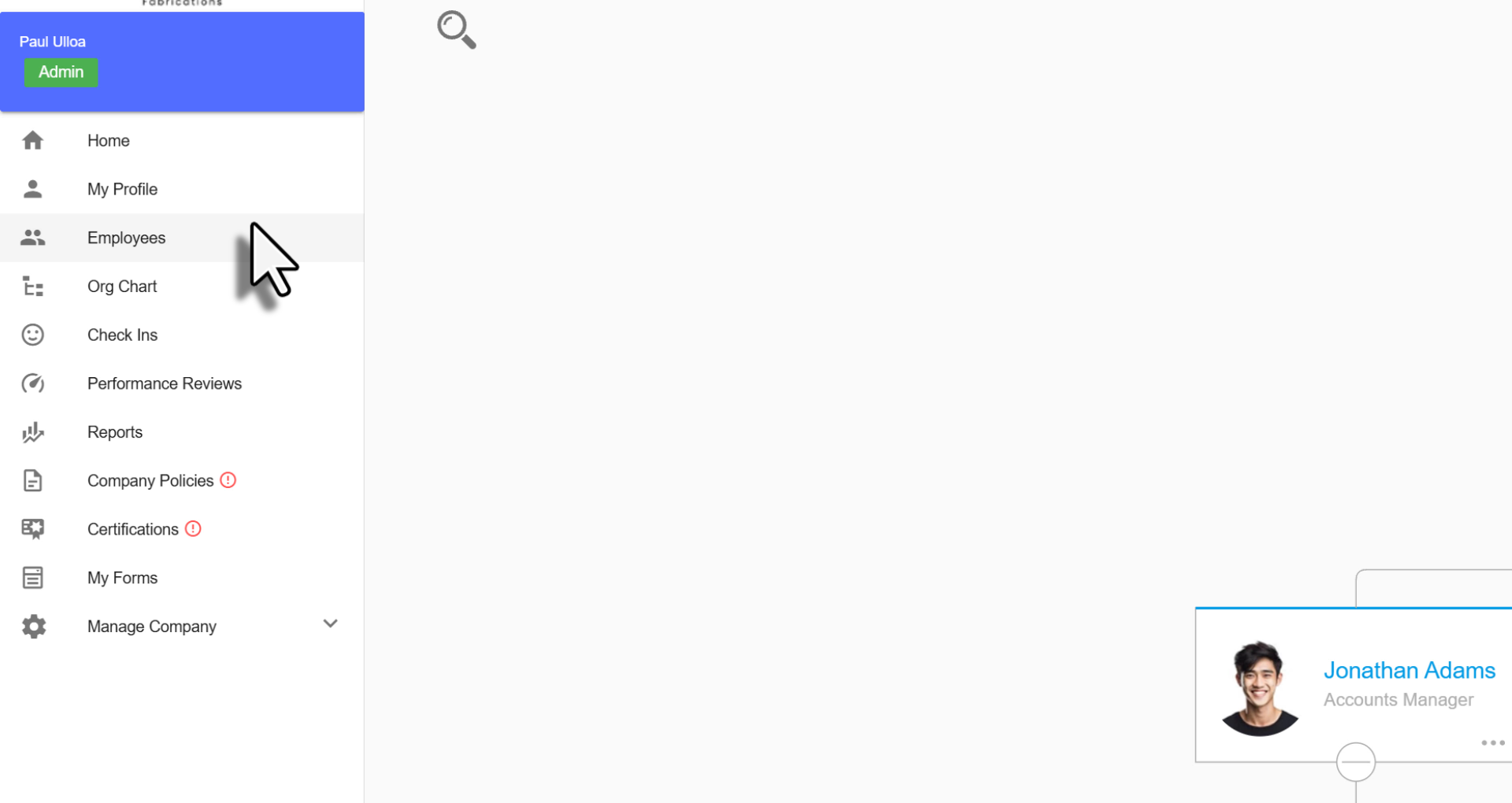
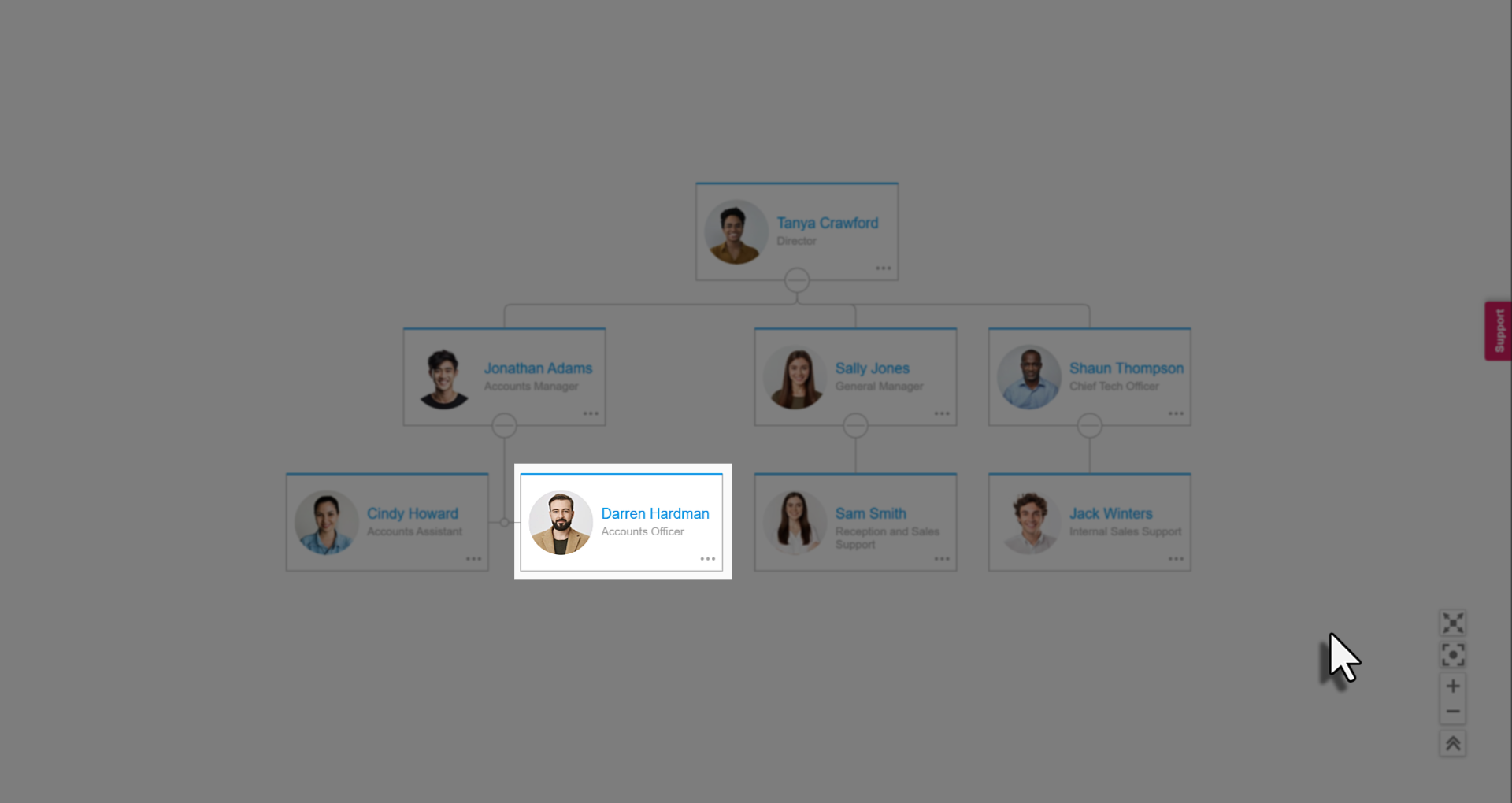
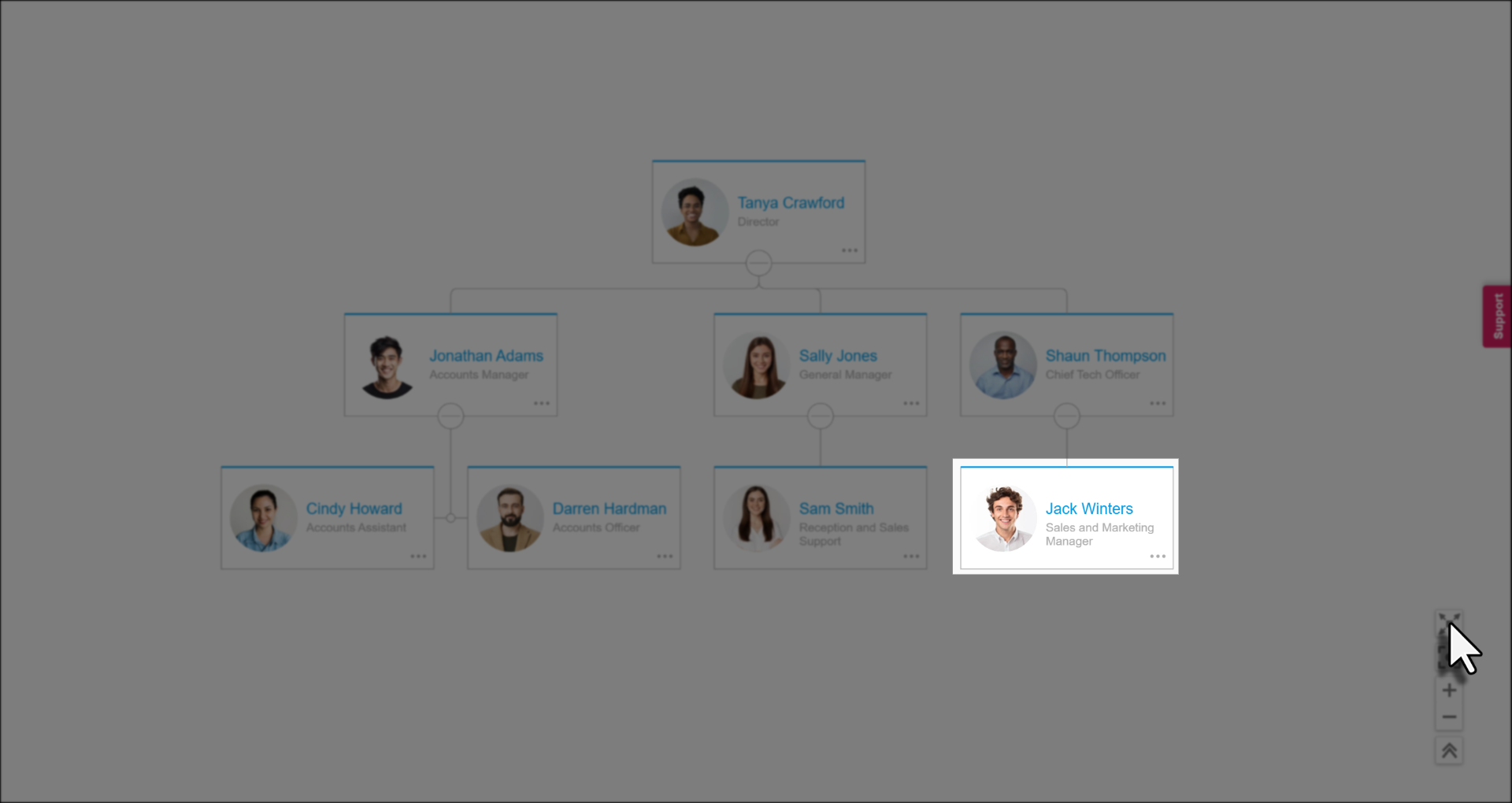
From the Home menu, select Org Chart. The org chart opens collapsed, showing the top levels of your structure.
2. Expand and navigate the org chart
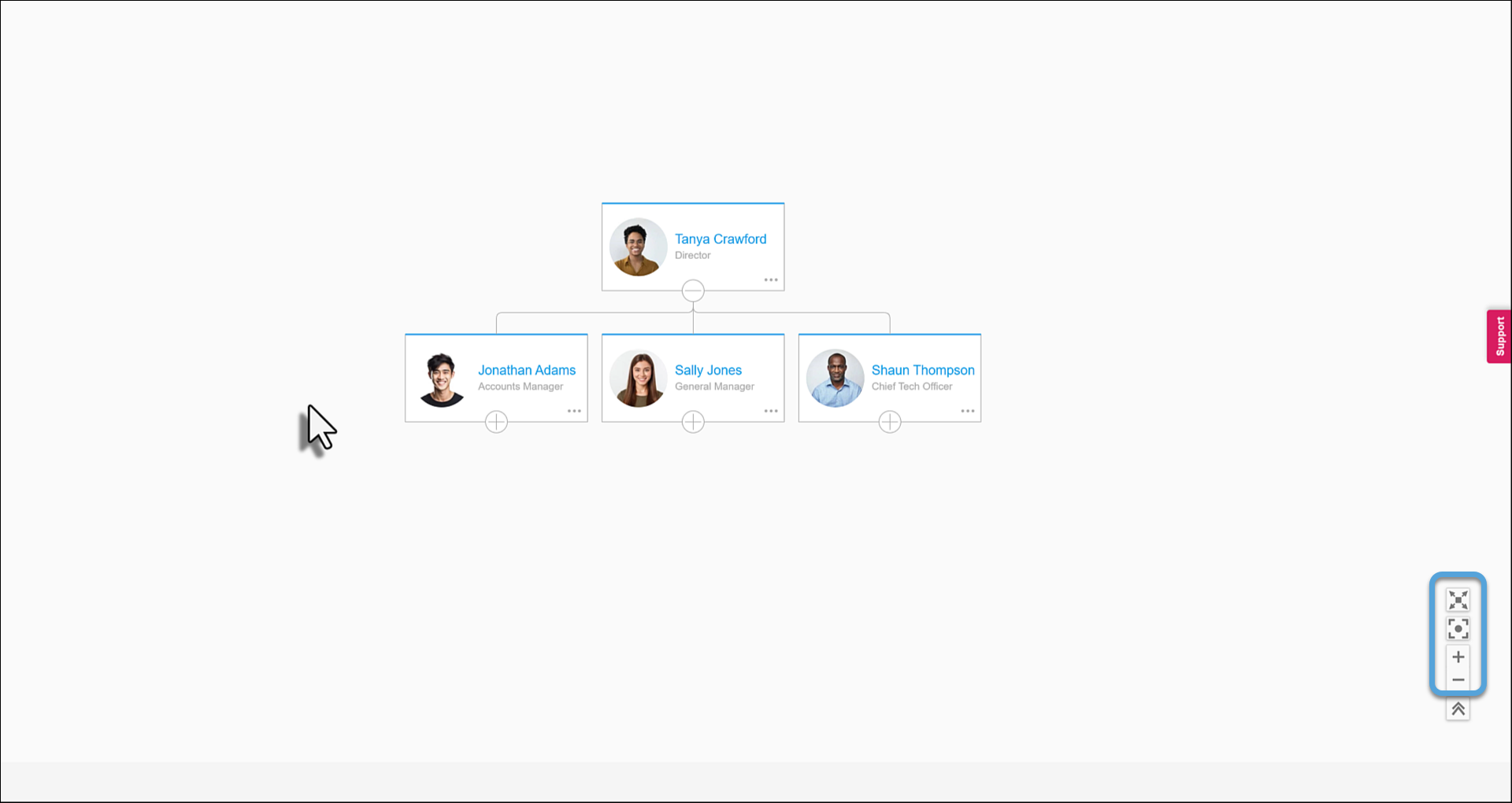
Use the buttons in the bottom right-hand corner of the org chart:
- Expand (arrows pointing outwards): opens the full org chart
- Centre: centres the org chart and fits it to your screen
- Plus (+) and minus (-): zoom in and out
3. Edit an employee's name (optional)
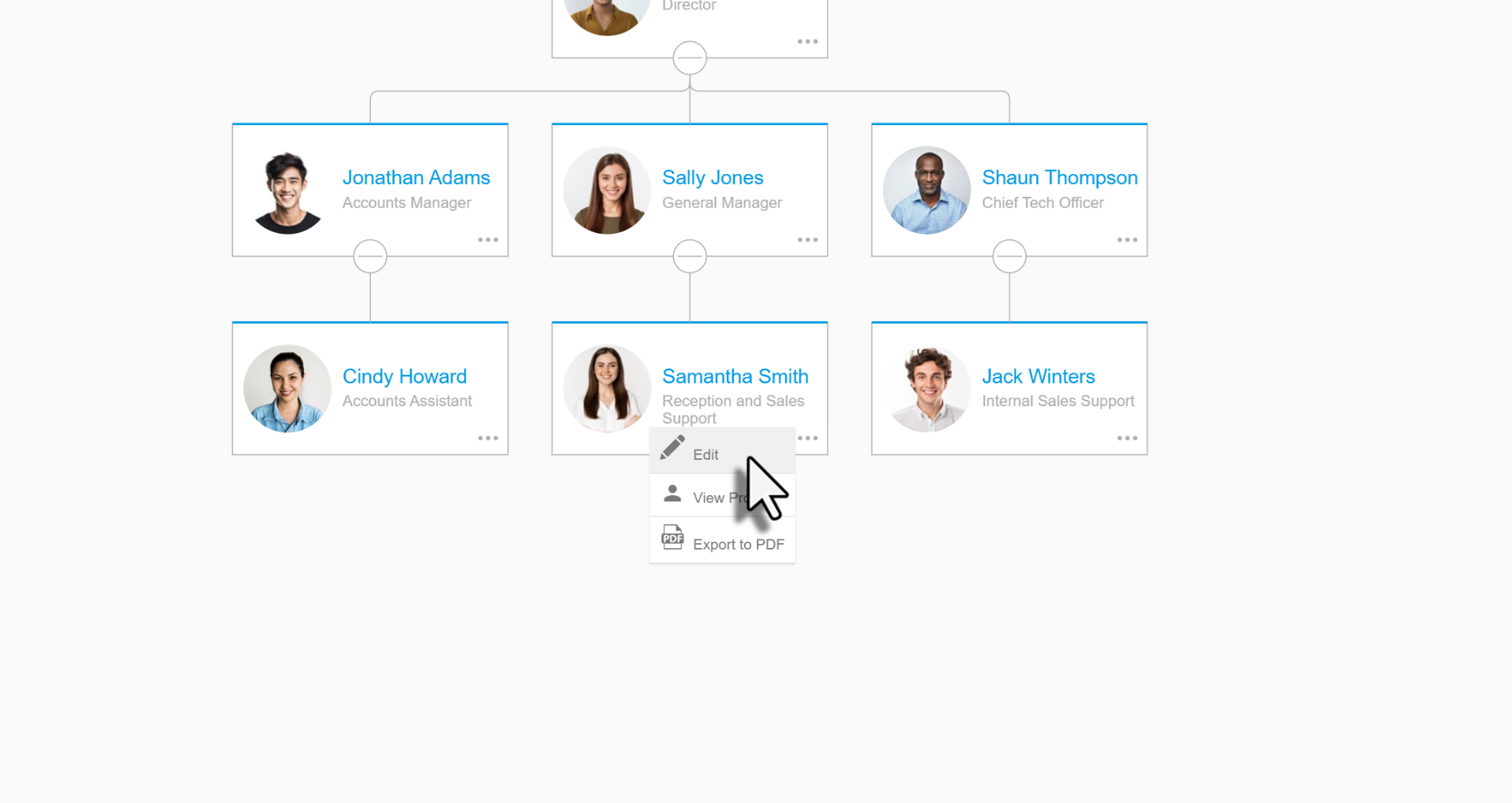
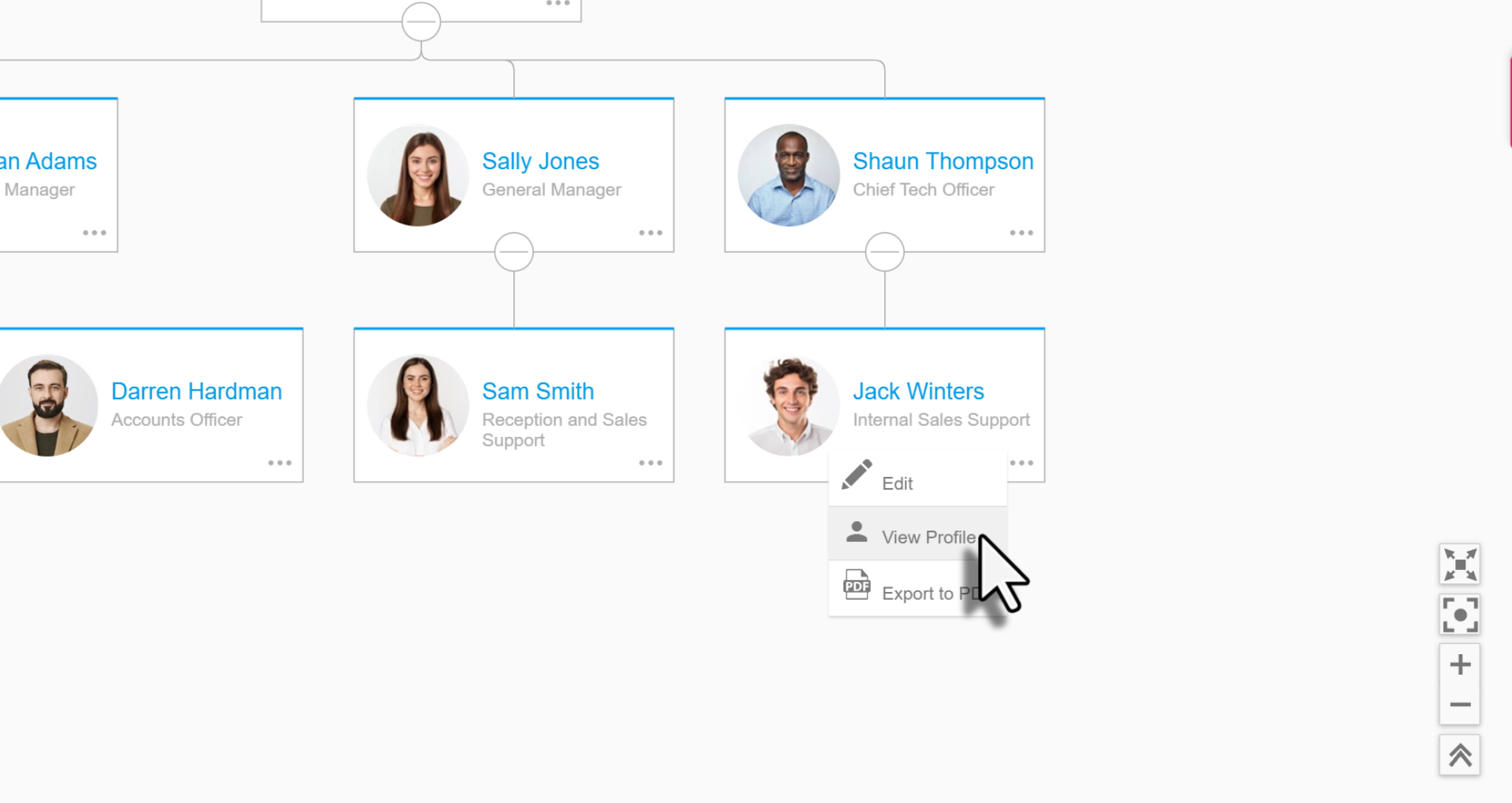
Select the three dots on the employee's card, then select Edit. In the Quick Edit window, update the First Name or Last Name, then select Save.
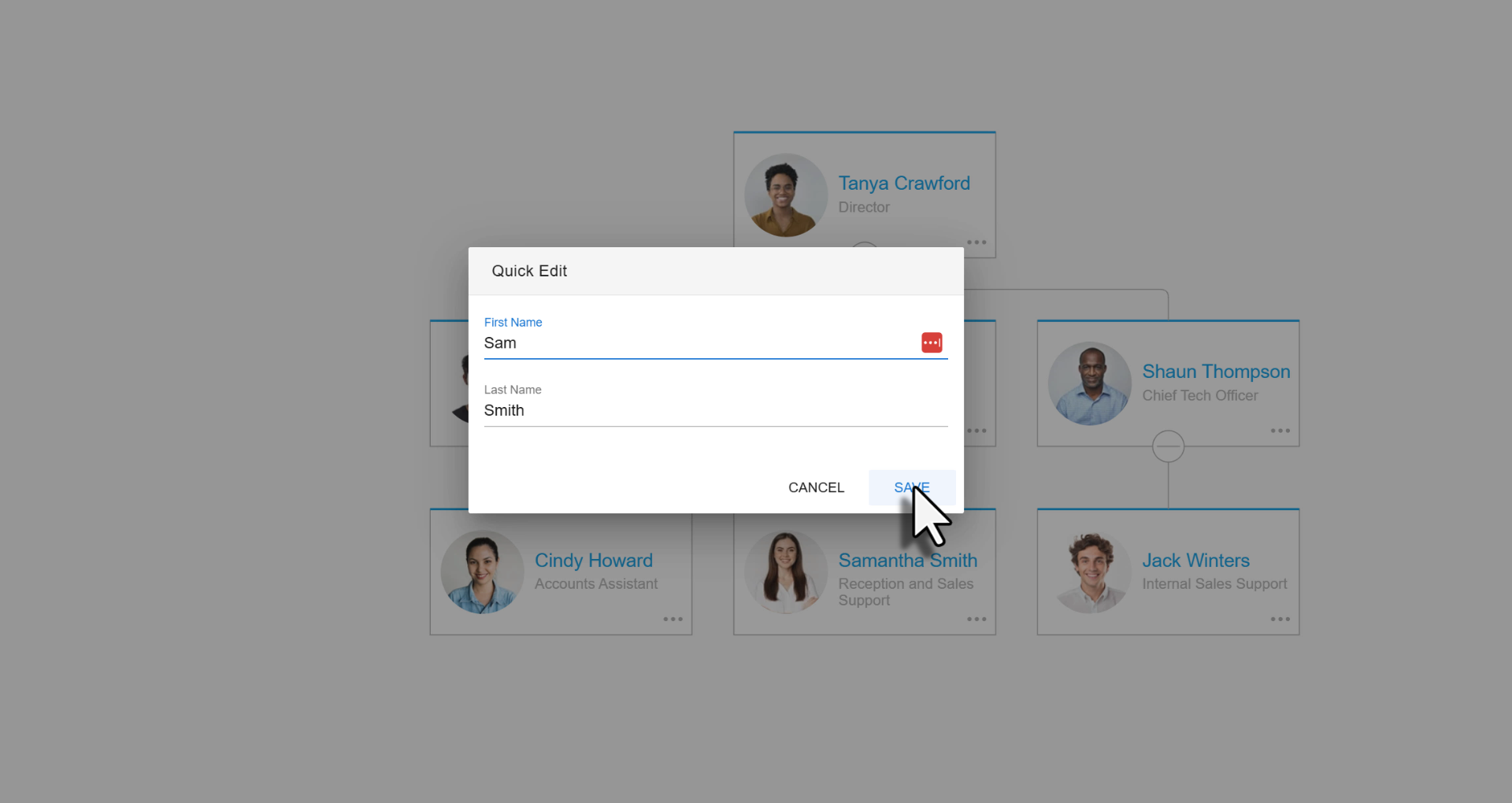
Note: Quick Edit only changes names. To change a job title or manager, follow the steps under Updating an existing employee below.
Adding a new employee to the org chart
1. Create the employee
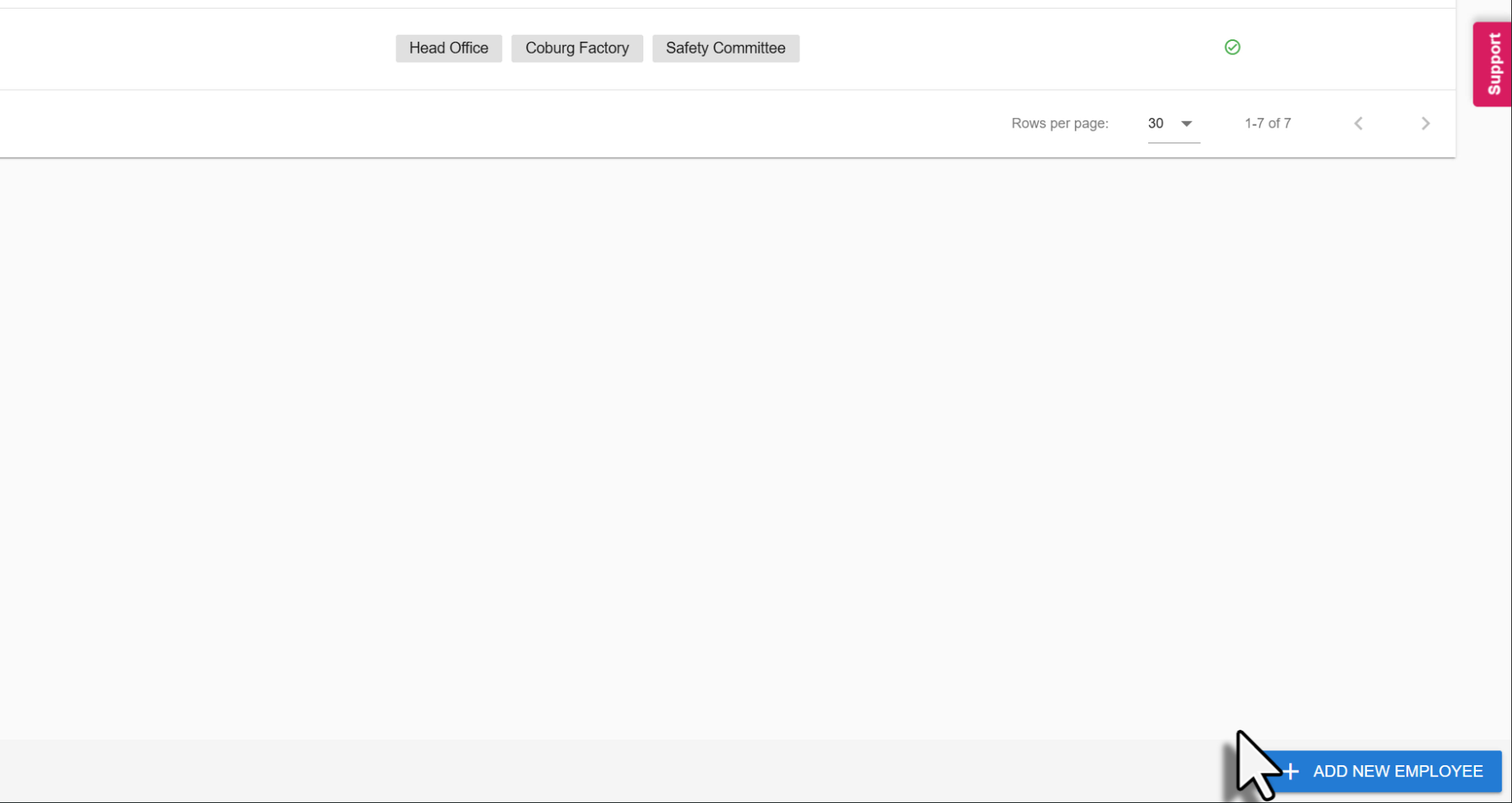
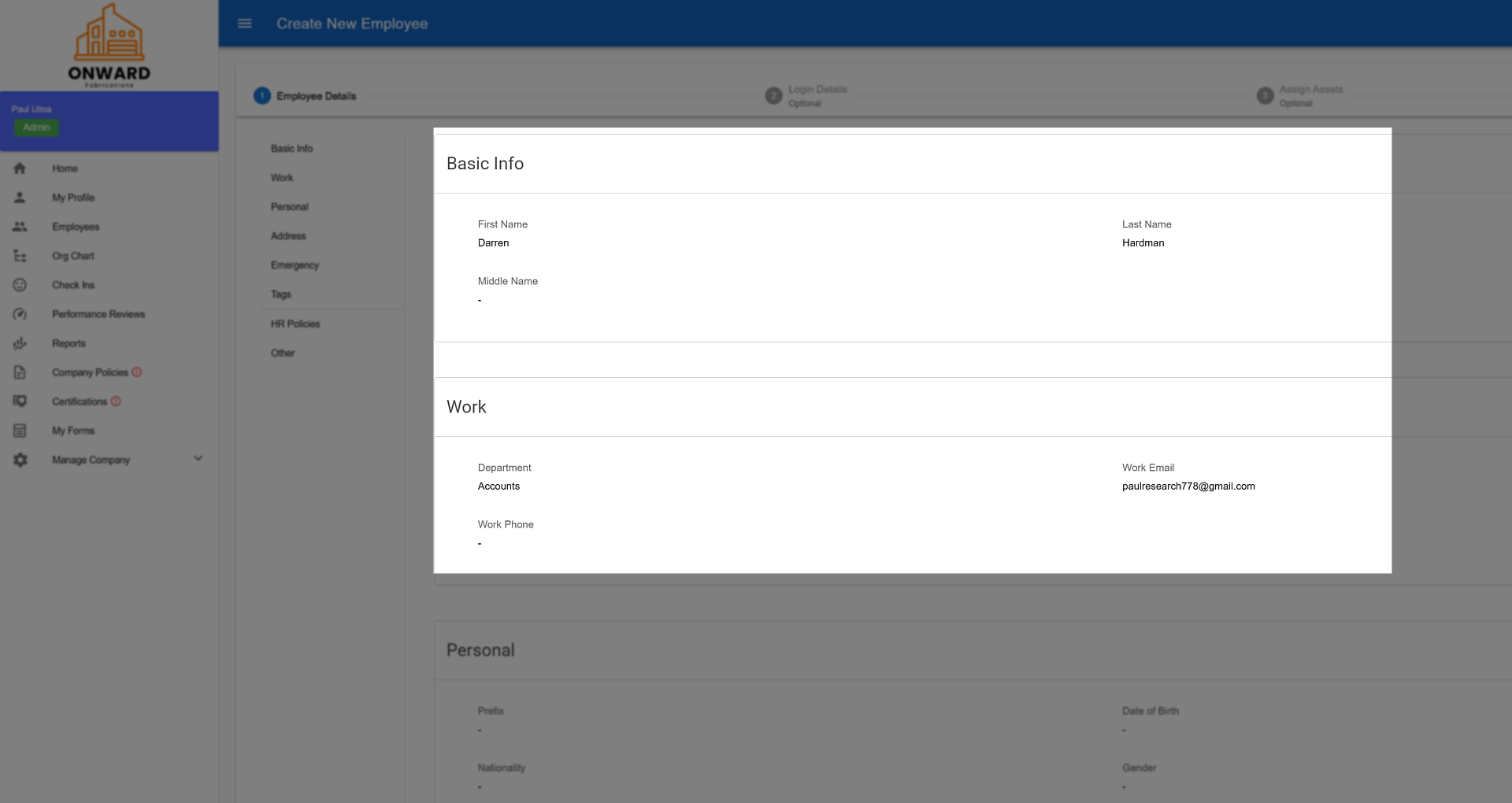
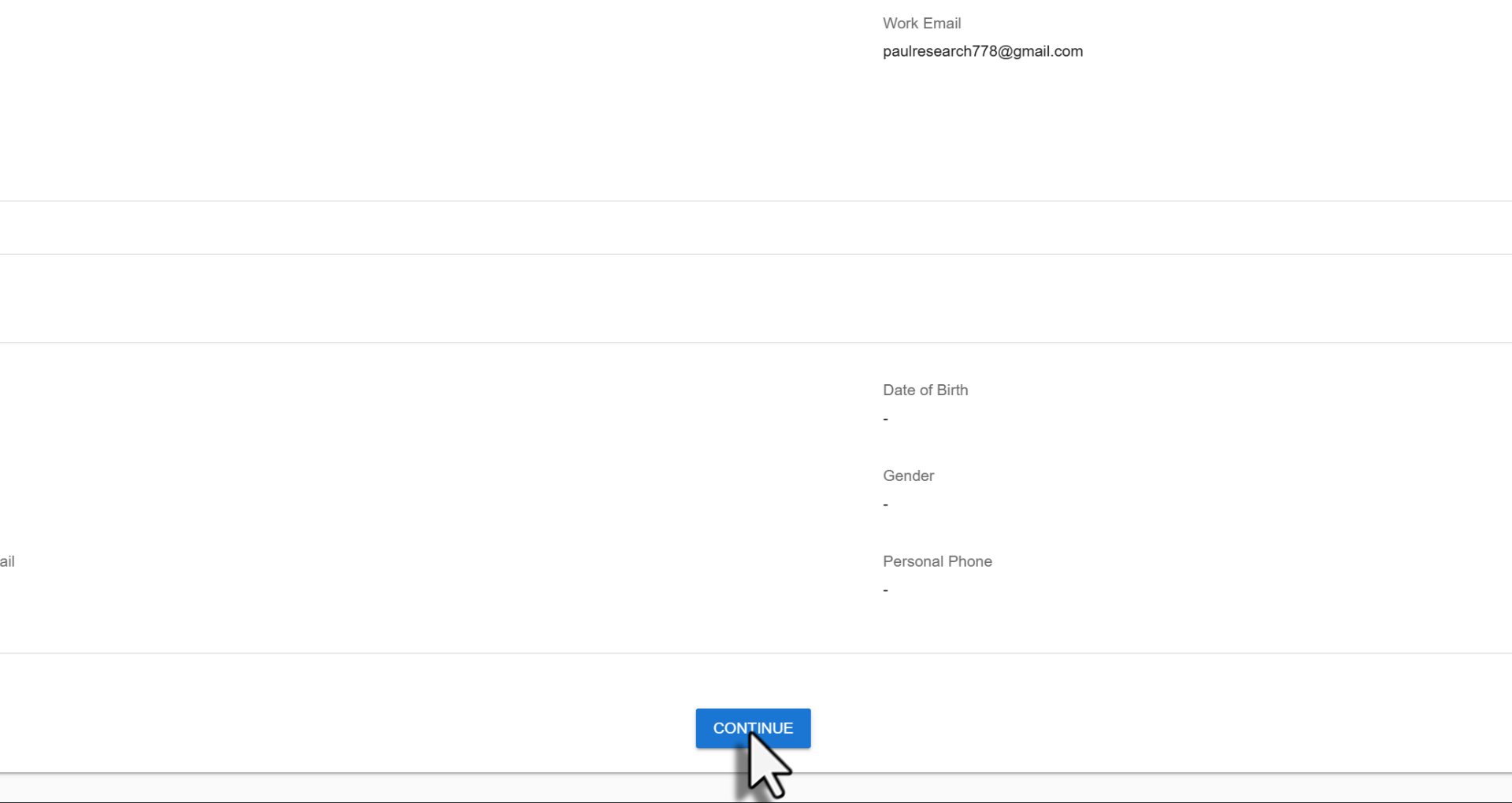
Select Employees, then select Add New Employee. Enter at least the employee's first name, last name, department and work email. Select Continue and follow the prompts, then select Create Employee and Confirm.
Note: Adding a new employee may incur an extra cost, depending on your subscription.
2. Add a position description
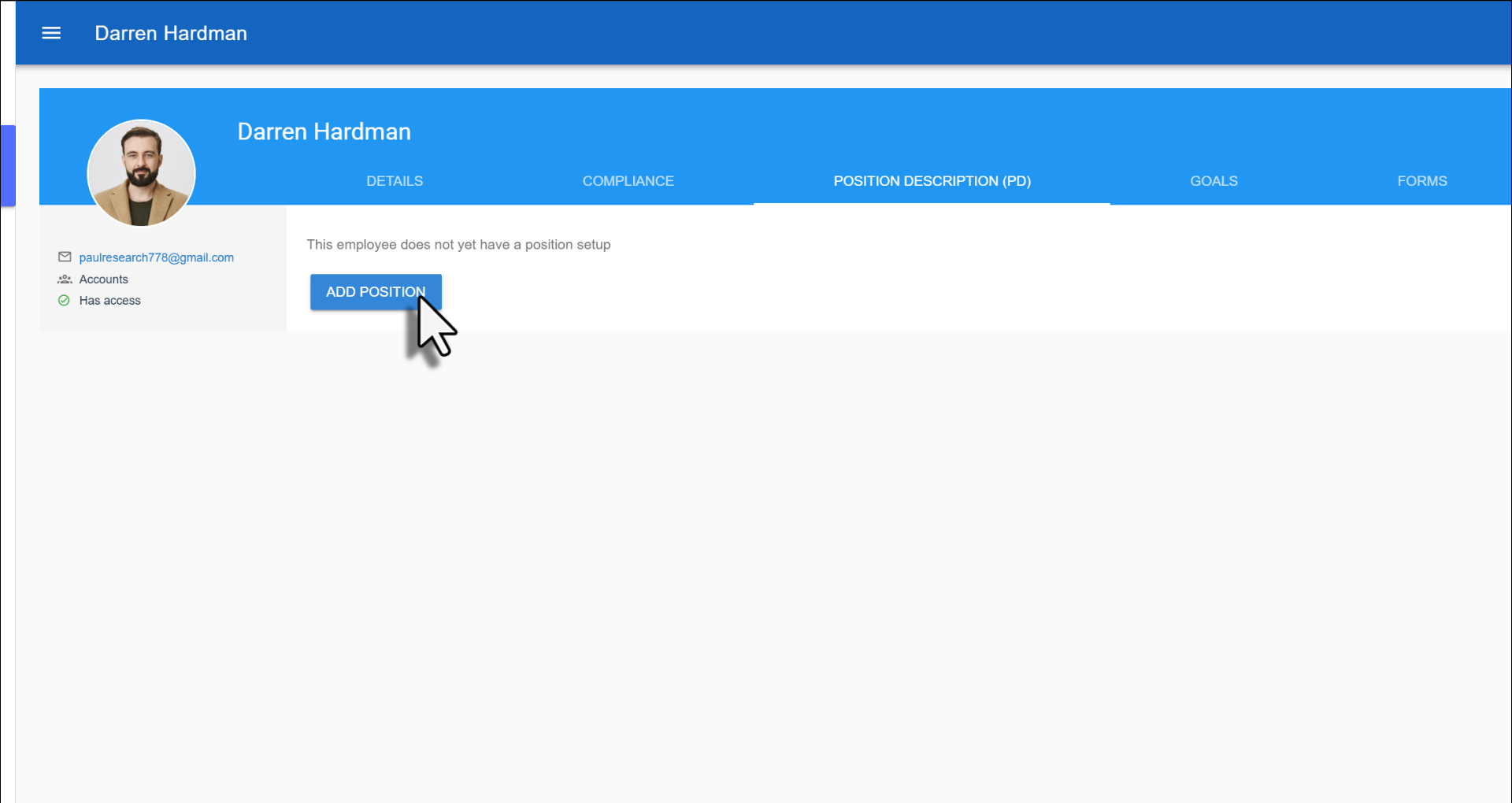
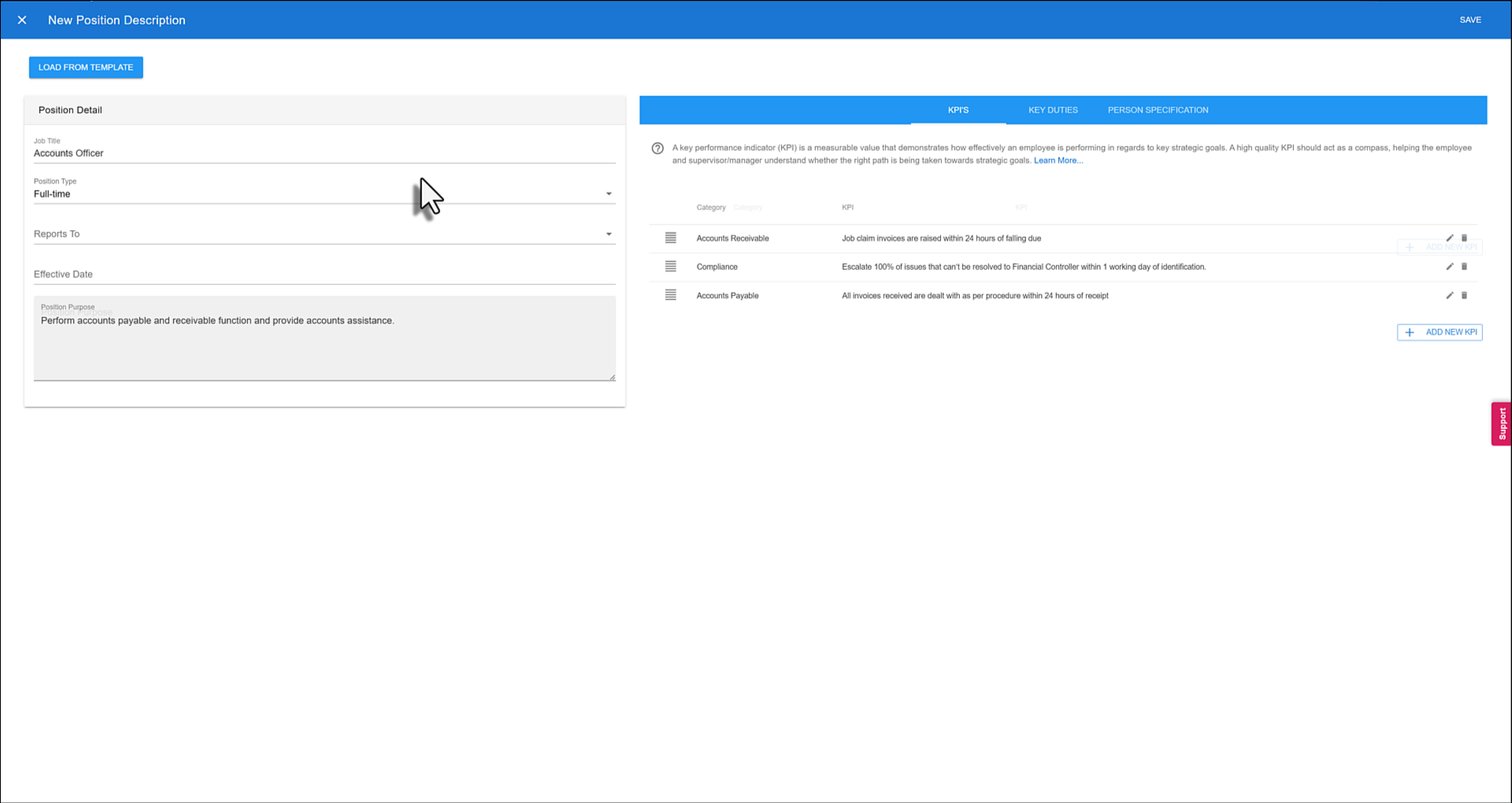
On the new employee's profile, select Position Description, then select Add Position. Enter the job title and position details, or select Load From Template to use an existing template.
3. Choose who they report to
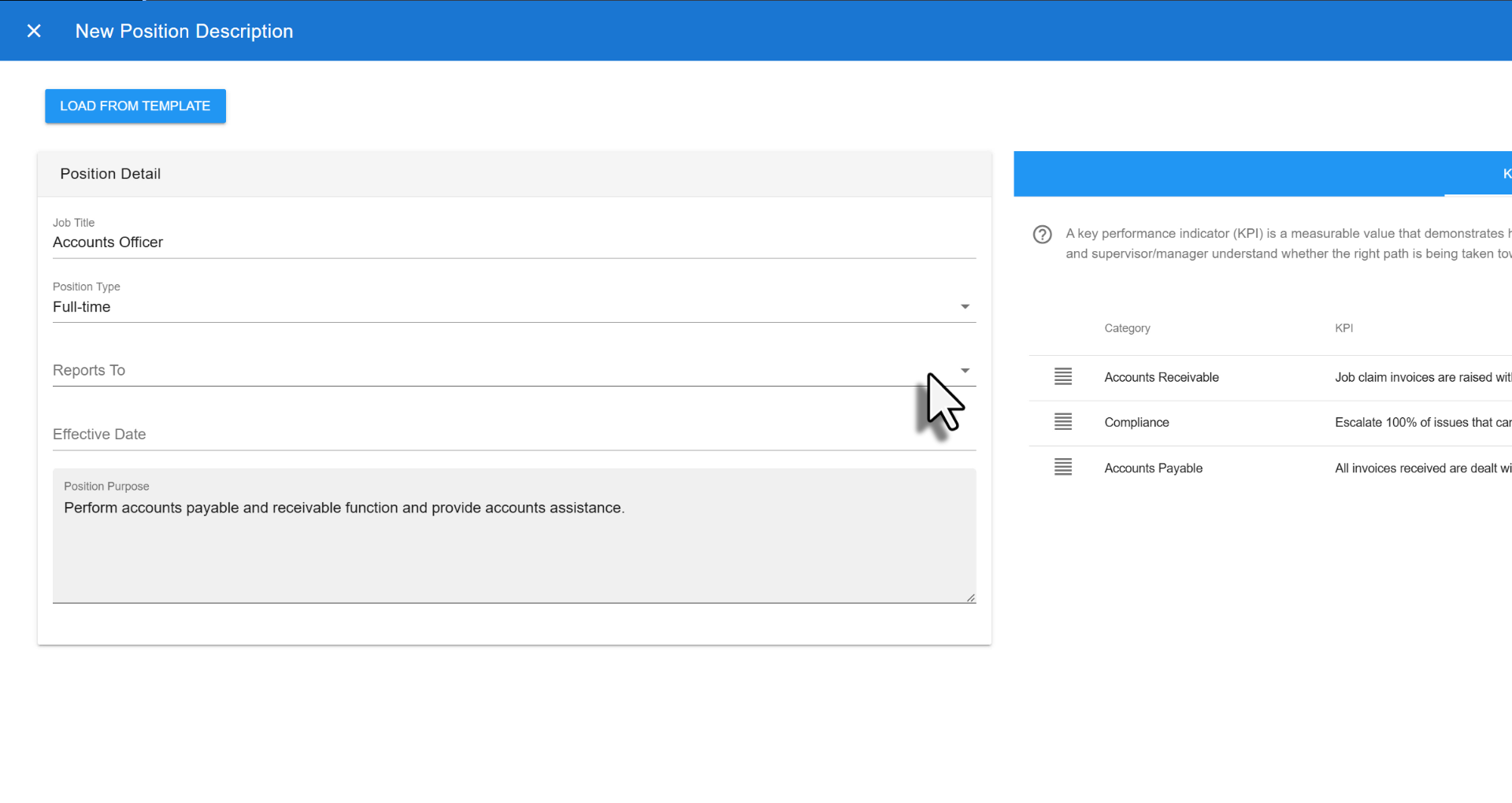
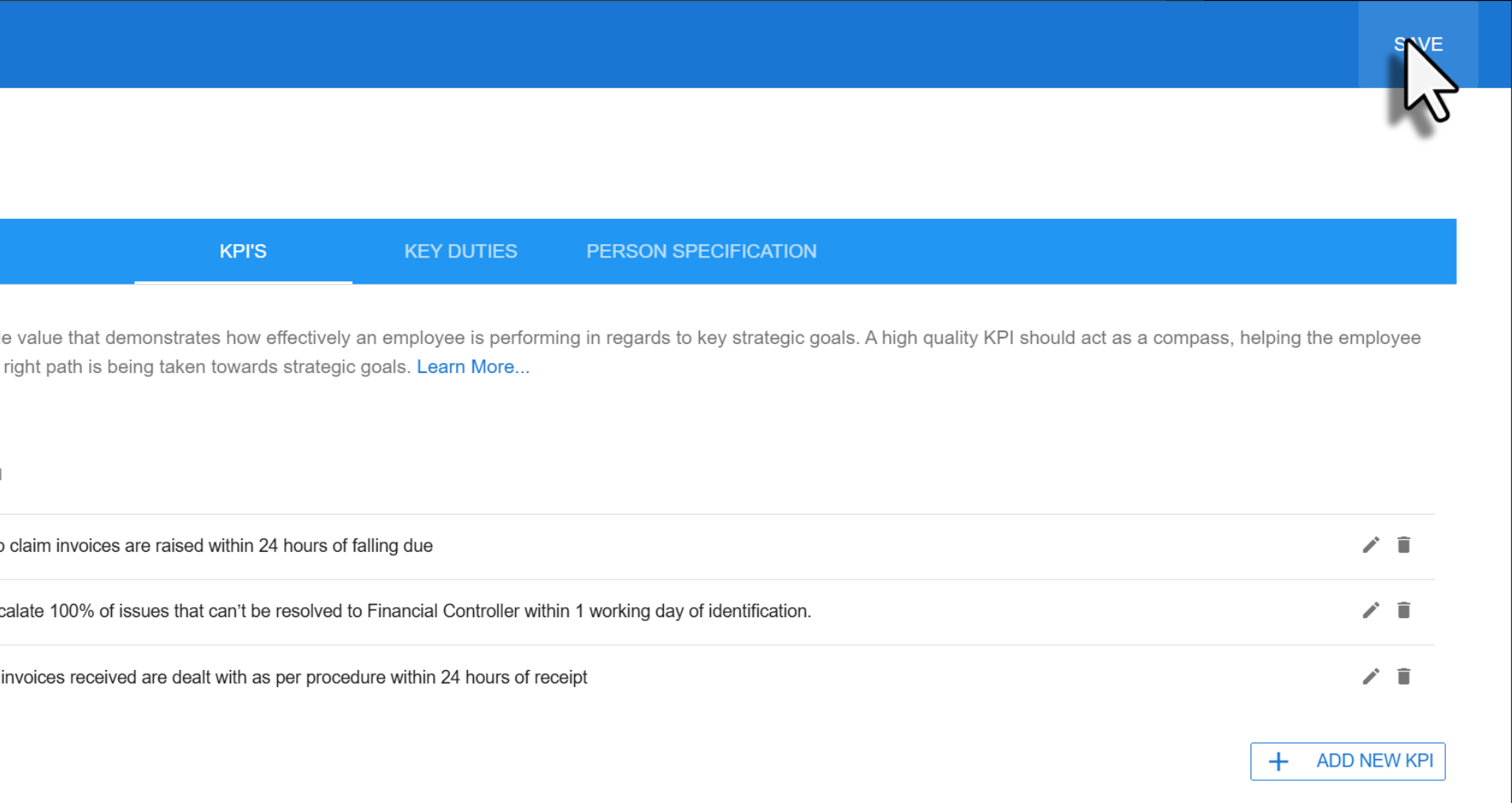
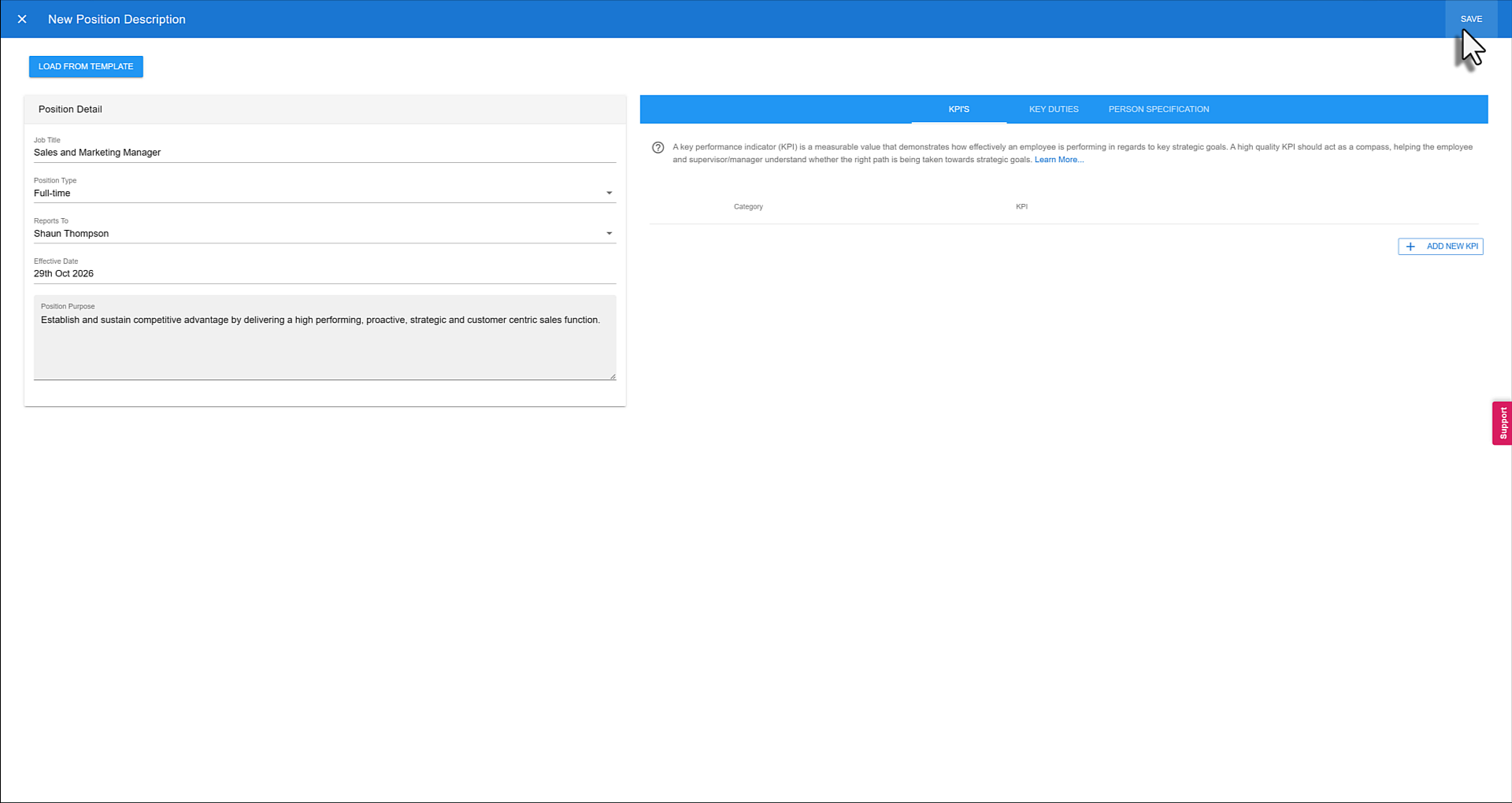
Under Reports To, select the employee's manager, then select Save.
4. Check the org chart
Once the position description is approved and live, the org chart updates automatically. Select Org Chart to see the new employee under their manager.
Updating an existing employee
If an employee is promoted, changes roles or moves to a new manager, add a new position description for them. This keeps a record of their previous role.
1. Open the employee's profile
On the org chart, select the three dots on the employee's card, then select View Profile.
2. Add a new position description
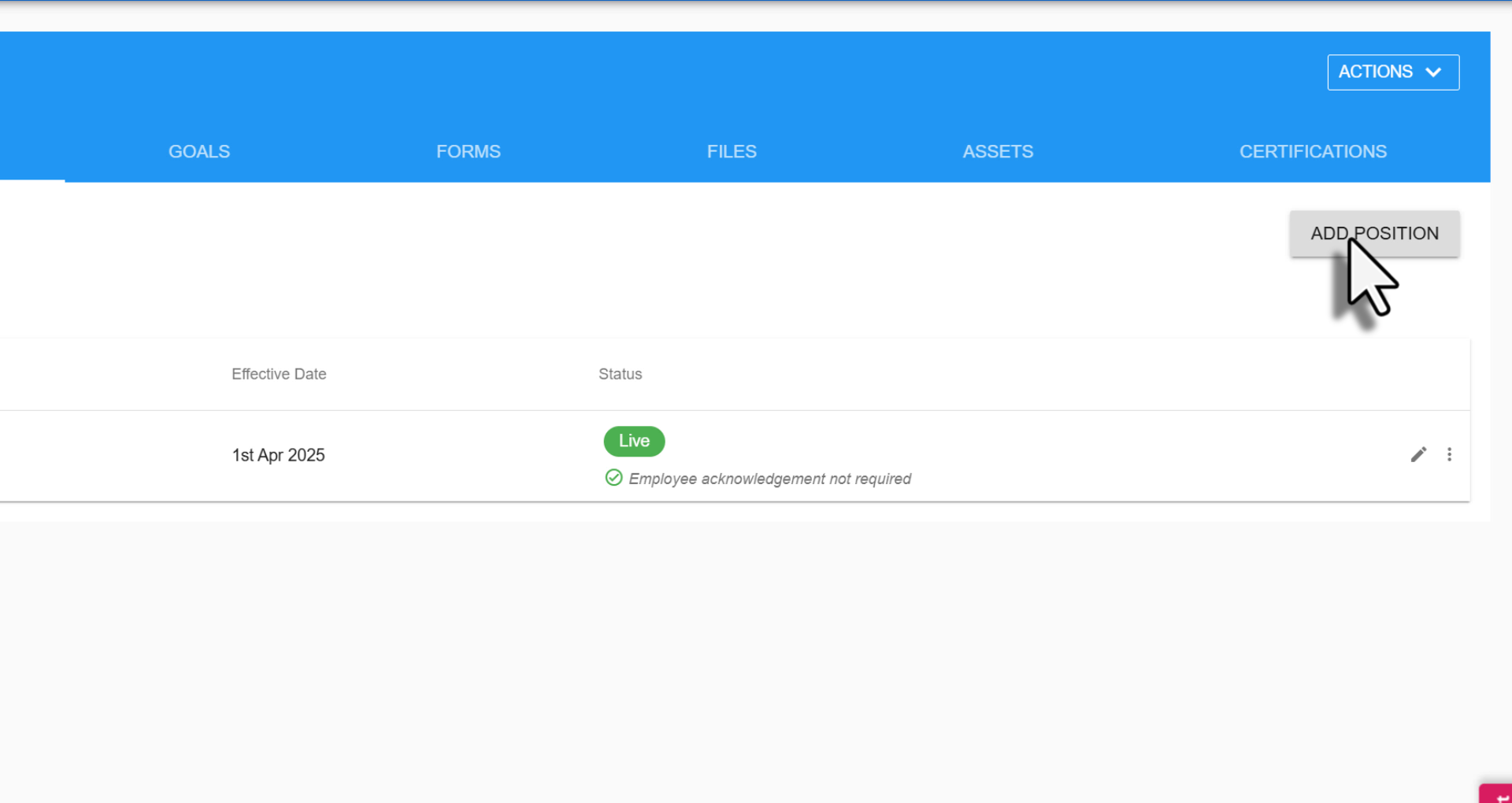
Select Position Description, then select Add Position.
3. Update Position Description
Load the new Position Description details and then click Save.
4. Check the org chart
Once the new position description is approved and live, the org chart shows the change.
Was this article helpful?
That’s Great!
Thank you for your feedback
Sorry! We couldn't be helpful
Thank you for your feedback
Feedback sent
We appreciate your effort and will try to fix the article