Approving position descriptions is a key step in ensuring employees can review and acknowledge their role within the system. As the reporting line manager, you must approve your direct report’s position description before it can be sent to them. This article shows you how to review, approve, and send a position description to an employee for acknowledgement in Your HR System.
Important
Once a position description is approved, it cannot be unapproved. If changes are required later, you’ll need to update the position description and send a new version for approval and acknowledgement.
1. Open the Employees list
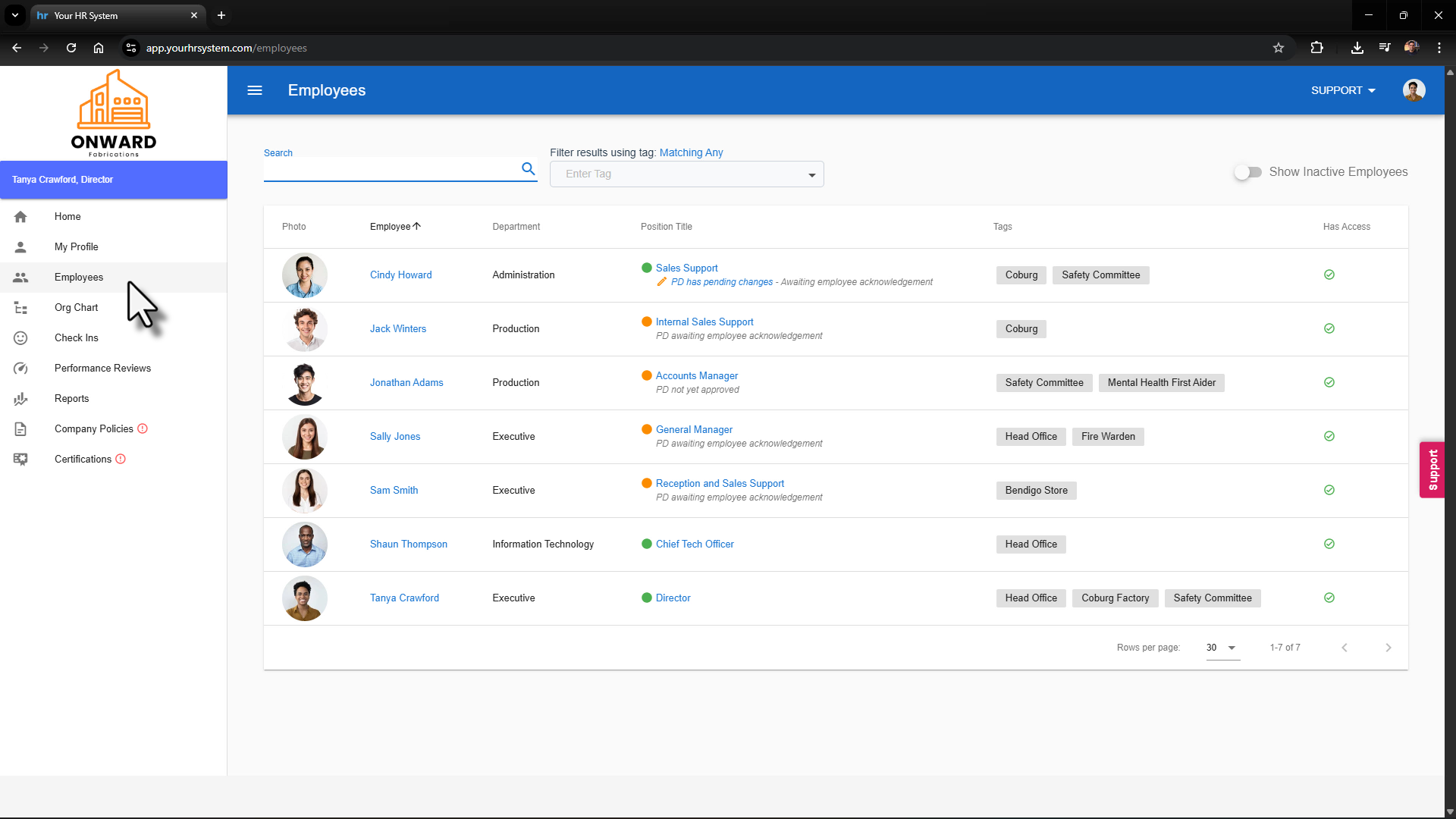
From the main menu, select Employees. Locate the team member whose position description you want to approve.
2. Check the position description status
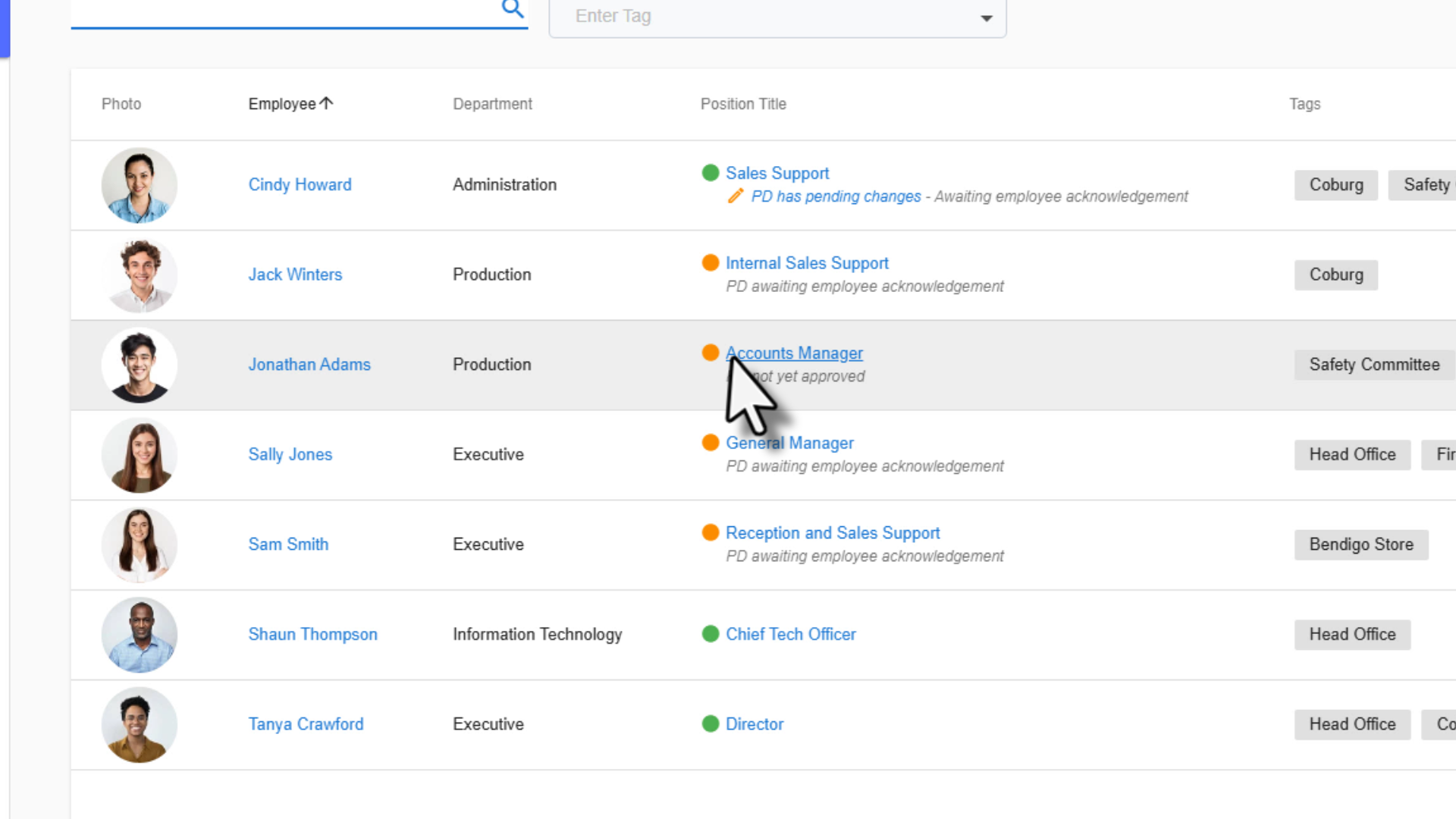
Under the employee’s Position Title, you’ll see the current status of their position description. For example: PD not yet approved means the position description is ready for manager review.
Click on the Position Title to open the position description.
3. Review the position description
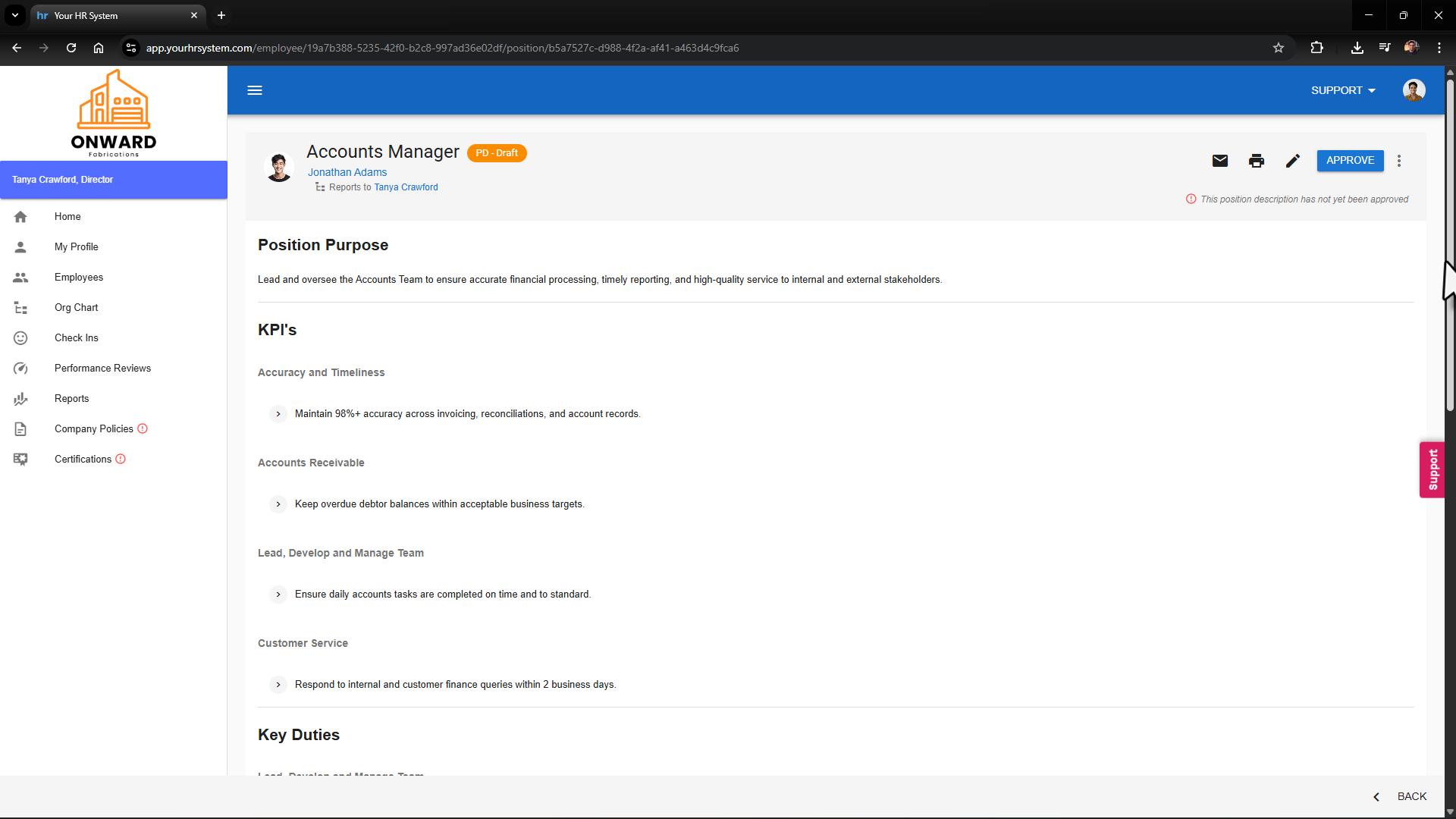
You’ll now be taken to the Position Description screen. Carefully review all sections to ensure the information is accurate and complete before approving.
Tip: Take a moment to double-check duties, KPIs, and expectations. Once approved, any changes will require a new version to be created and re-approved.
4. Approve the position description
When you’re ready:
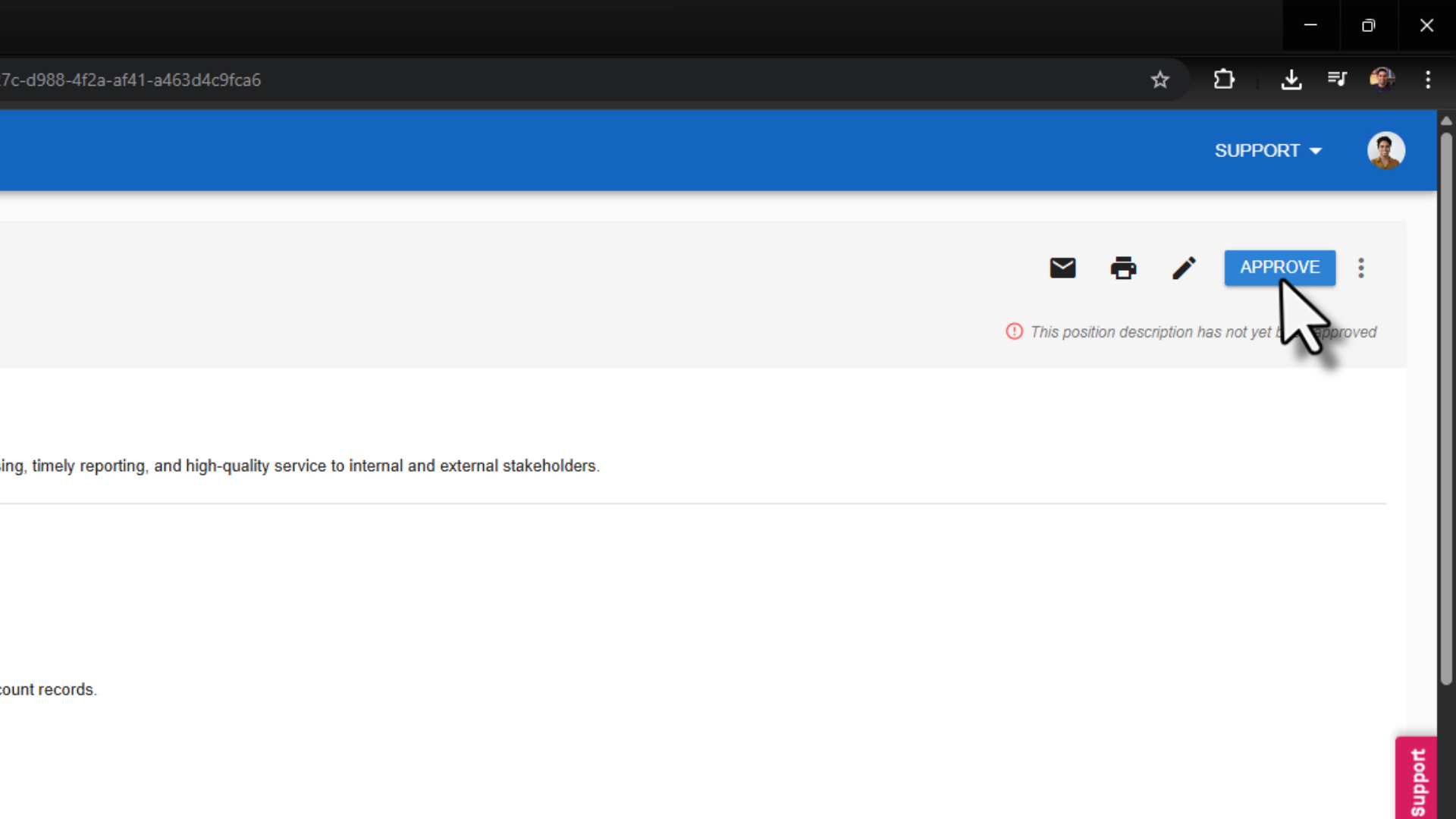
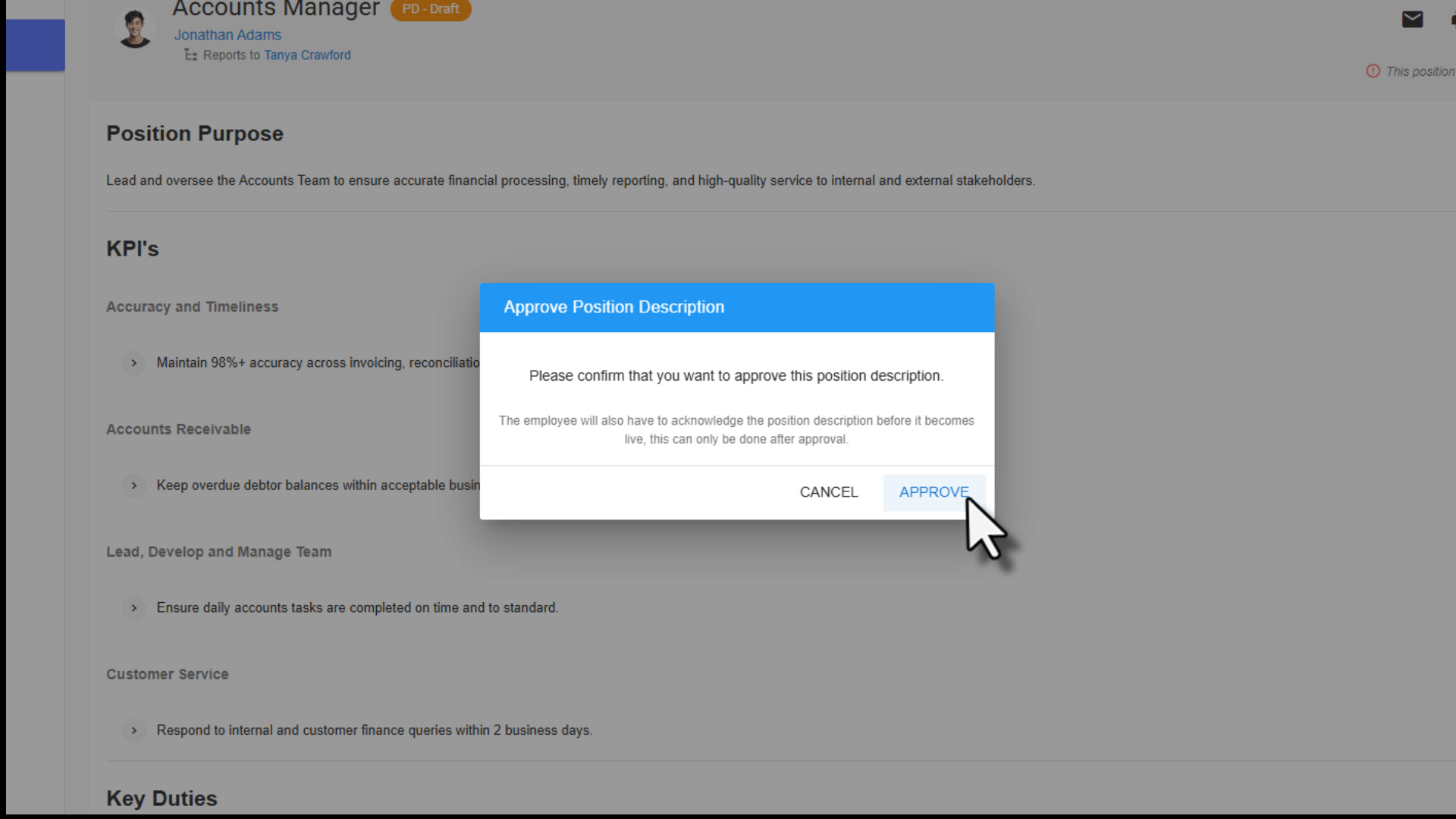
- Click Approve in the top right-hand corner.
- Click Approve again to confirm.
5. Send to employee for acknowledgement
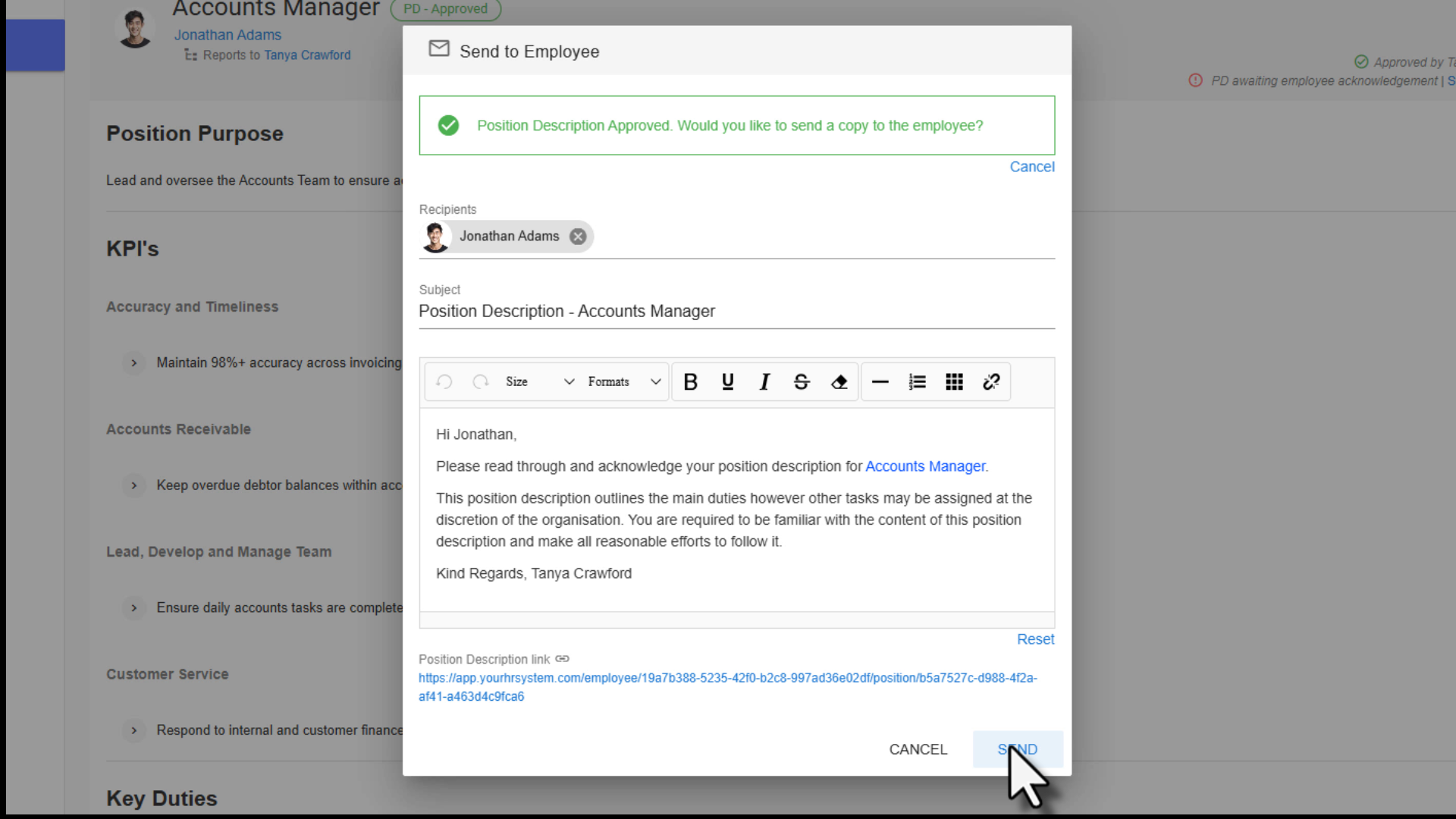
After approving, a Send to Employee window will appear. This sends a notification to the employee asking them to review and acknowledge the position description. You can edit the message before sending if needed. Click Send to complete the process.
What happens next?
The employee will receive an email notification to review the position description. They can then acknowledge it within the system. The approved position description becomes part of their employment record
Was this article helpful?
That’s Great!
Thank you for your feedback
Sorry! We couldn't be helpful
Thank you for your feedback
Feedback sent
We appreciate your effort and will try to fix the article