Adding your company logo helps personalise Your HR System and ensures consistent branding across the platform. Once uploaded, your logo will appear on the homepage and throughout the system for all users. This article walks you through how to upload and crop your company logo.
Before you start
- You’ll need Admin access to upload or change the company logo
- Your logo should ideally be a PNG file for best quality and transparency
- Make sure your logo is clearly readable at smaller sizes
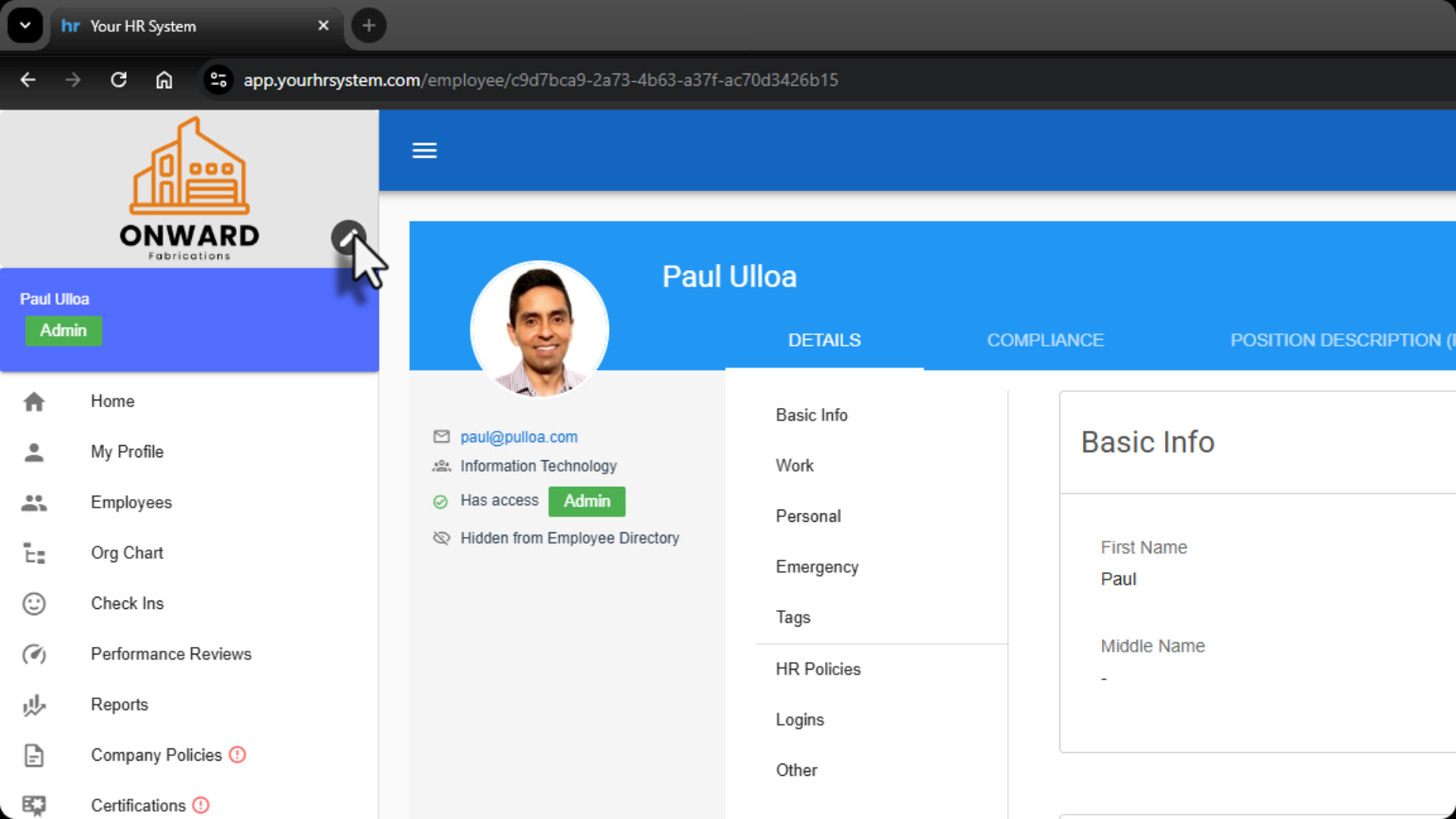
1. Locate the company logo area
From the Home page, look to the top left corner of the portal. This is where your company logo will appear. Hover over the logo area and select the pencil icon to edit the logo.
2. Choose your logo file
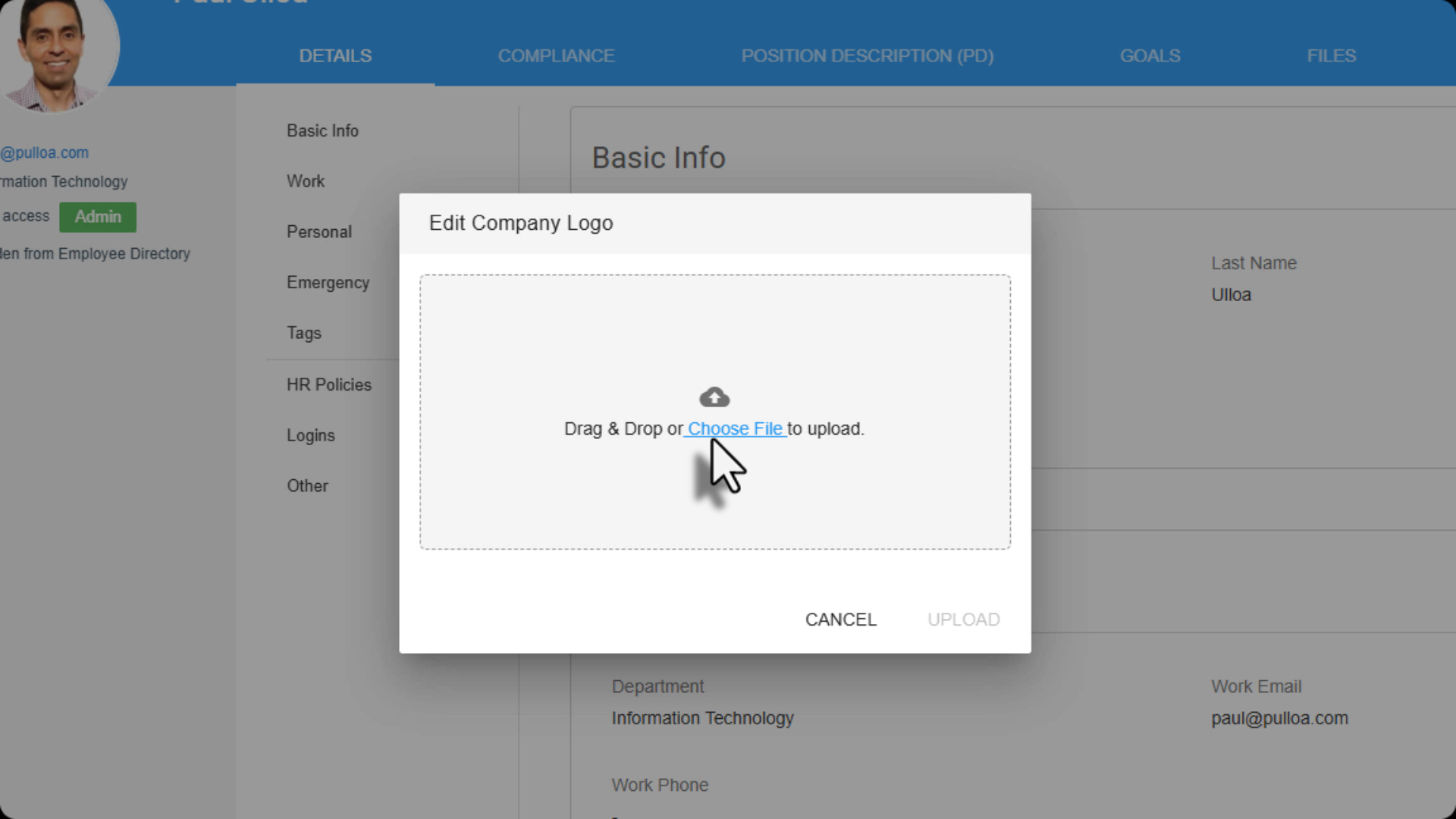
In the Edit Company Logo window:
- Select Choose file
- Browse your computer and select your logo file
- Once selected, the logo will load into the upload window
3. Crop your logo
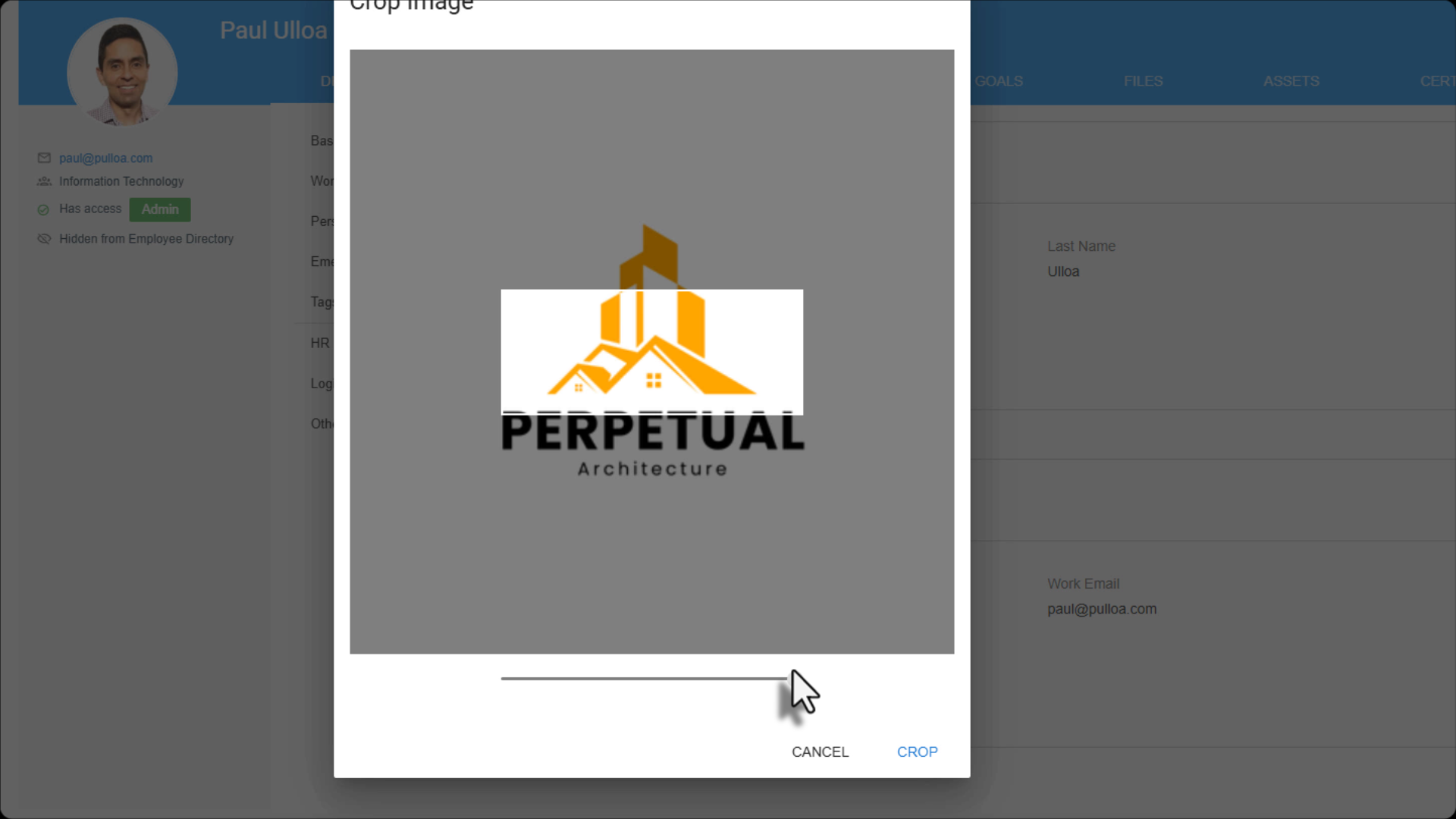
After selecting your file, you’ll be prompted to crop the image.
- Use the slider underneath the image to zoom in or out
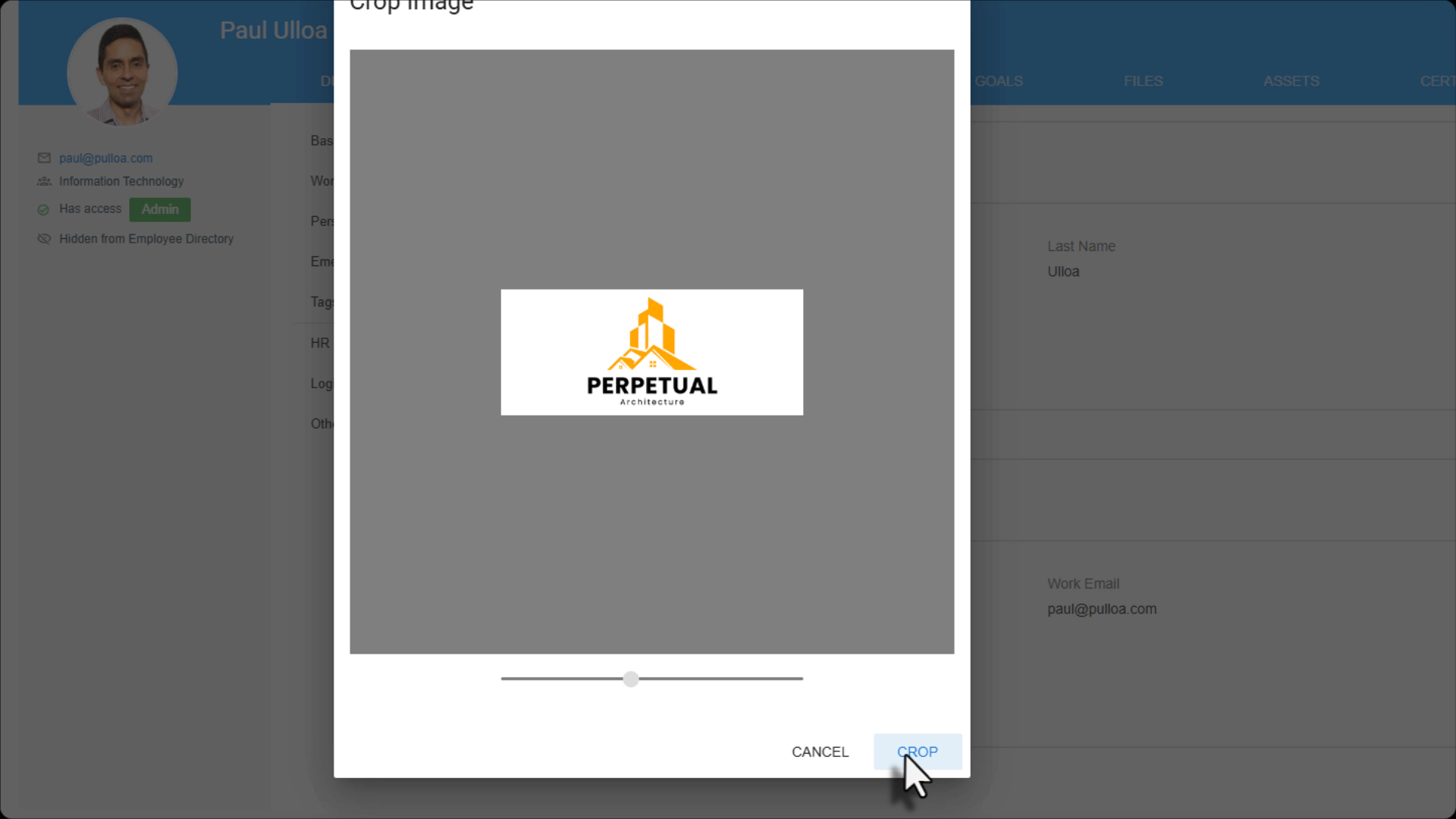
- Position the logo so it’s centred and clearly visible
- When you’re happy with the framing, select Crop
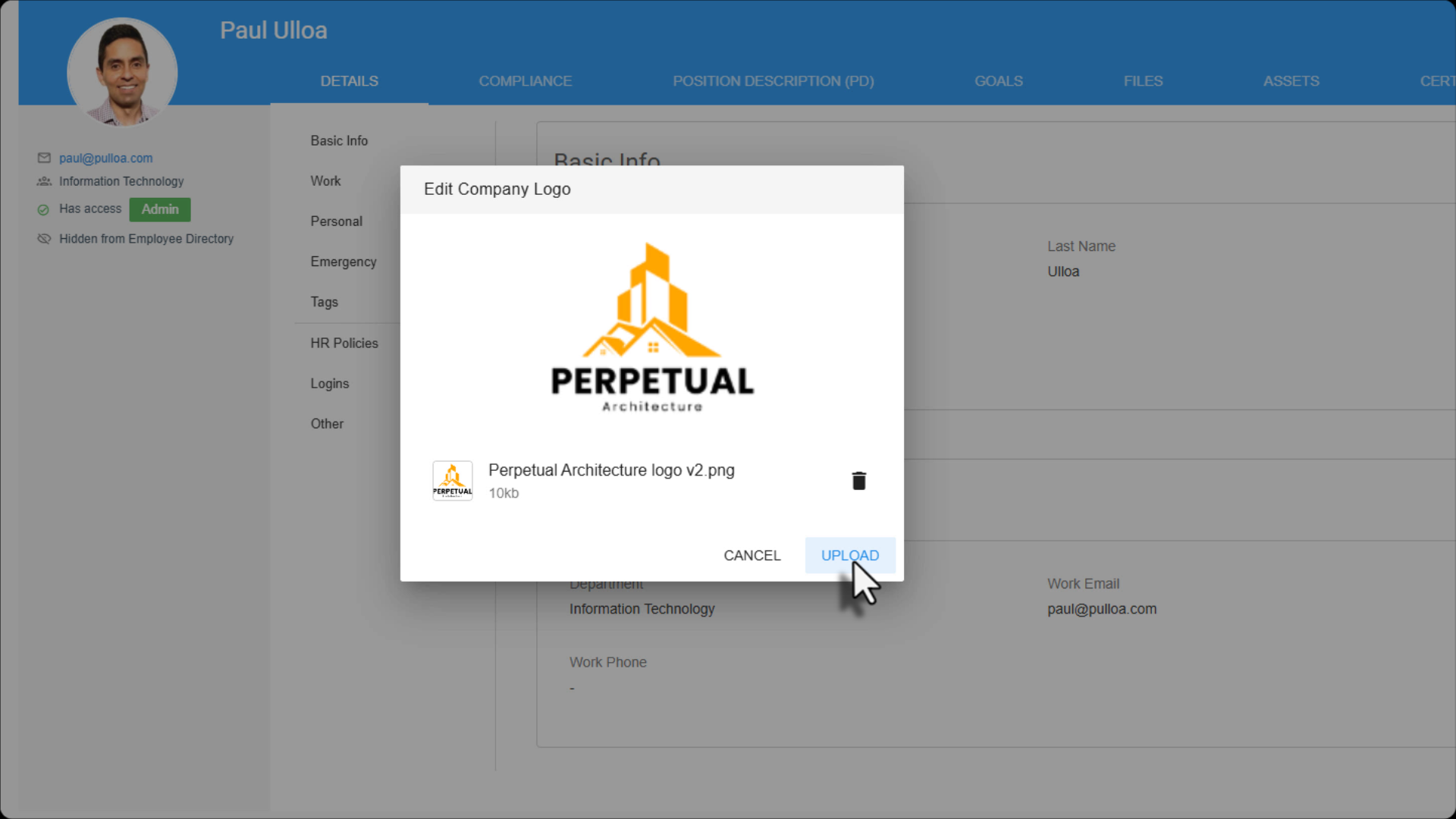
4. Upload the logo
Once cropped, review the preview image and select Upload to confirm. Your logo will now be applied across the platform.
Was this article helpful?
That’s Great!
Thank you for your feedback
Sorry! We couldn't be helpful
Thank you for your feedback
Feedback sent
We appreciate your effort and will try to fix the article