Staff certifications allow you to set up, track, and manage employee certification requirements, including expiry dates and automated renewal reminders.
1. Access Certification Management
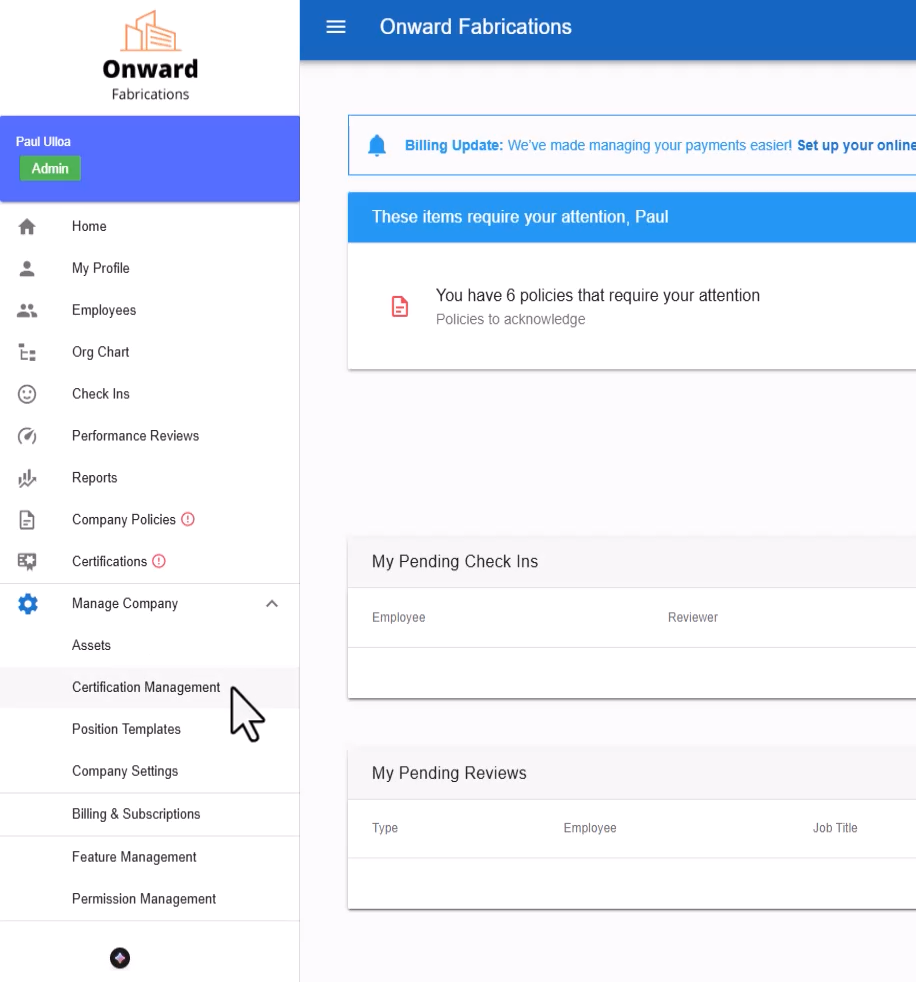
Click on Manage Company.
Select Certification Management from the options.
2. Create a New Certification
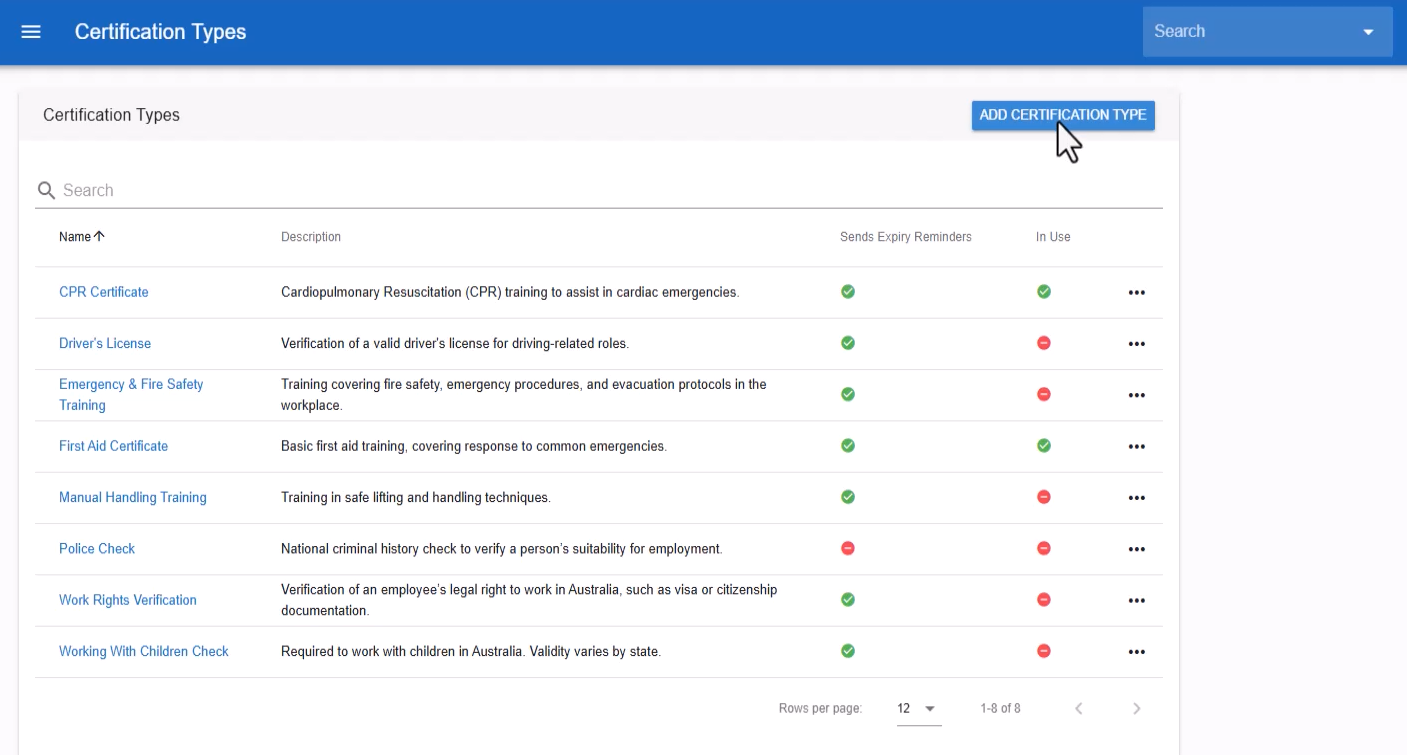
Click on Add Certification Type.
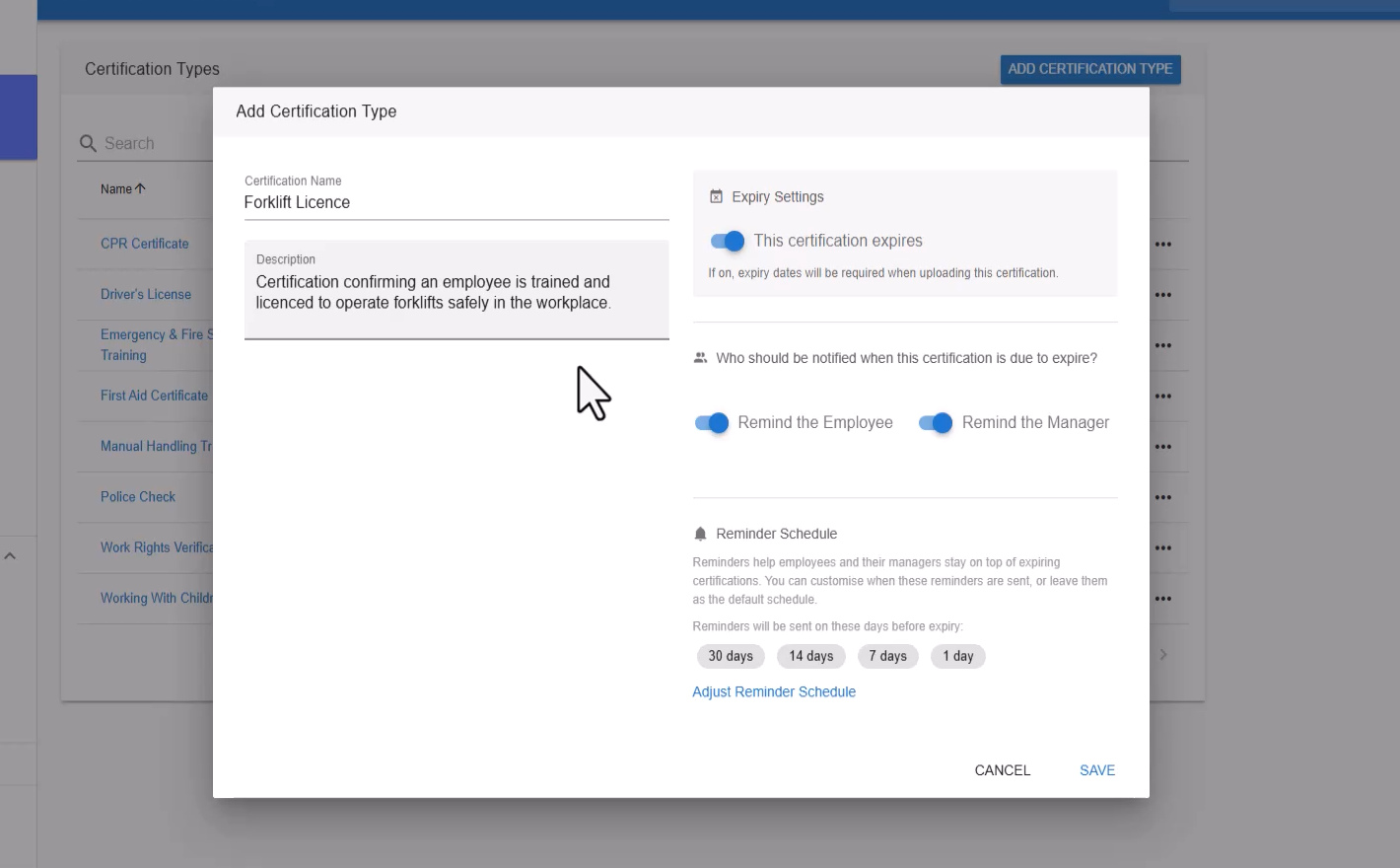
Fill in the Certification Name and Description as needed.
3. Set Expiry and Reminder Settings
On the right side, configure the Expiry and Reminder Settings:
Ensure toggles for email reminders are switched on.
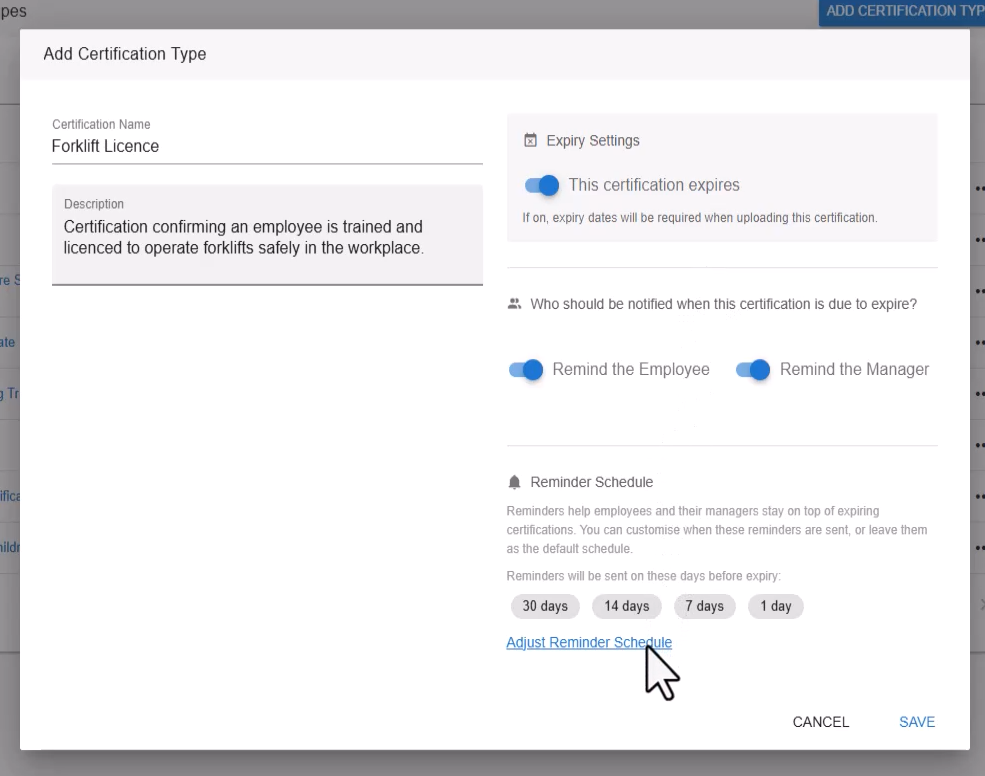
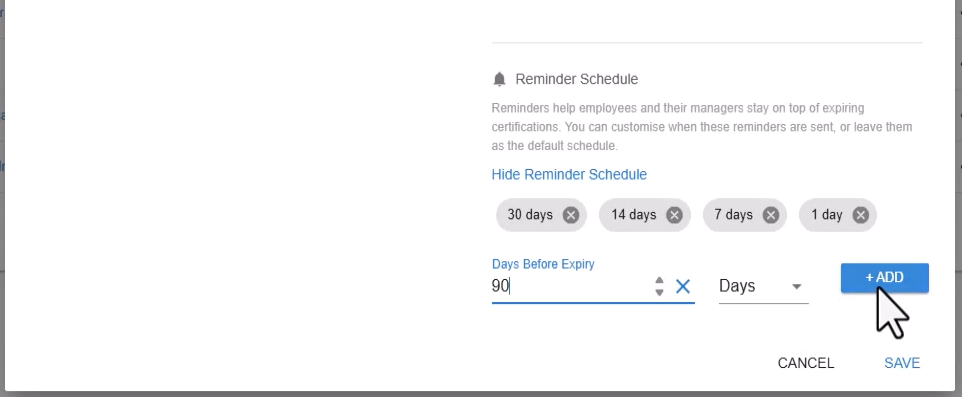
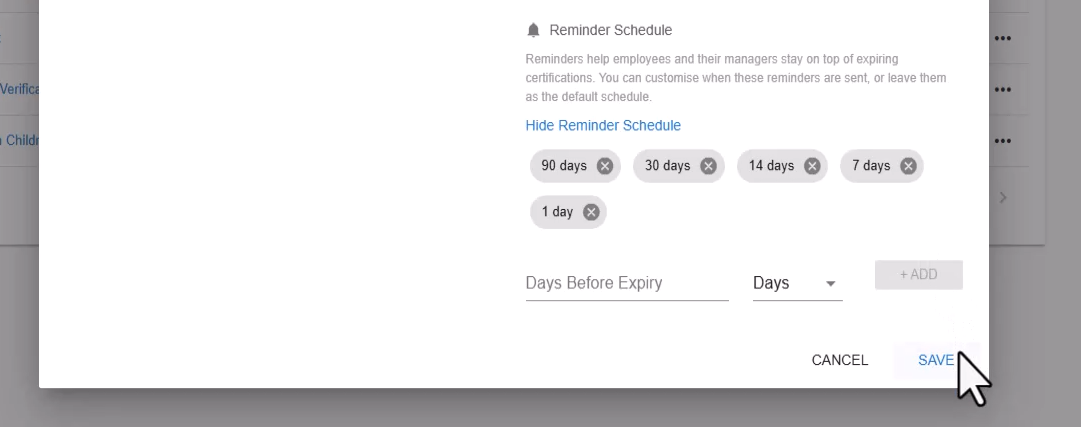
Click on Adjust Reminder Schedule to modify reminder timings.
4. Save Certification Details
After adjusting settings, click Add and then Save.
5. Delete Unnecessary Certifications
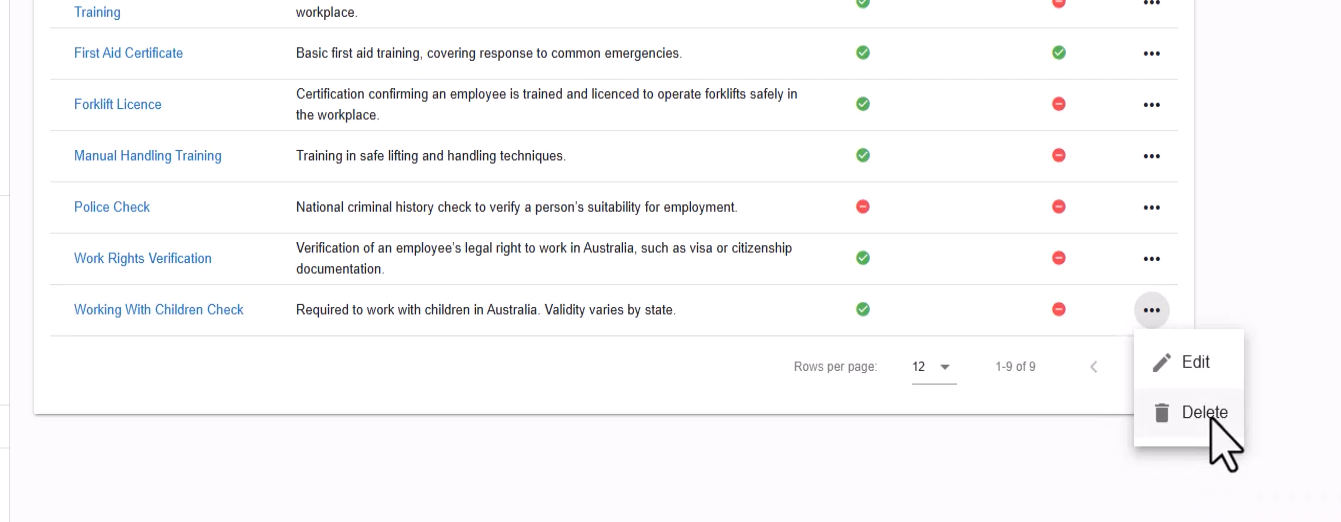
To remove irrelevant certifications, click on the three dots next to the certification and select Delete.
6. Add Certification for a Staff Member
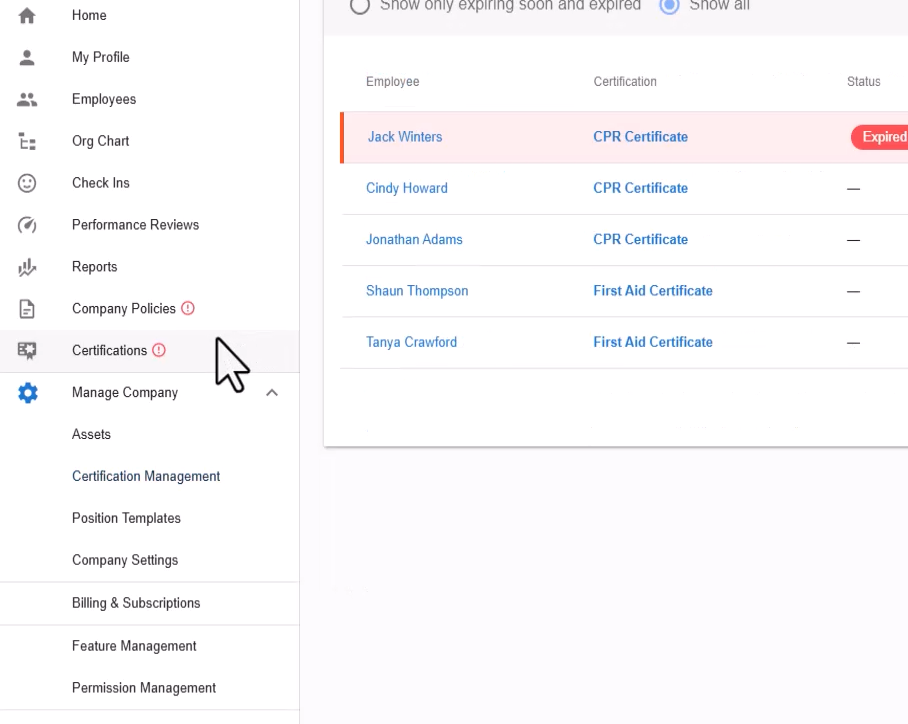
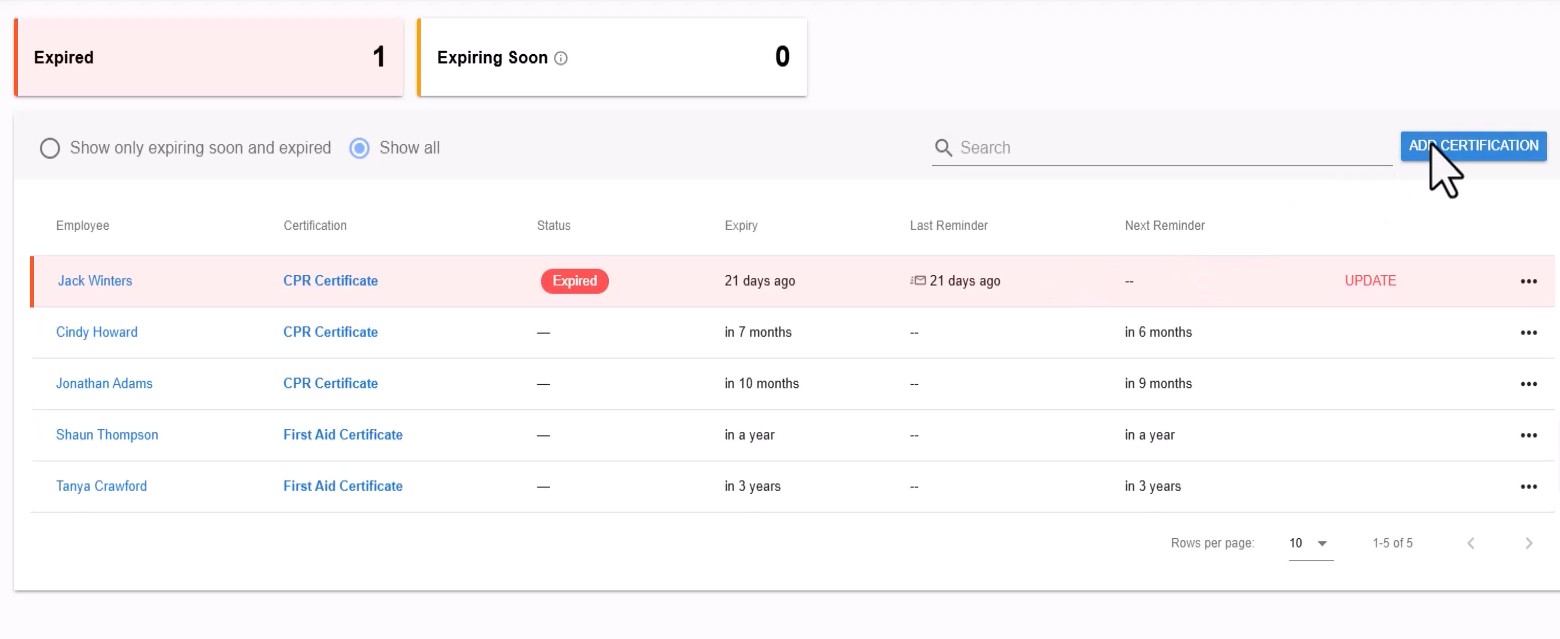
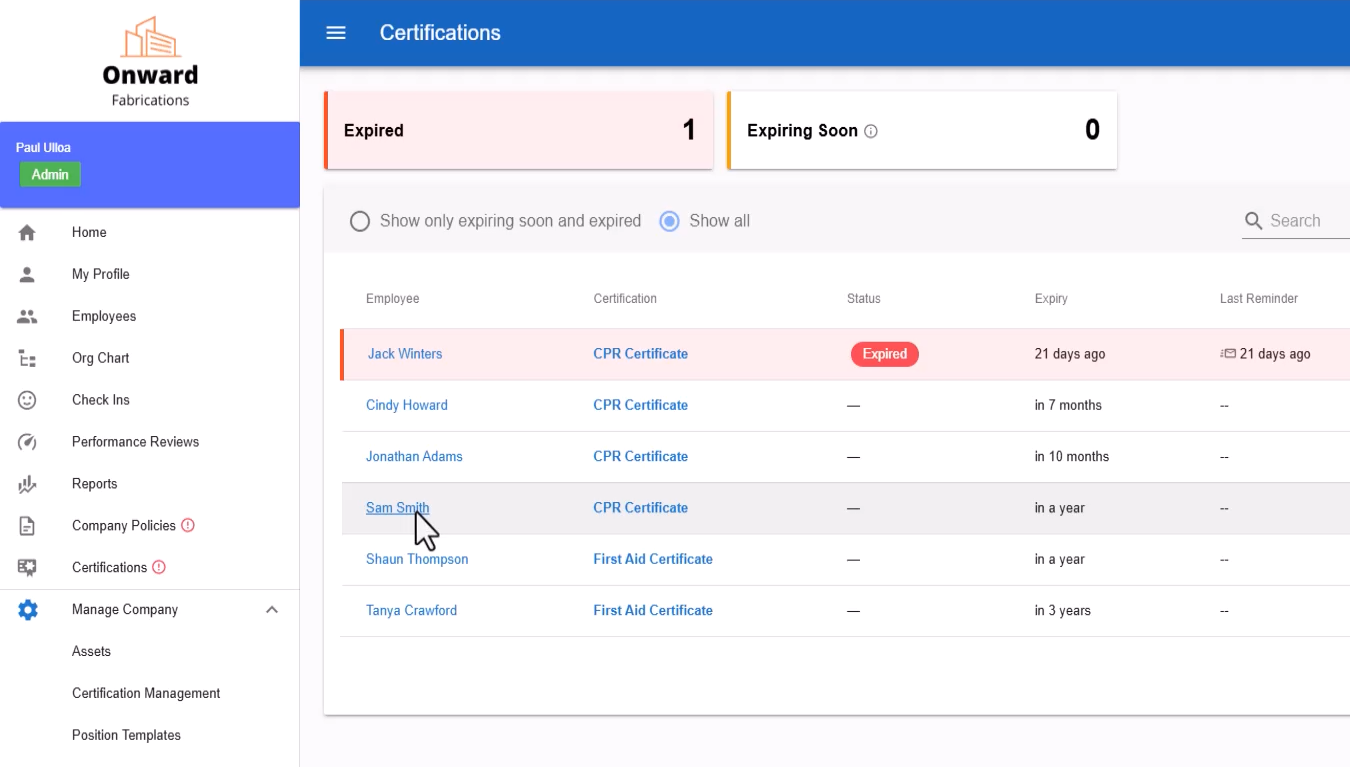
Click on Certifications to access the certifications page.
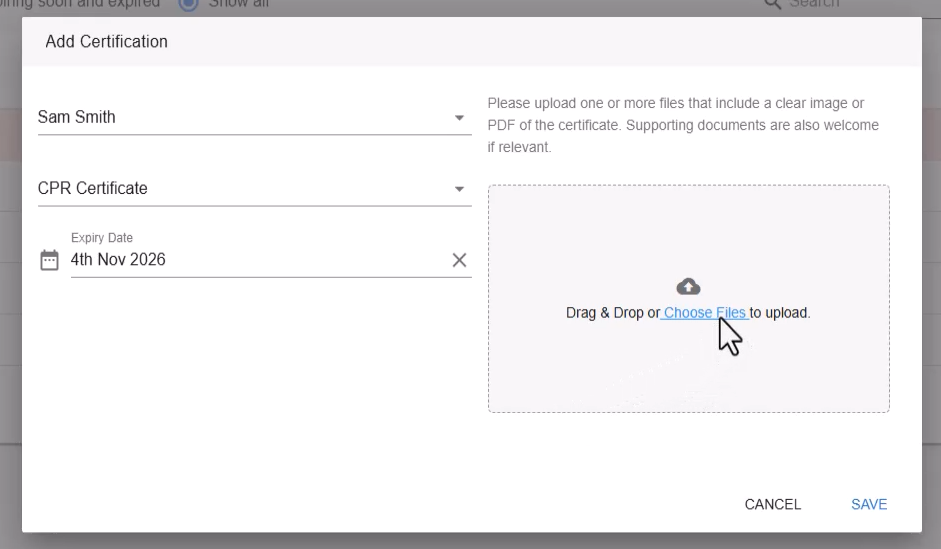
Click on Add Certification.
7. Select Staff Member and Certification
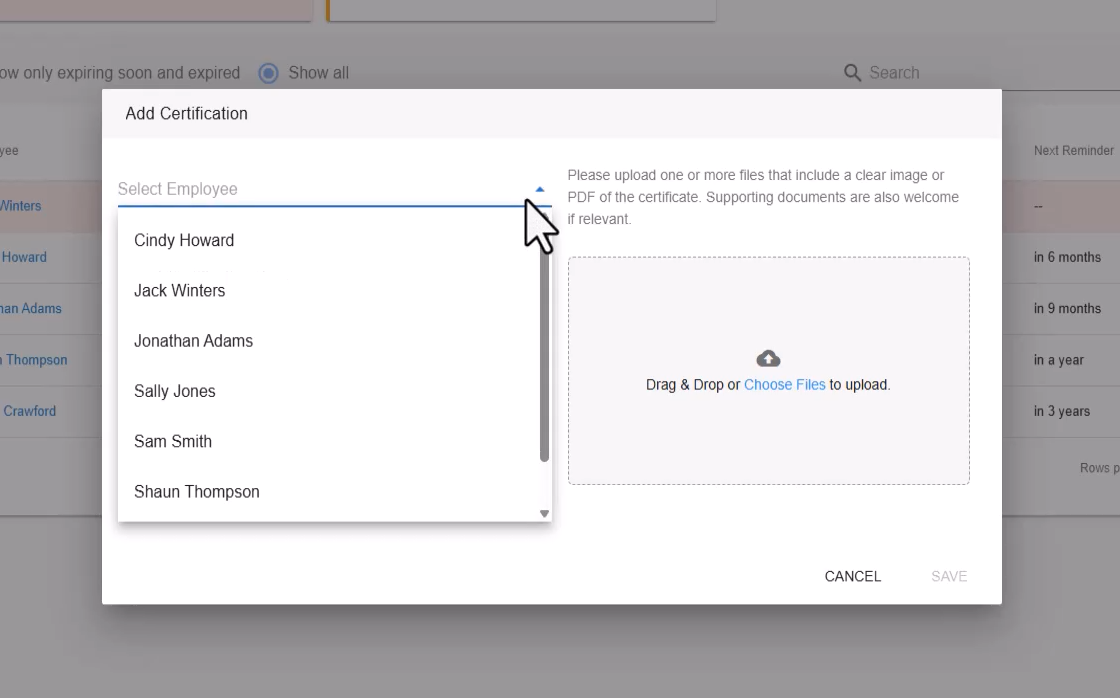
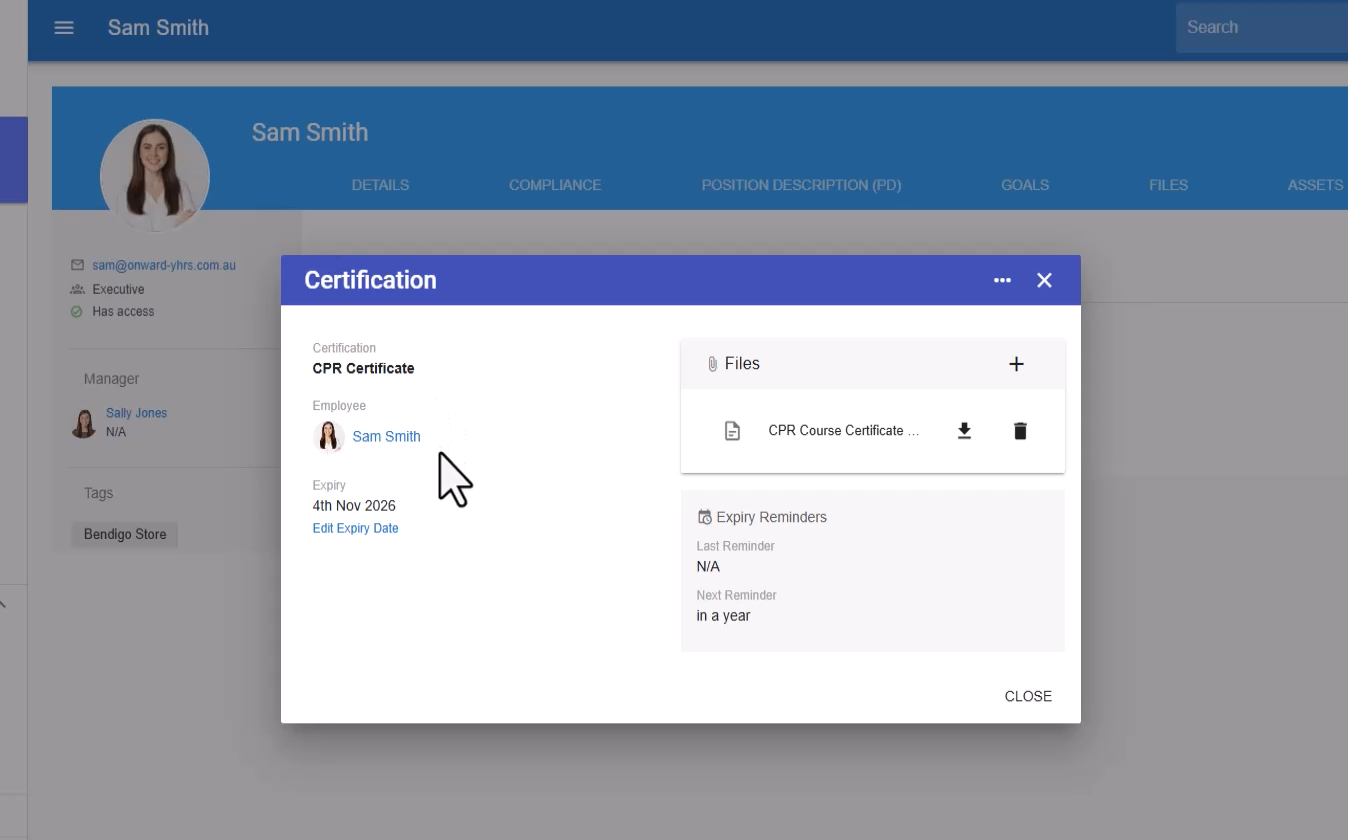
From the dropdown menu, select the staff member (e.g., Sam Smith).
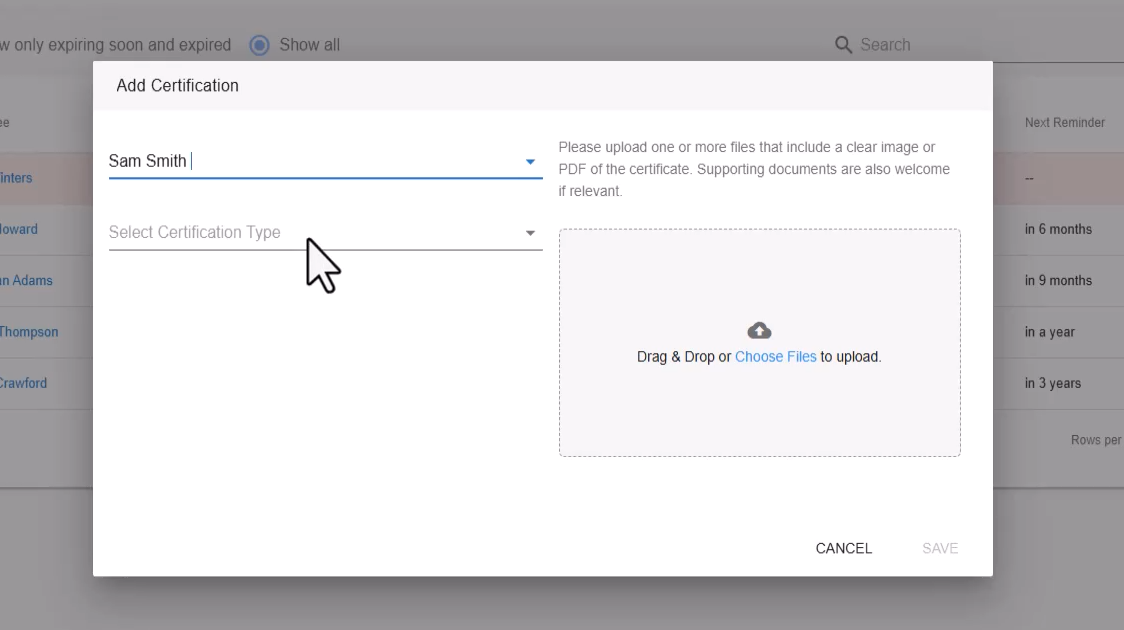
Choose the appropriate certification (e.g., CPR certification).
8. Set Expiry Date and Upload Documentation
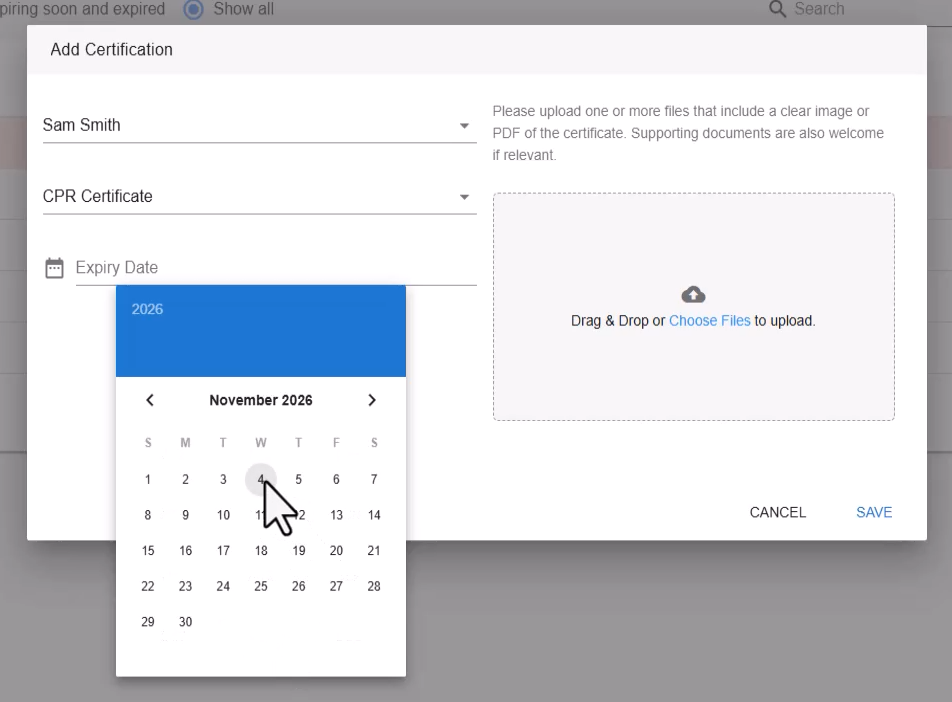
Click on the expiry date and select the renewal date from the calendar.
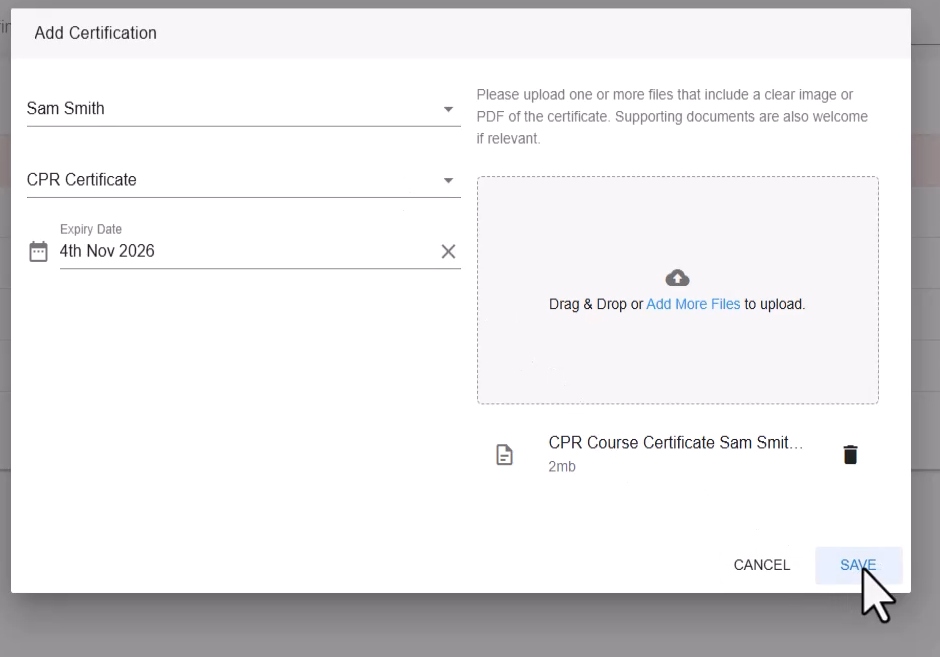
Upload any supporting documentation, such as the certification file.
9. Save and Close Certification Record
Click Save and then Close to finalize the certification record.
10. Review and Manage Certifications
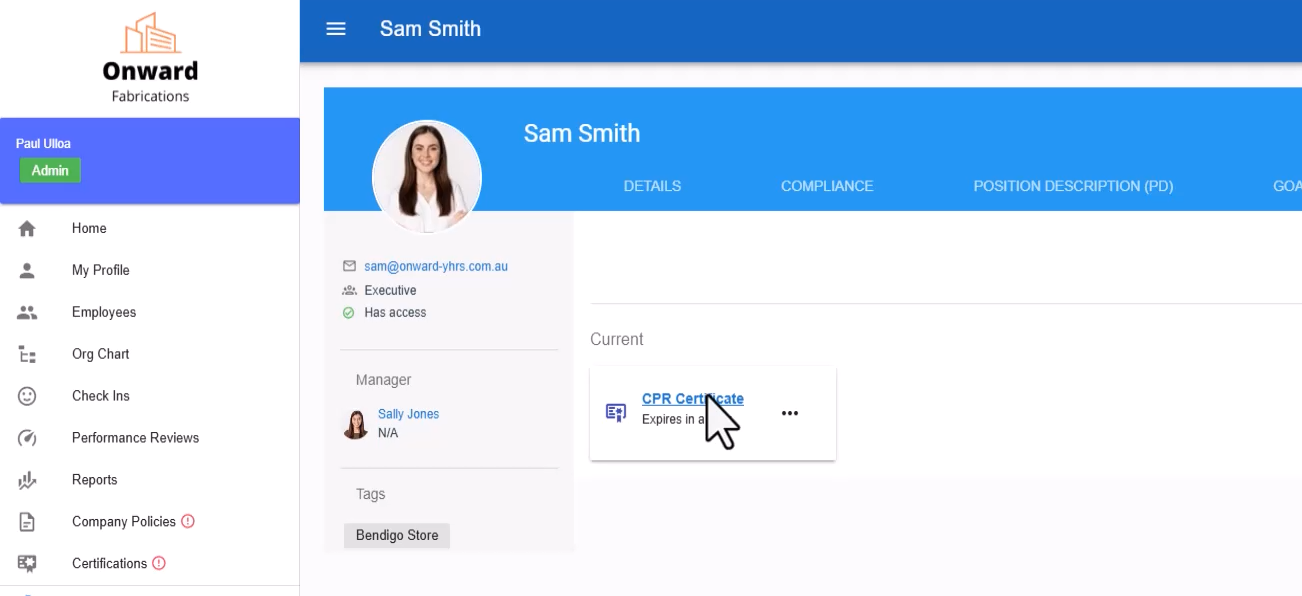
To review certifications, click on the staff member's name.
Navigate to the Certifications Tab to view and update certifications as needed.

Was this article helpful?
That’s Great!
Thank you for your feedback
Sorry! We couldn't be helpful
Thank you for your feedback
Feedback sent
We appreciate your effort and will try to fix the article